
URL de referencia
Updated septiembre 8, 2026
Frontend: Afiliado
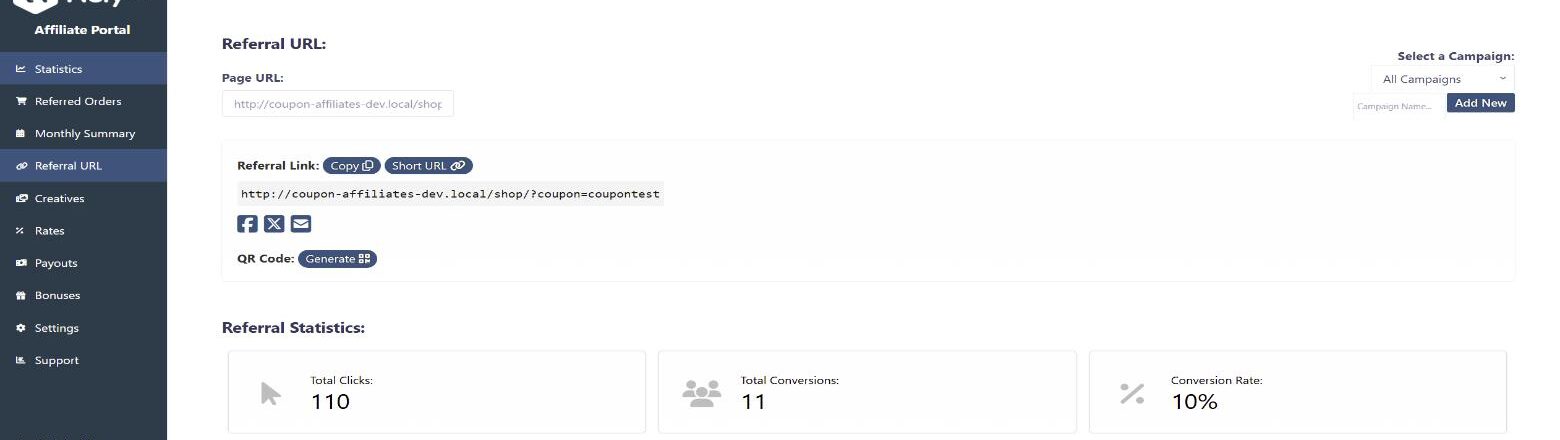
Permitir a los afiliados recibir una URL de referencia en su panel de control de afiliados de cupones, que aplica automáticamente el cupón en el pago.
También pueden ver el total de clics, el uso y la tasa de conversión de su URL de referencia en el panel de control.
En la versión PRO puedes dar a los usuarios acceso a URLs cortas, campañas, compartir en redes sociales y códigos QR.
How Referral URLs Work
Each affiliate coupon has its own referral URL, made up of your site URL plus a URL variable and the coupon code, for example https://yoursite.com/?coupon=CODE. The variable (“coupon” by default) can be changed in the “Referral Links” settings tab.
When someone visits a referral URL, a referral cookie is stored in their browser for the number of days set in the “Referral Cookie Settings”. While the cookie is active, the coupon is applied automatically at checkout if “Auto Apply Coupon” is enabled, and the visit is recorded as a click for that affiliate. When the visitor places an order, it is attributed to the affiliate and counts towards their conversion rate.
If a visitor follows more than one affiliate’s referral URL, the “Attribution Model” setting decides which affiliate is credited (last-click by default, or first-click). Cookies can also be removed once an order is placed, or disabled entirely in the “Privacy & Cookies” settings tab.
Backend: Admin Settings
All of the referral URL options are found in the “Referral Links” tab of the plugin settings. The tab is split into the following sections:
- Generación de URL de referencia y seguimiento de clics – The main toggle for the whole feature.
- Aplicar cupón automáticamente – Automatically apply the coupon to the cart/checkout if a referral URL was used, and optionally attempt to apply it instantly on the first page visited rather than waiting until the cart or checkout page. This setting is site-wide: it applies to every affiliate coupon, and there is no per-coupon option to switch auto-apply off for individual affiliates.
- “Referral URL” Tab – Enable the tab on the affiliate dashboard, and choose whether to show the “Referral Link” generator section and the “Referral Statistics” section. You can also add custom text to display at the top of the tab.
- Referral Link Format – Customise the referral URL variable (for example changing
Cupónto something else) and the format of the links your affiliates generate. - URL Conversion Tracking – Options for tracking referrals and conversions from the referral link. See Tracking conversions via referral URL without coupons.
- Referral Cookie Settings – How long the referral cookie lasts, and when it is removed.
- Click Attribution – Choose last-click or first-click attribution. See Modelo de atribución.
- Click / Visit History – Enable the click history log for affiliates, set how many clicks are shown per page, and enable pagination. See Referral URL Click History.
- Campañas de remisión (PRO) – Let affiliates create campaigns to track clicks and conversions separately. See Campañas.
- Generador de códigos QR (PRO) – Let affiliates generate a QR code for their referral URL. See QR Codes.
- Seguimiento de enlaces directos (PRO) – Track referrals from an affiliate’s own domain without a referral link. See Seguimiento de enlaces directos.
- Short URLs (PRO) – Give affiliates a shortened version of their referral link. See Short URLs.
- Social Sharing Buttons (PRO) – Show sharing buttons alongside the referral link. See Compartir en redes sociales.
- Creativos (PRO) – Display banners, videos, PDFs and colours for affiliates to download. See Creativos.
- Páginas de destino para afiliados (PRO) – Link a page to an affiliate coupon so it works like a referral URL. See Páginas de destino para afiliados y Páginas de destino dinámicas.
- Ventana emergente de remisión – Show a welcome popup to visitors who arrive via a referral link. See Referral Welcome Popup.
 English
  Spanish
  German
  French