
Referral URLs
Updated September 29, 2026
Frontend: Affiliate
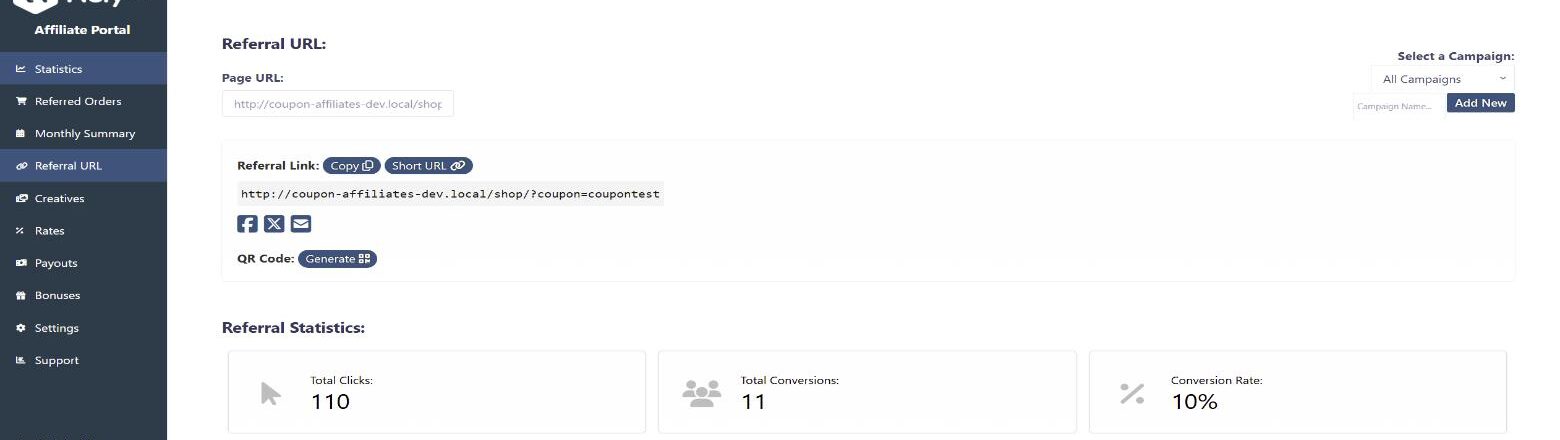
Allow Affiliates to receive a referral URL in their coupon affiliate dashboard, which automatically applies the coupon at checkout.
They can also view total clicks, usage, and conversion rate for their referral URL in the dashboard.
In the PRO version you can give users access to short URLs, campaigns, social sharing, and QR codes.
How Referral URLs Work
Each affiliate coupon has its own referral URL, made up of your site URL plus a URL variable and the coupon code, for example https://yoursite.com/?coupon=CODE. The variable ("coupon" by default) can be changed in the "Referral Links" settings tab.
When someone visits a referral URL, a referral cookie is stored in their browser for the number of days set in the "Referral Cookie Settings". While the cookie is active, the coupon is applied automatically at checkout if "Auto Apply Coupon" is enabled, and the visit is recorded as a click for that affiliate. When the visitor places an order, it is attributed to the affiliate and counts towards their conversion rate.
If a visitor follows more than one affiliate's referral URL, the "Attribution Model" setting decides which affiliate is credited (last-click by default, or first-click). Cookies can also be removed once an order is placed, or disabled entirely in the "Privacy & Cookies" settings tab.
Backend: Admin Settings
All of the referral URL options are found in the "Referral Links" tab of the plugin settings. The tab is split into the following sections:
- Enable Referral URL Generation & Click Tracking – The main toggle for the whole feature.
- Auto Apply Coupon – Automatically apply the coupon to the cart/checkout if a referral URL was used, and optionally attempt to apply it instantly on the first page visited rather than waiting until the cart or checkout page. This setting is site-wide: it applies to every affiliate coupon, and there is no per-coupon option to switch auto-apply off for individual affiliates.
- "Referral URL" Tab – Enable the tab on the affiliate dashboard, and choose whether to show the "Referral Link" generator section and the "Referral Statistics" section. You can also add custom text to display at the top of the tab.
- Referral Link Format – Customise the referral URL variable (for example changing
?coupon=to something else) and the "Default Referral URL Page" that links point at when the affiliate hasn't entered one of their own. See below. - URL Conversion Tracking – Options for tracking referrals and conversions from the referral link. See Tracking conversions via referral URL without coupons.
- Referral Cookie Settings – How long the referral cookie lasts, and when it is removed.
- Click Attribution – Choose last-click or first-click attribution. See Attribution Model.
- Click / Visit History – Enable the click history log for affiliates, set how many clicks are shown per page, and enable pagination. See Referral URL Click History.
- Referral Campaigns (PRO) – Let affiliates create campaigns to track clicks and conversions separately. See Campaigns.
- QR Code Generator (PRO) – Let affiliates generate a QR code for their referral URL. See QR Codes.
- Direct Link Tracking (PRO) – Track referrals from an affiliate's own domain without a referral link. See Direct Link Tracking.
- Short URLs (PRO) – Give affiliates a shortened version of their referral link. See Short URLs.
- Social Sharing Buttons (PRO) – Show sharing buttons alongside the referral link. See Social Sharing.
- Creatives (PRO) – Display banners, videos, PDFs and colours for affiliates to download. See Creatives.
- Affiliate Landing Pages (PRO) – Link a page to an affiliate coupon so it works like a referral URL. See Affiliate Landing Pages and Dynamic Landing Pages.
- Referral Popup (PRO) – Show a welcome popup to visitors who arrive via a referral link. See Referral Welcome Popup.
Default Referral URL Page
The "Default Referral URL Page" setting, found under "Referral Link Format", is the page an affiliate's referral link points at when they haven't generated a link for a page of their own. It is set to your home page by default, but can be any page on your website.
It needs to be a page on this website. If you enter a URL on another domain, the settings field will refuse it with "The URL must be on this website only."
If a URL on another domain does end up saved – most commonly one left behind after a site migration – the plugin corrects it back to your WordPress domain automatically, keeping the page path. This stops every affiliate link pointing at a domain your shop no longer owns.
Serving your shop from a different domain
If you deliberately serve your shop from a different domain to the WordPress install – a separate front end or a headless setup, for example – that correction will keep undoing your setting. Use the "wcusage_default_ref_url" filter instead of the setting. See Developers: Code Snippets & Resources.