
(PRO) Paiements - Comment payer les affiliés
Updated septembre 21, 2026
Pour payer vos affiliés, vous devez tout d'abord activer et configurer vos méthodes de paiement préférées dans la section "paiements" des paramètres du plugin.
Une fois qu'ils sont configurés, vos affiliés peuvent choisir entre ces méthodes de paiement dans l'onglet "Paramètres" de leur tableau de bord d'affilié et saisir leurs coordonnées de paiement (ou connecter le compte de paiement).
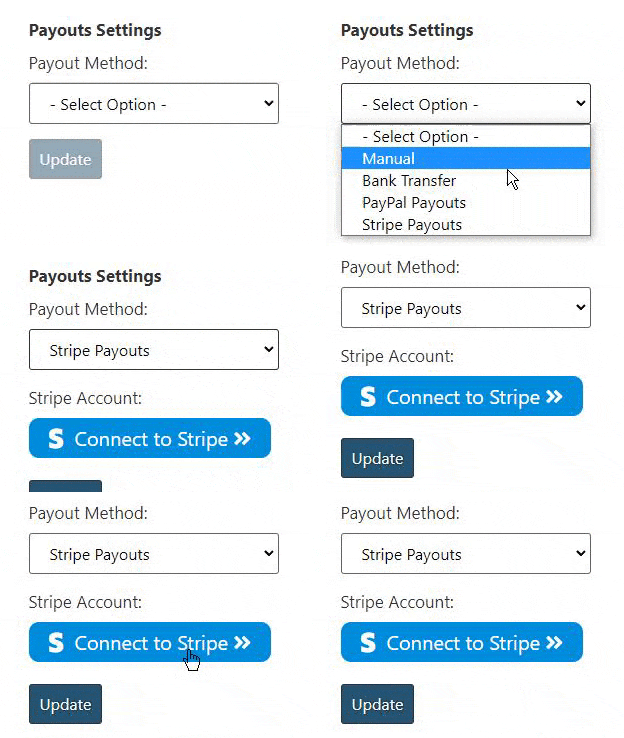
Lorsqu'ils demandent le paiement de leur commission, vous en êtes informé par e-mail et vous pouvez gérer les paiements en un seul clic via le tableau de bord de l'administrateur.
Les options de paiement disponibles sont les suivantes :
- 2 x méthodes de paiement "manuelles" personnalisées
- Virements bancaires semi-automatiques avec Wise
- Paiements de crédits de magasin
If needed, there is an option to set the “default payout method” that is selected for all affiliates automatically.
Payment Methods section
Each payout method under “Payout Payment Methods” in the “Payouts” settings tab is shown as its own collapsible section. They are closed by default, with only the enable toggle, the method name and a “Show Settings” button visible, so you aren’t scrolling through the settings of every method to reach the one you want.
Enabling a method opens its settings automatically. You can then open and close any enabled method yourself using the “Show Settings” / “Hide Settings” button.
Methods that are switched off are greyed out and cannot be opened. Switch the method on first if you need to configure it.
Processing Commission
“Processing Commission” allows affiliates to track commission from orders that are not yet completed, but are still displayed on the dashboard (for example, orders that are still “processing” or “on-hold”).
This is useful for showing withheld commission. Once the order is completed, it is converted into “unpaid commission”, which the affiliate can then request a payout for.
To enable this, go to the “Payouts” tab in the plugin settings, scroll down to the “Processing Commission” section, and toggle on “Enable Processing Commission tracking”.
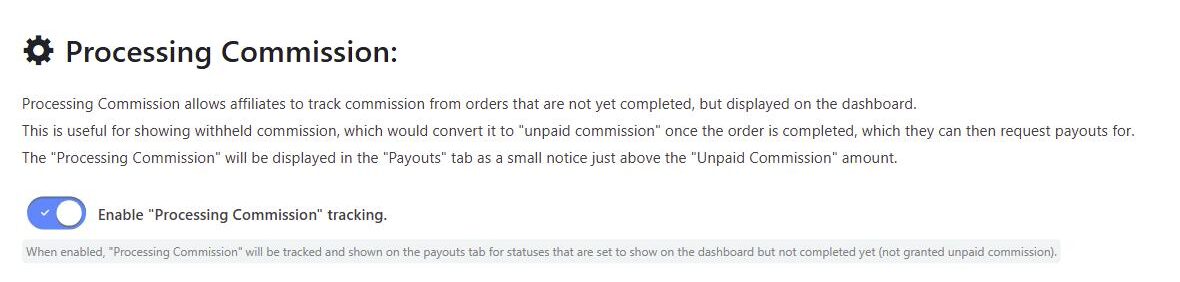
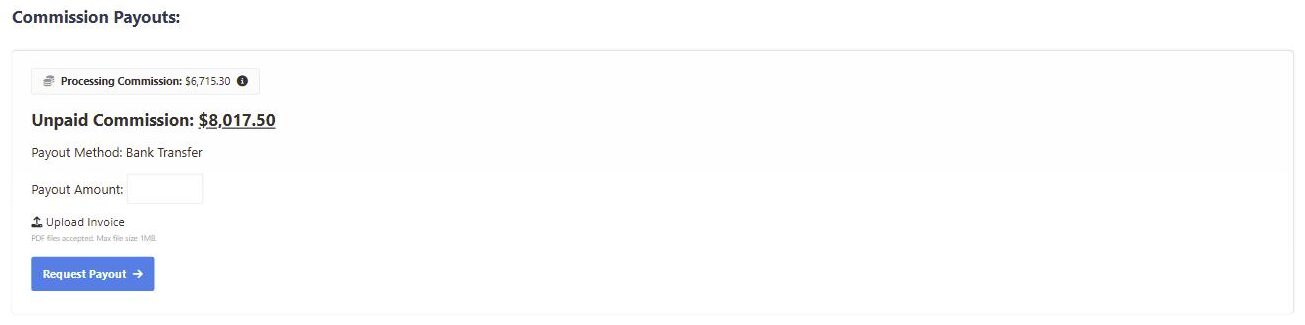
When enabled, the processing commission is displayed in the “Payouts” tab of the affiliate dashboard as a small notice just above the “Unpaid Commission” amount, so affiliates can see commission that is on its way but not yet available to request as a payout. Hovering the info icon explains that the amount may change, and that it will become unpaid commission once the order status is updated to completed.
Processing commission is only tracked for order statuses that are set to show on the affiliate dashboard but have not yet reached the status that grants unpaid commission (“Completed” by default). See Sélectionner les statuts de commande à afficher sur le tableau de bord de l'affilié.
Bulk Payouts
From the Payouts admin page, open Bulk Pay to review all pending payout requests and pay them in one click across every payout method. Progress is shown as each payout is processed, along with any failures.
Export Payouts
The Export Payouts option lets you filter payouts by status, payment method, and date range. You can optionally include payment details, and export as a CSV file or a landscape PDF.
 English
  Spanish
  German
  French