
AI & MCP
Updated September 30, 2026
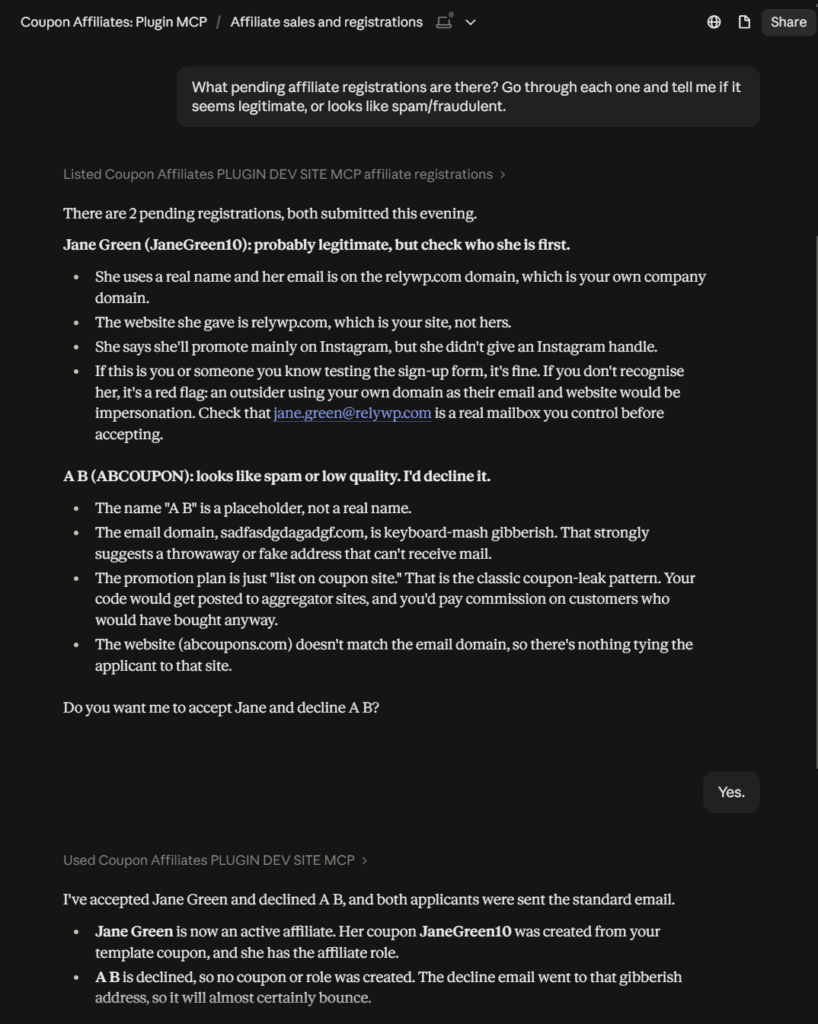
You connect AI apps such as Claude, ChatGPT and Cursor to your affiliate program, and ask them about your affiliates, coupons, commission, registrations and payouts in plain English. The AI app runs the right actions against your store and answers from the real figures.
It is built on the WordPress Abilities API, and works over MCP (Model Context Protocol), the standard most AI apps use to talk to other software. Coupon Affiliates registers a set of “abilities” with WordPress, each with a description the AI app can read, and those abilities are what the AI app sees as its tools. Other plugins on your site, such as a store assistant, can also use the abilities directly without MCP.
Requirements
- WordPress 6.9 or later. The Abilities API is part of WordPress from 6.9. On older versions, the AI & MCP tab says so and cannot be switched on.
- Free and PRO. AI & MCP and 19 of the abilities are included in the free version. The 4 payout abilities need PRO, and show as locked in the free version.
- To connect over MCP, your site also needs an MCP Adapter: either the free WordPress MCP Adapter plugin, or WooCommerce’s own “WooCommerce MCP” feature switched on (it includes the adapter).
- Application passwords. AI apps sign in as a WordPress user with an application password. WordPress only offers these over HTTPS, and a plugin or setting can turn them off.
Switching it on
Go to Coupon Affiliates > API, Webhooks & AI and open the AI & MCP tab. AI & MCP is off until you click Enable AI abilities there. Clicking Disable AI abilities later removes access straight away for any AI app or plugin using them.
AI & MCP is independent of the REST API: the abilities work whether or not the REST API is enabled on the REST API tab. See API & Webhooks for the REST API itself.
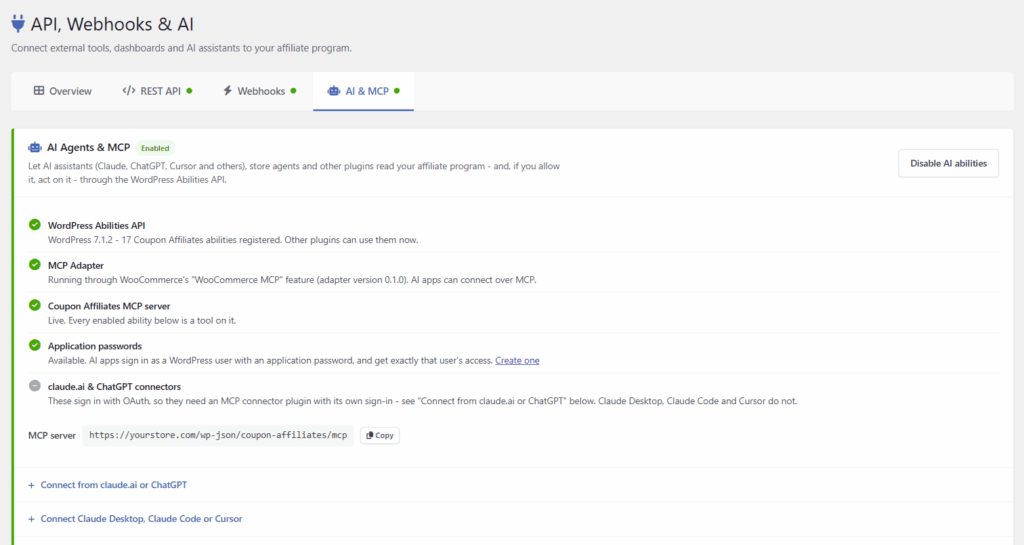
At the top of the tab, a checklist shows whether everything needed is in place, with a link to set up anything that is missing:
- WordPress Abilities API – whether your WordPress version supports it, and how many Coupon Affiliates abilities are registered.
- MCP Adapter – whether an adapter is running, and where from (the plugin, WooCommerce MCP, or another plugin).
- Coupon Affiliates MCP server – live once AI abilities are enabled, at least one ability is switched on, and an MCP Adapter is running.
- Application passwords – whether they are available on your site.
- claude.ai & ChatGPT connectors – whether an MCP connector plugin with its own sign-in is active (see below).
If your store is already set up for AI apps (the MCP Adapter plugin is active, or WooCommerce MCP is switched on), a notice on the Coupon Affiliates admin pages offers to enable the AI tools. It stops showing once a choice has been made on the AI & MCP tab, and each admin can dismiss it for good with “No thanks”.
Permissions: read-only unless you say otherwise
Once AI abilities are enabled, AI apps can only read, and only admins can connect. Two options open it up further:
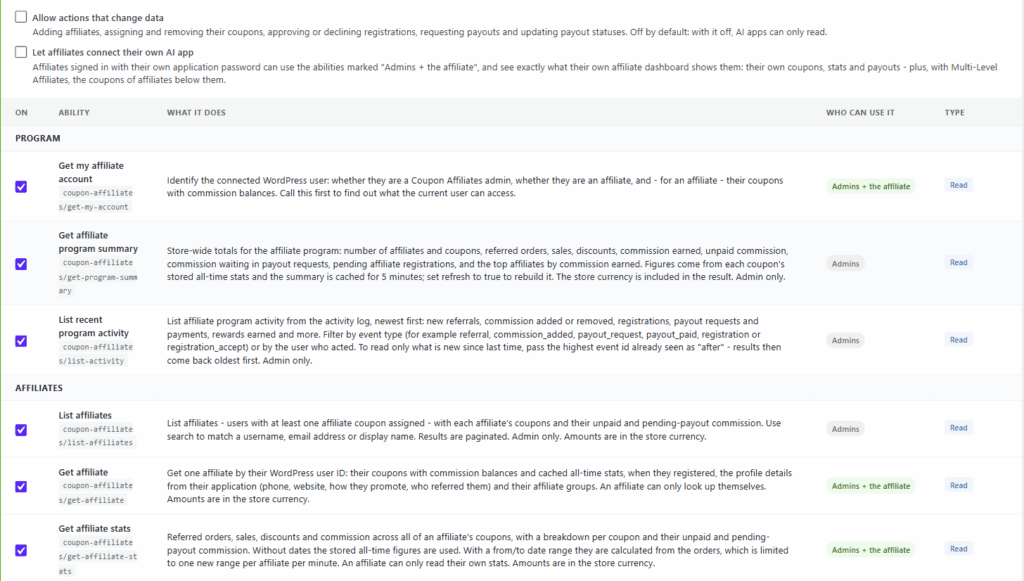
- Allow actions that change data – lets AI apps add affiliates, assign and remove their coupons, and approve or decline registrations. With PRO, it also covers requesting payouts and updating payout statuses. Off by default.
- Let affiliates connect their own AI app – an affiliate who signs in with their own application password can use the abilities marked “Admins + the affiliate”, and sees exactly what their own affiliate dashboard shows them: their own coupons, stats and payouts, plus the coupons of affiliates below them if you use Multi-Level Affiliates. Off by default.
Below those, every ability is listed with what it does, who can use it and whether it reads or writes, and each one has its own switch. Use “Enable all” or “Disable all” to change them in one go, then click Save AI settings. Abilities that change data stay unavailable until “Allow actions that change data” is ticked.
Every ability checks the connected user’s permissions on each call, exactly like the REST API, so an AI app can never see more than the WordPress user it signs in as. The abilities that change data also tell the AI app to confirm with you before running them.
The two payout actions are marked “High impact”. Updating a payout’s status is bookkeeping only and sends no money, but requesting a payout follows the same rules as the affiliate’s own “Request Payout” button, so if your store pays out automatically, that request can send money through PayPal, Stripe or Wise straight away.
AI apps do get things wrong from time to time, so we recommend starting read-only, and only allowing changes once you are comfortable with how it behaves.
Available abilities
There are 19 abilities in the free version, plus 4 for payouts in PRO. “Write” abilities need “Allow actions that change data”. “Admins + the affiliate” abilities are available to affiliates only when “Let affiliates connect their own AI app” is on, and only for their own data.
| Ability | Who can use it | Type |
|---|---|---|
| Program | ||
| Get my affiliate account | Admins + the affiliate | Read |
| Get affiliate program summary | Admins | Read |
| List recent program activity | Admins | Read |
| Affiliates | ||
| List affiliates | Admins | Read |
| Get affiliate | Admins + the affiliate | Read |
| Get affiliate stats | Admins + the affiliate | Read |
| Create an affiliate | Admins | Write |
| Assign a coupon to an affiliate | Admins | Write |
| Remove a coupon from its affiliate | Admins | Write |
| Coupons & referrals | ||
| List affiliate coupons | Admins | Read |
| Get affiliate coupon | Admins + the affiliate | Read |
| Get coupon stats | Admins + the affiliate | Read |
| List coupon orders | Admins + the affiliate | Read |
| Get referral click stats | Admins + the affiliate | Read |
| Get a referral link | Admins + the affiliate | Read |
| Get an order’s referral | Admins | Read |
| Registrations | ||
| List affiliate registrations | Admins | Read |
| Get affiliate registration | Admins | Read |
| Approve or decline a registration | Admins | Write |
| Payouts (PRO) | ||
| List payouts | Admins + the affiliate | Read |
| Get payout | Admins + the affiliate | Read |
| Request a payout | Admins + the affiliate | Write (High impact) |
| Update payout status | Admins | Write (High impact) |
Customer details are left out of order results, and payment destination details are never included in anything to do with payouts.
Connecting Claude Desktop, Claude Code or Cursor
With an MCP Adapter running and AI abilities enabled, a dedicated “Coupon Affiliates” MCP server is available on your site at:
https://yoursite.com/wp-json/coupon-affiliates/mcp
Every ability you have switched on is a tool on it. The abilities are also offered through the MCP Adapter’s own default server. The exact server URL for your site is shown on the AI & MCP tab once the server is live.
- Install and activate the WordPress MCP Adapter plugin, or switch on WooCommerce’s “WooCommerce MCP” feature (under WooCommerce > Settings > Advanced > Features). If an adapter is already running, the tab says there is nothing to install.
- Create an application password for the user the AI app should act as, under Users > Profile > Application Passwords. Use an administrator for the whole program, or (with “Let affiliates connect their own AI app” switched on) an affiliate’s own account for just their data.
- Copy the configuration shown on the tab into your AI app’s MCP settings, with the application password in place of “your-application-password”. For Claude Desktop, that is the
claude_desktop_config.jsonfile.
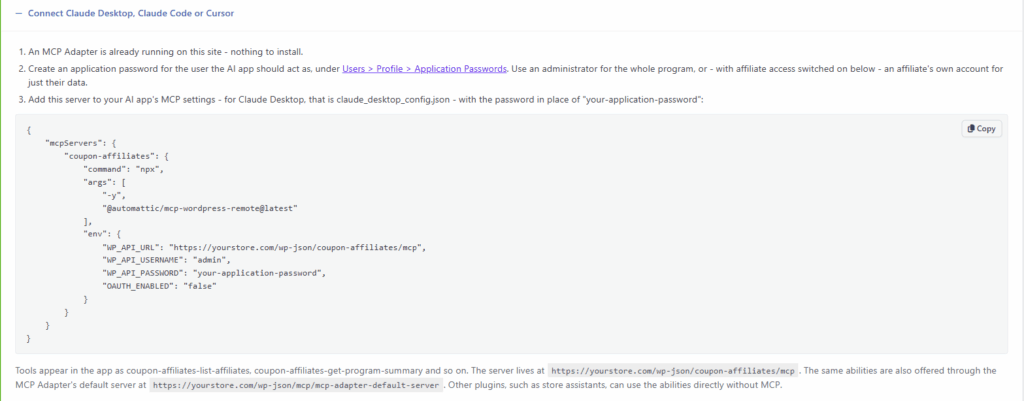
The configuration looks like this, with your own site URL and username filled in:
{
    "mcpServers": {
        "coupon-affiliates": {
            "command": "npx",
            "args": ["-y", "@automattic/mcp-wordpress-remote@latest"],
            "env": {
                "WP_API_URL": "https://yoursite.com/wp-json/coupon-affiliates/mcp",
                "WP_API_USERNAME": "your-username",
                "WP_API_PASSWORD": "your-application-password",
                "OAUTH_ENABLED": "false"
            }
        }
    }
}
It runs Automattic’s @automattic/mcp-wordpress-remote package through npx, so Node.js needs to be installed on the computer running the AI app.
The tools then appear in the AI app as coupon-affiliates-list-affiliates, coupon-affiliates-get-program-summary and so on. AI apps load their tools when a chat starts, so start a new chat after changing any settings.
Affiliates connecting their own AI app: affiliates usually cannot reach wp-admin, so they will not be able to create an application password themselves. You can create one for them by editing their user under Users and using the Application Passwords section there, then passing it on to the affiliate.
Connecting claude.ai or ChatGPT
claude.ai, ChatGPT and Claude Desktop’s “Add custom connector” reach your site from the AI company’s servers and sign in with OAuth. The MCP Adapter and WooCommerce MCP do not provide OAuth, so pointing these at the Coupon Affiliates MCP server fails at the sign-in step. Instead, use an MCP connector plugin that has its own sign-in and includes other plugins’ abilities. The AI & MCP tab suggests a few free ones from WordPress.org:
- Easy MCP AI – tick the Coupon Affiliates abilities under its “Abilities” screen, including any you allow later, such as actions that change data.
- Royal MCP – includes every ability registered on the site automatically.
- Enable Abilities for MCP – works on top of the MCP Adapter plugin, and lists Coupon Affiliates under its “Third-party” abilities.
- Keep AI abilities enabled on the AI & MCP tab. A connector plugin can only offer the abilities that are switched on there.
- Install one of these plugins, then add the MCP server URL shown in its settings as a custom connector in claude.ai or ChatGPT, and sign in to WordPress when asked.
- The Coupon Affiliates tools appear alongside the plugin’s own. Actions that change data only appear if you allow them on the AI & MCP tab (and, with a plugin that lists abilities one by one, tick them there too). Start a new chat after any change.
Your site has to be reachable from the internet for these connectors to reach it. The tab shows when one of these plugins is already active. With Easy MCP AI, it also warns you when some of the Coupon Affiliates abilities are not ticked on Easy MCP AI’s own Abilities screen, which tends to happen with the actions that change data once you allow them.
Recent AI activity
At the bottom of the tab, “Recent AI activity” lists the last 30 calls, newest first: when it happened, which ability was used (and on which item), which user it ran as, how it connected (MCP, REST API, WP-CLI or Plugin), and whether it worked, with the error message if it failed. Calls refused by the permission checks or by the rate limit are not listed. Use “Clear activity” to empty the list.
Only the ability, user, connection type, item ID and result are kept, not the rest of what was sent.
Rate limits
Each user can make up to 120 reads and 20 changes per minute through the abilities. Beyond that, calls fail with a “Too many requests” error until the minute is up. Developers can change the limits with the wcusage_abilities_rate_limit filter. See Developers: Code Snippets & Resources for this and the other AI & MCP filters.