
(PRO) Lifetime Commission
Updated September 30, 2026
With lifetime commission enabled, once someone uses the affiliate’s coupon code, that customer will be linked to the affiliate, and all future purchases from that customer will count as a referral, even if they do not re-use the coupon code.
Even if the coupon code is not used, the commission and sales will still be tracked on the coupon’s affiliate dashboard. All future orders by that customer, even with different coupon codes, will only apply to the original coupon affiliate. Editing or removing a lifetime link only affects future orders. Commission already granted on past orders is not changed.
You can set lifetime commission globally for all affiliate coupons, or individually on a per-coupon basis.
You can also enable an option to track user registrations as a lifetime referral. With this enabled, if someone follows a referral link and registers (creates an account), they are linked to that affiliate even without placing an order. See User Registrations as Lifetime Referral.

Expiry period
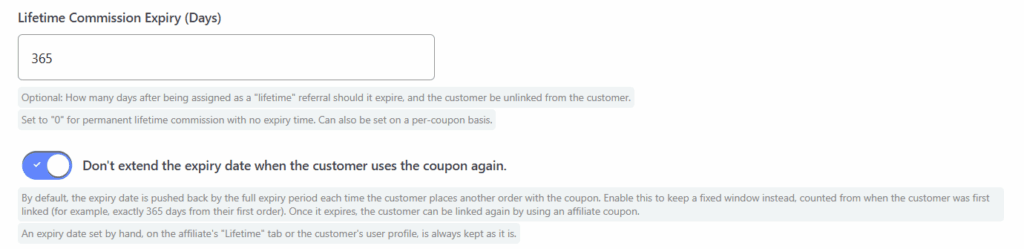
There is an option to set an expiry period (in days) under Settings → Commission, which can also be set on a per-coupon basis. If you set this, the customer stays linked to the affiliate for that many days, after which the affiliate and customer are unlinked. Leave the expiry at 0 for no expiry.
By default, each time the customer places another order with the affiliate’s coupon, the expiry date is pushed back by the full expiry period. A customer who keeps using the coupon can therefore stay linked indefinitely.
To keep a fixed window instead, enable “Don’t extend the expiry date when the customer uses the coupon again.” (from version 8.6.0), just below the expiry period setting. The link then lasts for a fixed time from when the customer was first linked (for example, exactly 365 days from their first order), however many times they use the coupon in between. Once it expires, the customer can be linked again by using an affiliate coupon.
Expiry dates set by hand
An expiry date you set by hand, on the affiliate’s Lifetime tab or on the customer’s user profile, is kept as it is when the customer uses the coupon again, whichever of the options above you use. (Before version 8.6.0, it was replaced with a new date from the expiry period.)
Only a date you actually change counts as set by hand. Editing just the linked coupon on the Lifetime tab, or saving the customer’s profile without changing the date, leaves the date following the expiry period.
An expiry date only applies when an expiry period is set (globally or on the coupon), or when the date was set by hand. Any other date, such as one left behind after the expiry period was set back to 0, is ignored, and the link shows as “Never Expires” on the Lifetime tab.
Which customers get linked?
A link is created when a customer with a user account places an order after lifetime commission has been enabled, or when they register via a referral link if “Track user registrations as a lifetime referral” is switched on.
It is worth knowing what is not linked automatically:
- Orders placed before the feature was enabled are not scanned retrospectively, so existing customers are not back-filled.
- Guest checkouts cannot be linked, because the link is stored against a WordPress user account.
- Customer to affiliate assignments from other affiliate plugins (for example AffiliateWP) are not imported.
To link those customers, use Link a Customer on the affiliate’s Lifetime tab, or set the referrer on the customer’s user profile, as described below.
Lifetime tab (View Affiliate)
The Lifetime tab (Lifetime Customers) is available from version 8.2.0 on each affiliate’s View Affiliate page. It is shown when the PRO licence is active on the site and “Enable lifetime commission features” is switched on under Coupon Affiliates → Settings → Commission. If that toggle is off, the tab is hidden and no customers are linked, even if lifetime commission is ticked on individual coupons. On a multisite, the licence must be activated on the site you are viewing.
This is the quickest way to see and manage who is linked to that affiliate.
The tab lists every linked customer, with columns for Customer, Linked Coupon, Expiry Date, and Status (Active, Expired, or Never Expires). You can edit the linked coupon and expiry date on an existing row.
To assign a lifetime referrer by hand, without waiting for an order:
- Go to Coupon Affiliates → Affiliate Users and open the affiliate.
- Open the Lifetime tab.
- Click Link a Customer.
- Search for the customer by name, username or email.
- Choose which of the affiliate’s coupons to link.
- Optionally set an expiry date. Leave blank for no expiry.
- Click Link Customer.
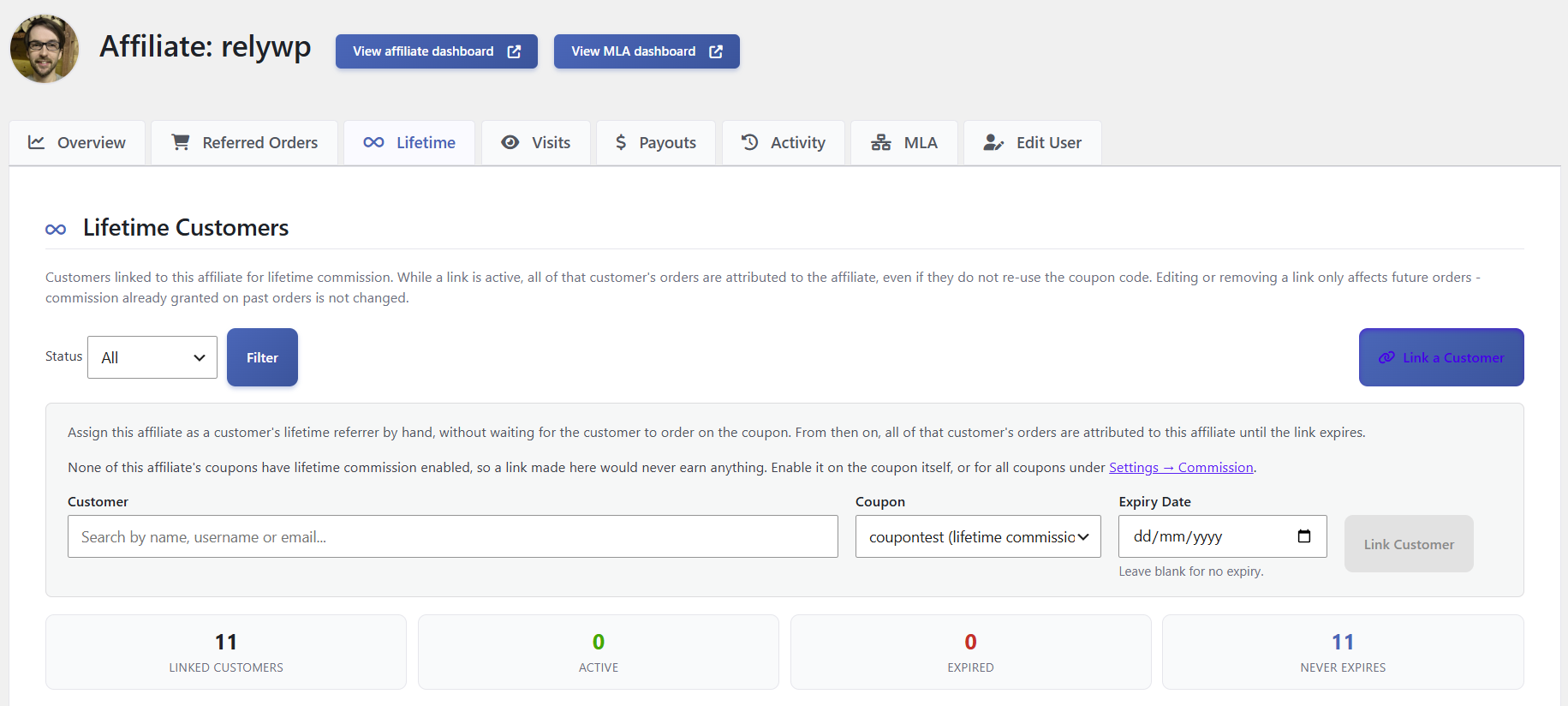
If none of the affiliate’s coupons have lifetime commission enabled, you will see a notice that a link made here would never earn anything. Enable it on the coupon itself, or for all coupons under Settings → Commission.
For the full walkthrough, see How do I manually connect an affiliate to an existing customer as a lifetime affiliate?
From the customer’s WordPress user profile
You can also assign a lifetime affiliation by editing the customer in Users, then opening the Coupon Affiliates – Lifetime Affiliate Settings section. Set the lifetime affiliate referrer coupon and an optional expire date, then save. This section is only shown to administrators, and the fields are only saved by users who can edit other users.

Under what conditions is a user assigned lifetime affiliation?
A lifetime affiliation is set in these cases:
- If lifetime commission is enabled, when a customer places an order it checks whether they already have a lifetime affiliate. If not, it checks for a referral coupon. If that order has a referrer, it sets the lifetime affiliation to that coupon, unless the customer is already assigned to one that has not expired.
- If Track user registrations as a lifetime referral is enabled, clicking a referral link and then registering an account sets that referrer’s coupon as the lifetime affiliation, even without an order.
- From the affiliate’s Lifetime tab, using Link a Customer.
- By editing the customer in the admin area and setting the Lifetime Affiliate Referrer (Coupon Code) field.