
When a WooCommerce coupon won’t apply, the message under the coupon field nearly always tells you why. Most failures come from a rule on the coupon itself: the expiry date, a usage limit, a minimum spend, a product or sale item restriction, or an email restriction. Find your exact message in the table below, change the matching setting, and test again. If there’s no message at all, or no coupon field, the cause is usually a store setting, your theme or another plugin.
Disclosure: we make Coupon Affiliates and Better Coupon Restrictions (both are RelyWP plugins), and both come up further down. Everything else in this guide uses WooCommerce’s own settings, and we tested each message on a store running WooCommerce 11.1 in October 2026.
Jump to a section:
- Match the error message to the cause
- Three quick checks first
- The coupon has expired
- The usage limit has been reached
- Minimum and maximum spend
- Sale items
- Product, category and brand restrictions
- Allowed emails
- Individual use only and using two coupons
- A free shipping coupon still charges shipping
- The coupon field is missing
- Caching and plugin conflicts
- Affiliate and influencer coupons
- Coupons that should apply from a link
- Frequently asked questions
Match the error message to the cause
These are WooCommerce’s default messages. A translation or a plugin can change the wording, but the meaning stays the same. “X” stands for the code the customer typed.
| Message | What it means | Where to fix it |
|---|---|---|
| Coupon “X” cannot be applied because it does not exist. | No published coupon has that code | Marketing › Coupons |
| Coupon “X” has expired. | The expiry date has passed | General tab › Coupon expiry date |
| Usage limit for coupon “X” has been reached. | The coupon, or this customer, has no uses left | Usage limits tab |
| The minimum spend for coupon “X” is … | The cart subtotal is too low | Usage restriction tab › Minimum spend |
| The maximum spend for coupon “X” is … | The cart subtotal is too high | Usage restriction tab › Maximum spend |
| Sorry, coupon “X” is not valid for sale items. | Exclude sale items is ticked and a product on sale is in the cart | Usage restriction tab › Exclude sale items |
| Sorry, coupon “X” is not applicable to your cart contents. | Nothing in the cart matches the coupon’s products, categories or brands | Usage restriction tab › Products |
| Sorry, coupon “X” is not applicable to the products: … | An excluded product is in the cart (a similar message covers categories) | Usage restriction tab › Exclude products |
| Please enter a valid email to use coupon code “X”. | The customer’s email isn’t on the coupon’s list, or hasn’t been entered yet | Usage restriction tab › Allowed emails |
| Sorry, coupon “X” has already been applied and cannot be used in conjunction with other coupons. | A coupon already in the cart is set to Individual use only | Usage restriction tab › Individual use only |
| Coupon is not valid. | Another plugin turned the coupon down | The plugin that adds coupon rules |
Three quick checks first
Before you go through individual coupon settings, rule out the three simple causes.
Step 1: Make sure coupons are switched on
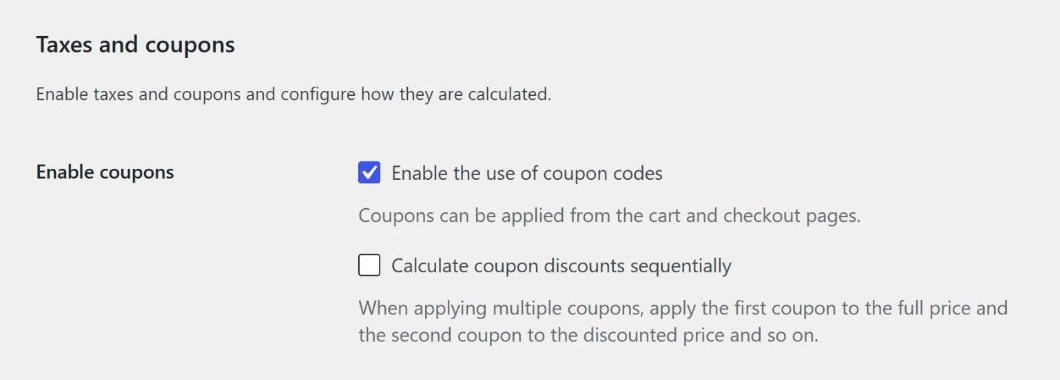
Go to WooCommerce › Settings › General and scroll down to Taxes and coupons. Enable the use of coupon codes must be ticked. With it unticked, the coupon field disappears from the cart and checkout, and no coupon can be applied, even by a plugin.
Step 2: Check the coupon is published
WooCommerce only looks up coupons with the Published status. A coupon saved as a draft, pending review, scheduled for later or moved to the trash gives the “does not exist” message, the same as a typo. Open Marketing › Coupons and check the status column.
Capital letters don’t matter. In our test, a coupon created as cntest-percent applied when it was typed as CNTEST-PERCENT. Spaces and similar characters do matter, so compare the code character by character if it looks right but still fails.
Step 3: Test as a customer, not as an admin
Some coupon rules depend on who is checking out, such as allowed emails, per-user limits and the new-customer rules that many plugins add. Your admin account gives different results for these than a customer’s account does. Test in a private browser window, either as a guest or logged in as a test customer, with the same products the customer had in their cart.
The coupon has expired
The expiry date is on the coupon’s General tab. WooCommerce stops the coupon at 00:00:00 at the start of that date, not at the end of it. A coupon with an expiry date of 31 October works until midnight on 30 October.
The time is your store’s time, set under Settings › General › Timezone in WordPress. If a sale code has to work for the whole of its last day, set the expiry date to the day after. If it stopped early, check the time zone too, especially if your server is in a different country from your customers.
The usage limit has been reached
The Usage limits tab on the coupon has three settings:
- Usage limit per coupon: how many times the code can be used in total, by anyone.
- Usage limit per user: how many times one customer can use it. WooCommerce checks this against their account and their billing email.
- Limit usage to X items: how many items in one order get the discount. This one never rejects a coupon. It only caps how much of the cart is discounted.
If the code has been used up, raise the limit or leave it blank for no limit. The usage count shown in the coupons list tells you how many uses have been recorded.
There’s a second version of this message that adds “If you were using this coupon just now but your order was not complete, you can retry or cancel the order”. That happens when a customer starts checkout and the payment doesn’t go through. WooCommerce holds the coupon for the unpaid order, so for a short time it counts as used. The hold lasts as long as the Hold stock (minutes) setting under WooCommerce › Settings › Products › Inventory, which is 60 minutes by default. Cancelling the pending order frees the coupon straight away.
Minimum and maximum spend
Minimum spend and Maximum spend are on the Usage restriction tab, and WooCommerce compares them with the cart subtotal. Shipping isn’t part of the subtotal, so a customer who is $5 short on products can’t make up the difference with a more expensive delivery option.
In our test, a coupon with a $500 minimum spend on a $100 cart showed “The minimum spend for coupon “cntest-minspend” is $500.00.” The fix is either a lower minimum or telling customers the threshold in the offer itself, so they can add to the cart before they try the code.
Sale items
Exclude sale items behaves differently depending on the coupon’s discount type.
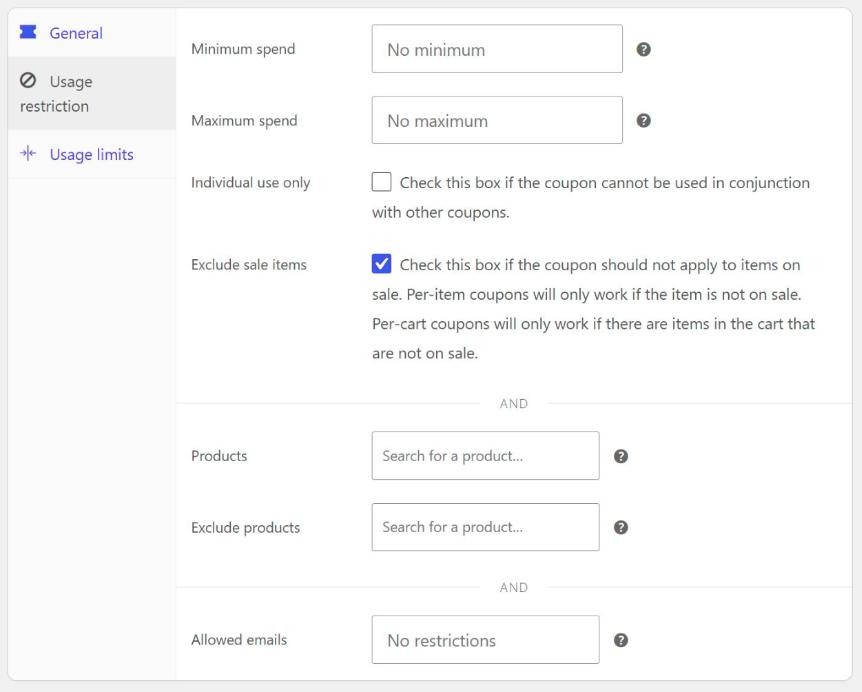
- Percentage discount and Fixed product discount coupons skip the sale items and discount everything else. The coupon is only rejected if every item in the cart is on sale.
- Fixed cart discount coupons are rejected completely if any item in the cart is on sale.
The help text next to the checkbox says per-cart coupons “will only work if there are items in the cart that are not on sale”, which suggests one full-price item is enough. That isn’t what happened in our test on WooCommerce 11.1.2. With one full-price product and one sale product in the cart, a $10 fixed cart coupon was turned down with “Sorry, coupon “cntest-fixedcart” is not valid for sale items.” A 10% coupon with the same setting applied, and only discounted the full-price product.
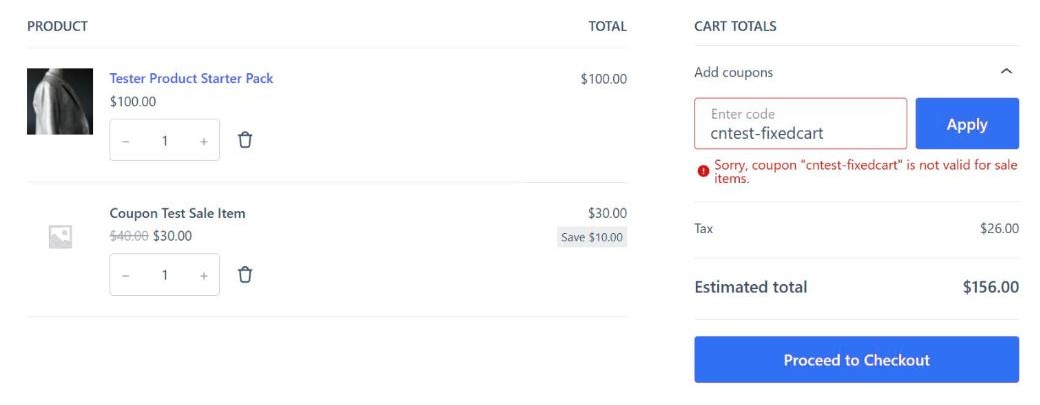
If you want a money-off code that still works when the cart contains sale products, you have three options. Change the coupon to a percentage discount, untick Exclude sale items, or tell customers in the offer that it can’t be combined with sale prices.
Product, category and brand restrictions
The Products, Product categories and (on recent versions) Product brands fields limit the coupon to those items. At least one item in the cart has to match, otherwise the customer sees “not applicable to your cart contents”. For percentage and fixed product coupons, only the matching items get the discount.
The exclude fields work the other way round. On a fixed cart coupon, one excluded product or category in the cart rejects the whole coupon, and the message lists what to remove. On a percentage coupon, excluded items don’t get the discount.
For variable products, adding the parent product to the Products field covers all of its variations. If you added only some variations, the others won’t qualify. Our docs show how to limit a coupon to certain products step by step.
Allowed emails
When Allowed emails has addresses in it, WooCommerce compares them with the email on the customer’s account and the billing email at checkout. You can separate addresses with commas and use an asterisk to match a whole domain, for example *@example.com.
A guest who tries the code on the cart page hasn’t given an email yet, so they see “Please enter a valid email at checkout to use coupon code”. The code works once they enter a matching billing email on the checkout page. If a logged-in customer is turned away, compare the address on the coupon with both their account email and the billing email on the order. They’re often different.
Individual use only and using two coupons
Individual use only stops a coupon being combined with any other coupon. It has two effects:
- If a coupon with this setting is already in the cart, any second coupon is rejected with the “cannot be used in conjunction with other coupons” message.
- If the customer applies a coupon with this setting second, WooCommerce removes the coupons that were already in the cart.
The second case can look like a coupon disappearing for no reason. Look out for coupons that other plugins add to the cart for you, such as a points discount or a welcome offer. If one of those is set to individual use, it can push out the code the customer typed, or the other way round.
A free shipping coupon still charges shipping
A free shipping coupon needs two settings, and missing either one means the coupon applies but shipping is still charged:
- On the coupon’s General tab, tick Allow free shipping.
- In WooCommerce › Settings › Shipping, the customer’s shipping zone needs a Free shipping method with Free shipping requires set to A valid free shipping coupon, or to one of the options that combine a coupon with a minimum order amount.
If the zone also has paid methods, the customer may need to choose free shipping at checkout. If you use the “minimum order amount OR coupon” option, the Apply minimum order rule before coupon discount setting decides whether the minimum is checked before or after other discounts.
The coupon field is missing
If customers can’t find anywhere to type a code, work through these:
- Coupons are switched off. See step 1 above.
- The field is collapsed. On the block-based cart and checkout, the coupon field is hidden behind an Add coupons link in the order summary until the customer clicks it. It’s there, but easy to miss on a long checkout.
- The Coupon Form block was removed. Open the Cart or Checkout page in the editor and check the order summary still contains the Coupon Form block. It can be deleted like any other block.
- The theme or a snippet hides it. On classic cart and checkout pages, a theme template override, custom CSS or a code snippet can remove the form. Our docs have a checklist for a missing apply coupon field, with snippets that add the form back.
Caching and plugin conflicts
If the coupon applies and then vanishes on the next page, or the totals don’t change, check caching first. The cart, checkout and My Account pages must never be served from a page cache. Most caching plugins leave them out automatically, but custom rules at your host or CDN don’t always.
Next, check for a conflict on a staging copy of the site. Switch to a default theme and deactivate everything except WooCommerce, then test the coupon. If it works, turn plugins back on one at a time until it breaks. The free Health Check & Troubleshooting plugin can do this for your own login only, without changing what customers see.
The plain “Coupon is not valid.” message means a plugin turned the coupon down rather than WooCommerce, so the cause is in whichever plugin adds coupon rules to your store. If that’s Better Coupon Restrictions, anyone logged in as a shop manager sees an extra line under the message saying which of its restrictions rejected the coupon. Customers don’t see that line. It only covers the plugin’s own rules, not WooCommerce’s. The docs explain how it works.
Affiliate and influencer coupons
If the code belongs to an affiliate or an influencer, the affiliate plugin usually adds its own checks on top of WooCommerce’s. They’re there to stop commission being paid on sales an affiliate didn’t send you, so the fix is often to explain the rule to the affiliate rather than switch it off.
In Coupon Affiliates, these are the messages and the settings behind them. Each one is a setting you can switch on or off, and the fraud prevention features page lists them all.
- “Sorry, you can’t use your own affiliate coupon code.” The affiliate tried their own code and Allow affiliate user to apply their own coupon code at cart / checkout is switched off. It’s on by default.
- “Sorry, you can only use one affiliate coupon per order.” A second affiliate’s code was added. Only one is allowed per order unless you switch on Allow multiple affiliate coupons to be used in the same order.
- “Sorry, only new customers can use this coupon code.” Affiliate coupons are limited to first orders, either for every coupon or on that coupon’s Usage limits tab, and the email has ordered before. The new customers only guide covers both settings.
- “Sorry, this affiliate coupon can only be used after visiting the affiliate referral link.” Require customers to visit the affiliate referral link before applying their coupon is on, and the customer typed the code without clicking the link.
- “Sorry, you can’t use this coupon code or it has expired.” The visitor’s IP address or visitor ID is on the blocked list, or they came from a blocked domain.
- “Coupon is not valid.” The affiliate’s account is suspended. Suspending an affiliate stops their coupons working until you reinstate them.
All of WooCommerce’s own rules still apply on top of these, so an affiliate code with an expiry date or a usage limit fails in the same way as any other coupon. Our guide to preventing affiliate coupon abuse in WooCommerce explains when each of these checks is worth switching on. Once a code is working again, WooCommerce coupon tracking shows how to see the orders and revenue it brings in.
Coupons that should apply from a link
WooCommerce has no built-in way to apply a coupon from a URL, so if your links add a code automatically, a plugin or a snippet is doing it. In Coupon Affiliates, each affiliate’s referral link applies their coupon (the link ends in ?coupon= and the code by default) and stores it in a cookie. If the cart is empty when the customer arrives, the coupon is applied when the page next loads after they add a product. Better Coupon Restrictions PRO has coupon links as well, with an option to make a code work only through its link.
A coupon applied from a link still has to pass every rule in this guide. With Coupon Affiliates, a link coupon that fails a rule is skipped without an error message, so the customer sees no discount. To find out which rule is failing, type the same code into the coupon field and read the message. If the rules are fine and the link still doesn’t apply the code, the usual causes are a page cache serving the page without the code running, a redirect that drops the part of the URL after the question mark, or the cookie being blocked. The referral links troubleshooting guide goes through each of these.
Frequently Asked Questions
Are WooCommerce coupon codes case sensitive?
No. WooCommerce ignores capital letters when it looks up a code, so SAVE10, save10 and Save10 are the same coupon.
Why does the coupon work for me but not for a customer?
In most cases, one of the coupon’s rules depends on the customer. Allowed emails, the usage limit per user and new-customer-only rules all give different results for your admin account and for theirs. Test in a private window as a guest or a test customer with the same cart.
Why is the coupon removed at checkout?
WooCommerce checks coupons again during checkout. A coupon that passed on the cart page can fail once the billing email is known, because of allowed emails or a per-user limit, and the customer sees the matching message from the table above. If the cart changes after the coupon was applied and it no longer qualifies, WooCommerce removes it with “Sorry, it seems the coupon is invalid – it has now been removed from your order.” Plugin rules based on payment or shipping method are also checked at this stage. The Better Coupon Restrictions docs go through the checks that run at checkout.
Can I change the coupon error messages?
WooCommerce has no setting for it, but a developer can change them with the woocommerce_coupon_error filter. If you use Better Coupon Restrictions, each of its restrictions has its own custom error message field.
Can customers use more than one coupon on an order?
Yes, unless one of the coupons is set to Individual use only. By default each coupon is worked out on the full price. Tick Calculate coupon discounts sequentially in the general settings to apply the second coupon to the already discounted price instead.
How do I stop a coupon working for the wrong people?
That’s the opposite problem, and it comes up when a code gets shared on deal sites. Our guide on stopping WooCommerce coupon codes leaking covers the WooCommerce settings and plugin rules that help.
Summary
Start with the message the customer saw and match it to the table at the top. If there’s no message, check coupons are switched on, the coupon is published and the coupon field hasn’t been hidden, then test as a customer in a private window. For codes given to affiliates or influencers, check the affiliate plugin’s own rules as well as WooCommerce’s.
If your codes belong to people, such as affiliates, influencers or podcast hosts, Coupon Affiliates gives each of them their own coupon and referral link and tracks the sales and commission from every code. The free version covers the basics, so you can try it on your store before deciding on PRO. If you need more control over who can use a coupon, Better Coupon Restrictions adds more than 25 extra conditions to the normal coupon screen.

Elliot Sowersby is a WordPress developer from Yorkshire, United Kingdom. He is the founder and lead developer of Coupon Affiliates and RelyWP.
Leave a Reply