
WooCommerce shows a coupon field on the cart and checkout pages by default. You can leave it alone, hide it on one or both pages, or move it lower on the checkout. Hiding it suits stores that send discounts by link, because the link applies the code and nobody has to type anything. If your customers get codes from affiliates, influencers, podcasts or printed inserts, they need a place to type them, so the field should stay.
Best for:
- Stores that never use coupons: turn coupons off in the WooCommerce settings
- Stores that send discounts by email or ad link: hide the field and let the link apply the code
- Stores with affiliate or influencer codes: keep the field, collapsed
Disclosure: we make Coupon Affiliates and Better Coupon Restrictions (both are RelyWP plugins), and both come up below. Most of this guide needs neither of them.
Jump to a section:
- Where the coupon field appears
- Should you hide it?
- Your options at a glance
- Option 1: Turn coupons off completely
- Option 2: Remove the field from the block checkout
- Option 3: Hide the field on the classic cart and checkout
- Option 4: Move the field lower on the classic checkout
- Applying codes by link once the field is hidden
- Affiliate and influencer codes
- Frequently asked questions
Where the coupon field appears
The steps for hiding the field depend on which checkout your store uses, so check that first. Open your Checkout page in the editor. If you see a Checkout block, you’re on the block checkout. If the page contains the [woocommerce_checkout] shortcode, you’re on the classic checkout.
- Classic cart: a “Coupon code” box with an Apply coupon button, under the list of products.
- Classic checkout: a bar above the billing form that reads “Have a coupon? Click here to enter your code”. Clicking it opens the field.
- Block cart and checkout: an Add coupons link in the order summary. The field opens when the customer clicks it.
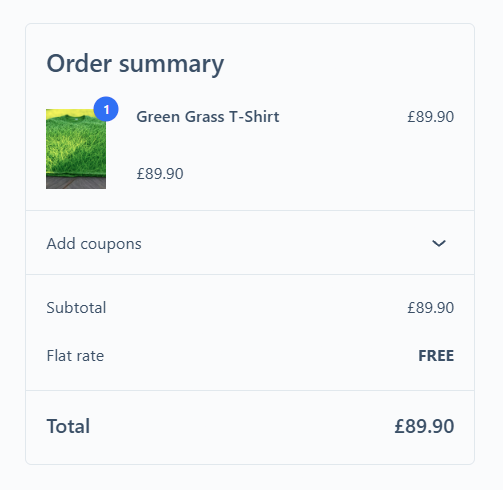
Should you hide it?
The usual argument for hiding the field comes from checkout testing. Baymard Institute, which runs large usability studies on online checkouts, recommends a collapsed coupon field over an open one. In its tests, an open promo box prompted some shoppers to leave the checkout and search for a code. Baymard also advises applying discounts automatically where you can.
WooCommerce already follows the first half of that advice. The field is collapsed on the block cart, the block checkout and the classic checkout. Only the classic cart page shows it open. For many stores, that default is enough and no change is needed.
Hiding the field completely has a cost. A customer who has a real code and can’t find a place to enter it may email you, or leave. Before you remove it, list every way a code reaches your customers. If any of them involves typing, keep the field.
Your options at a glance
| Option | Works on | Coupons still work? | Needs code? |
|---|---|---|---|
| Leave the default | Block and classic | Yes | No |
| Turn coupons off | Block and classic | No, not even from a link or a plugin | No |
| Remove the Coupon Form block | Block checkout | Yes, if applied another way | No |
| Hide with CSS or a snippet | Classic cart and checkout | Yes, if applied another way | Yes |
| Move the field | Classic checkout | Yes | Yes |
Option 1: Turn coupons off completely
If your store never uses coupons, switch them off. Go to WooCommerce › Settings › General, scroll to Taxes and coupons, and untick Enable the use of coupon codes. Save the page.
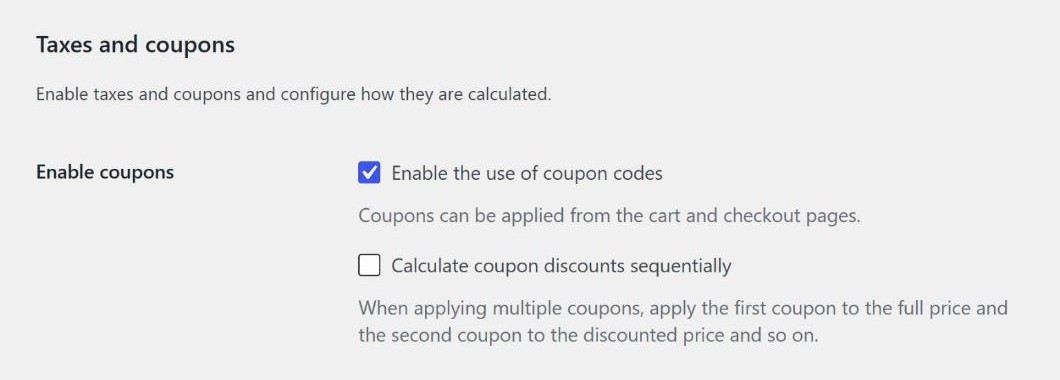
The field then disappears from the cart and the checkout. This setting does more than hide a box, though. With it unticked, WooCommerce refuses every coupon, including codes sent through a link and codes applied by a plugin. Use it only if you want no discounts of any kind.
Option 2: Remove the field from the block checkout
On the block checkout you can remove the field in the editor, with no code. WooCommerce’s Checkout block documentation lists the Coupon Form as the only block in the totals section that is unlocked and can be removed.
- Go to Pages and edit your Checkout page.
- Open List View from the toolbar at the top of the editor.
- Expand the Checkout block, then Checkout Totals and Order Summary, and select Coupon Form.
- Open the block’s options menu and choose Delete.
- Save the page, then load the checkout in a private window to confirm the Add coupons link has gone.
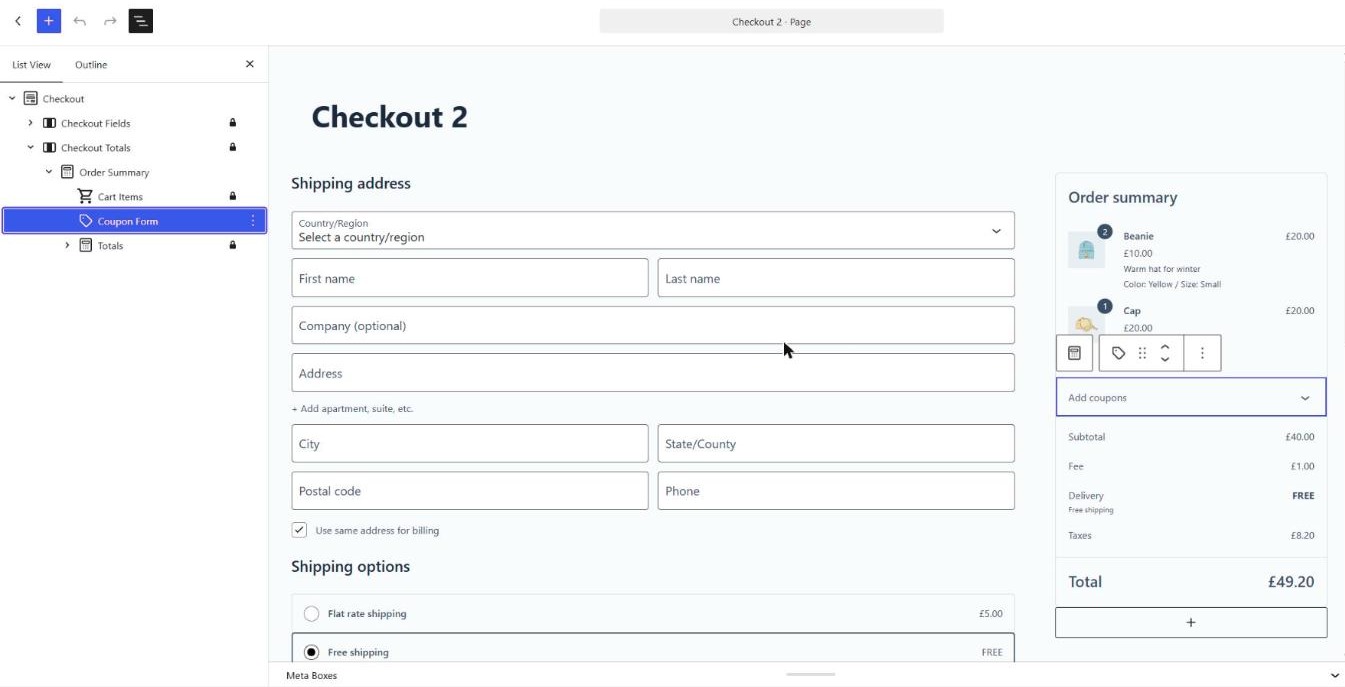
Your Cart page is a separate block with its own order summary, so open it in List View and check it the same way. Coupons themselves stay switched on, so a code applied by a link still takes the discount off the order.
To bring the field back later, select the Order Summary block in the editor and add the Coupon Form block again.
Option 3: Hide the field on the classic cart and checkout
The classic pages have no setting for this, so you need a small snippet. Add it with a snippets plugin or in a child theme’s functions.php file, and try it on a staging copy of your store first.
Classic checkout
WooCommerce adds the “Have a coupon?” bar through a function called woocommerce_checkout_coupon_form. This snippet unhooks it just before the checkout loads:
add_action( 'woocommerce_before_checkout_form', function () {
	remove_action( 'woocommerce_before_checkout_form', 'woocommerce_checkout_coupon_form', 10 );
}, 9 );
The bar and the field are removed from the checkout page only. Coupons stay enabled, so a discount already in the cart carries through to the order.
Classic cart
On the cart page, a line of CSS is enough. Add it under Appearance › Customize › Additional CSS:
.woocommerce-cart .coupon {
	display: none;
}
A common snippet to avoid
Many tutorials suggest a different approach, using the woocommerce_coupons_enabled filter with a check for the cart or checkout page:
add_filter( 'woocommerce_coupons_enabled', function ( $enabled ) {
	return is_checkout() ? false : $enabled;
} );
It does hide the field, but it works by telling WooCommerce that coupons are off while that page loads. WooCommerce’s own function for applying a coupon stops straight away when coupons are off. As a result, a coupon link that points at your checkout page can fail to apply its code. If you send customers discount links, use the snippet and CSS above.
Option 4: Move the field lower on the classic checkout
On the classic checkout, the coupon bar is the first thing a customer sees, above their billing details. Some stores prefer it at the bottom of the page. This snippet removes it from the top and adds it back after the checkout form:
add_action( 'woocommerce_before_checkout_form', function () {
	remove_action( 'woocommerce_before_checkout_form', 'woocommerce_checkout_coupon_form', 10 );
}, 9 );

add_action( 'woocommerce_after_checkout_form', 'woocommerce_checkout_coupon_form' );
The coupon field is its own HTML form, and browsers don’t allow one form inside another. For that reason it can’t be placed in the middle of the checkout form, next to the order total or the payment methods, without extra JavaScript. The position after the checkout form works without any.
On the block checkout there’s nothing to move. The field is already in the order summary and stays closed until the customer clicks Add coupons.
Applying codes by link once the field is hidden
With the field hidden, customers need another way to get a discount. A coupon link does this. The customer clicks a link such as yourstore.com/?coupon=SAVE15 and the code is added to their cart for them.
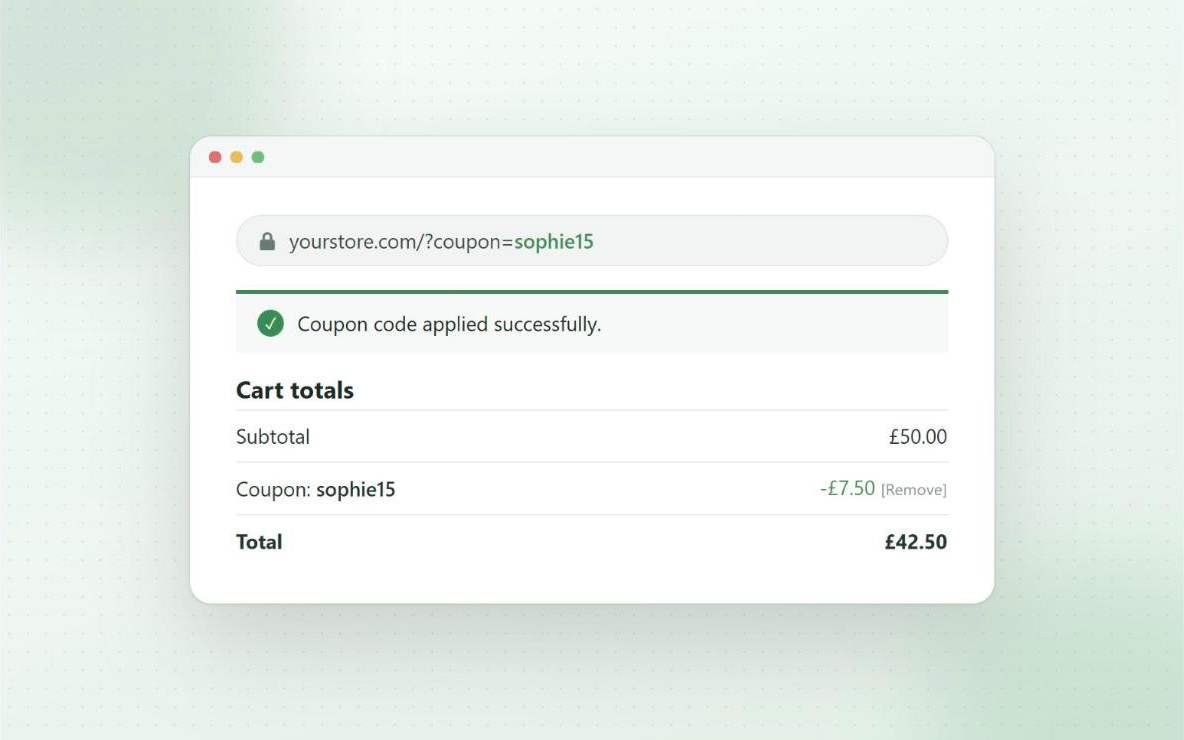
WooCommerce can do this on its own in limited cases, and several free and paid plugins cover the rest. Our guide to WooCommerce URL coupons compares each method.
Two plugins from that guide are relevant here:
- Coupons & Add to Cart by URL Links by WPFactory is free and can hide the coupon field for you, either always or only after a code has arrived through a link. Redirects and adding products from the link need its paid version.
- Better Coupon Restrictions (ours) has an Only Valid Via Link option in its PRO version. A code with that option on is turned down if someone types it without having used the link. Coupon links aren’t in its free version.
Affiliate and influencer codes
If you run an affiliate or influencer program, think carefully before hiding the field. Many of these codes are heard or seen, not clicked. A podcast host reads a code out. A creator puts one in a video caption that can’t hold a link. Those customers arrive at your store with a code in their head and need the field to use it. Without it, they pay full price and the affiliate earns nothing for the sale.
The safer setup is to keep the field and also give each affiliate a link that applies their code. In Coupon Affiliates, every affiliate coupon has a referral link ending in ?coupon= and their code. With Auto Apply Coupon switched on in the plugin’s Referral Links settings, the discount is added for anyone who clicks. Customers who only have the code can still type it, and the affiliate gets credit either way. Our guide to coupon affiliate marketing explains the model in full.
Some stores want affiliate codes to work only through the link, usually to stop them spreading on coupon sites. Coupon Affiliates has a free fraud setting for this called Require a Referral Link. With it on, an affiliate’s coupon applies only for customers who arrived through that affiliate’s link. In that setup, hiding the field makes sense, because typed codes are refused anyway.
There are two limits to know about. Auto Apply Coupon is one setting for the whole store, so you can’t switch it on for some affiliates and off for others. And once the field is hidden, codes shared by voice or in print stop working, so tell your affiliates before you make the change. Our guide to preventing coupon abuse covers the other fraud settings.
Frequently Asked Questions
Does hiding the coupon field stop coupons from working?
It depends on how you hide it. Removing the Coupon Form block, unhooking the classic checkout bar and hiding the cart field with CSS all leave coupons enabled, so a code applied by a link still works. Unticking Enable the use of coupon codes turns coupons off for the whole store.
How do I hide the coupon field on the checkout but keep it on the cart?
On the block checkout, delete the Coupon Form block on the Checkout page and leave the Cart page as it is. On the classic checkout, use the checkout snippet from Option 3 and skip the cart CSS.
Do the snippets work on the block checkout?
No. The snippets in this guide change the classic templates, which the block cart and checkout don’t use. On the block pages, remove the Coupon Form block in the editor.
Will hiding the field stop my codes ending up on coupon sites?
Not by itself. A hidden field makes a shared code harder to use, but the code is still valid if it reaches the cart another way. To limit a code properly, add rules to the coupon, such as a usage limit per customer, or use a link-only option like the two described above.
The coupon field is missing and I didn’t hide it. Why?
The most common causes are the coupon setting being unticked, a theme that leaves the field out of its templates, and a snippet or plugin that removes it. Our guide to fixing a WooCommerce coupon that isn’t working has a section on this, and our docs include a checklist for a missing coupon field.
Summary
For most stores, WooCommerce’s default is fine: the field is collapsed on the checkout and only opens when a customer asks for it. Remove it if every discount you offer arrives through a link. On the block checkout that takes a minute in the editor, and on the classic checkout it takes one short snippet. Avoid the settings checkbox unless you want coupons off completely.
We make an affiliate plugin, so we’re biased on the last point. If affiliates or influencers share your codes, keep the field and add links that apply the code for those who click. Coupon Affiliates includes those links in its free version, so you can test the setup on your store before deciding anything else.

Elliot Sowersby is a WordPress developer from Yorkshire, United Kingdom. He is the founder and lead developer of Coupon Affiliates and RelyWP.
Leave a Reply