
To apply a WooCommerce coupon with a link, you have four options. WooCommerce 10.0 and later can do it on its own with a checkout link, but only if the link also adds specific products and sends the customer straight to checkout. For a link that applies a code on any page of your store, you need a short code snippet or a plugin. If the link belongs to an affiliate or influencer, use an affiliate plugin so the link also records clicks and pays commission on the sales it brings in.
Best for:
- Linking to one product or a bundle, with no plugin: WooCommerce’s built-in checkout link
- Developers who want a promo link without another plugin: a code snippet
- Email, social and Black Friday promo links: a coupon link plugin
- Links you give to affiliates, influencers or podcast hosts: an affiliate plugin
Disclosure: we make Coupon Affiliates and Better Coupon Restrictions (both are RelyWP plugins), and both are included below. We’ve listed what each one can’t do, the same as for the other plugins, so you can rule them out if they don’t fit.
Jump to a section:
- What a URL coupon is
- How we compared the options
- The options at a glance
- Option 1: WooCommerce’s built-in checkout link
- Option 2: A code snippet
- Option 3: A coupon link plugin
- Option 4: Affiliate and influencer links
- Why a coupon link doesn’t apply the code
- Seeing which link made the sale
- Frequently asked questions
What a URL coupon is
A URL coupon (also called a coupon link or discount link) is a normal WooCommerce coupon with a link that applies it for the customer. Instead of telling people to type SAVE15 at checkout, you send them to something like yourstore.com/?coupon=SAVE15 and the discount is already in their cart.
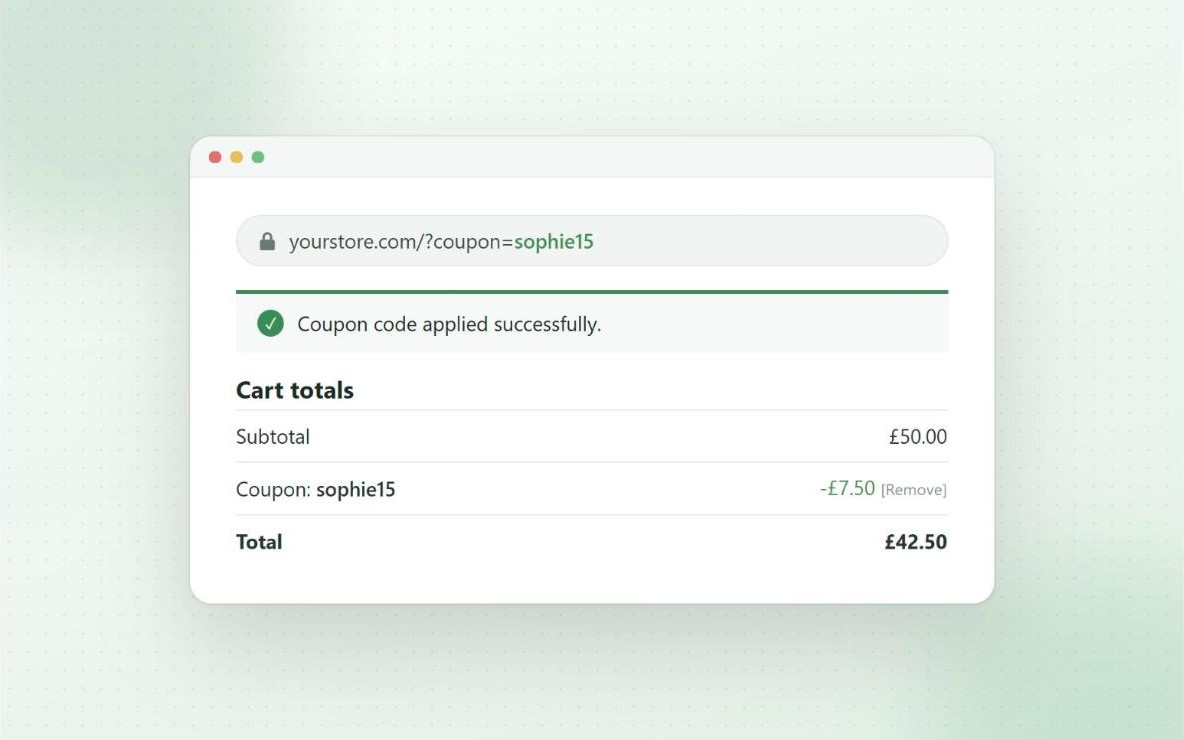
It helps anywhere a customer might forget or mistype a code: email campaigns, social posts, QR codes on packaging, and abandoned cart reminders. They’re also handy in Black Friday emails (Black Friday is 27 November in 2026), because the customer can click and shop without copying a code first.
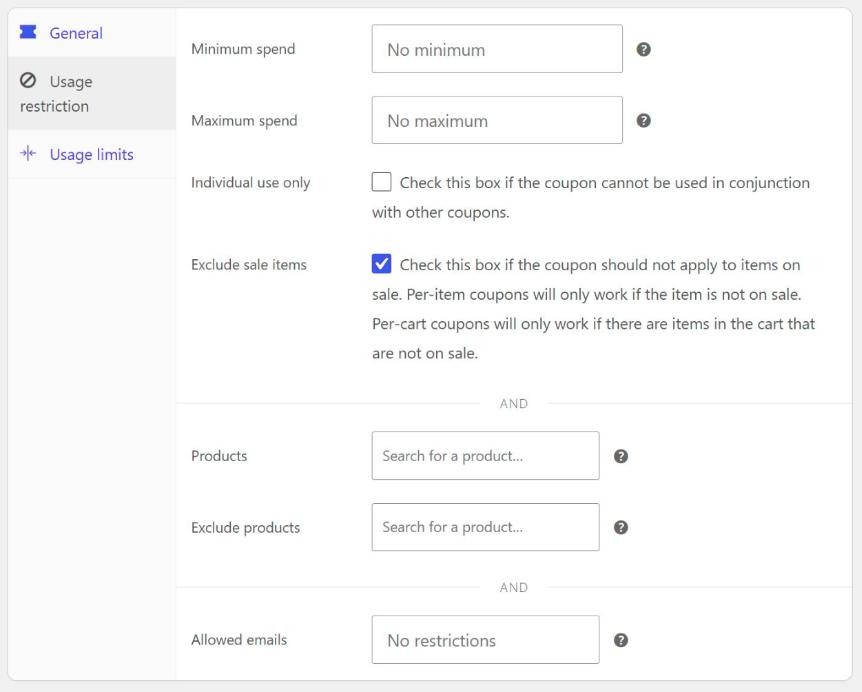
The link doesn’t change the coupon. Every rule you set on it in Marketing › Coupons still applies, including the expiry date, usage limits, minimum spend and product restrictions.
How we compared the options
For WooCommerce’s own checkout links, we read the code that handles them in WooCommerce core, so the behavior described below comes from the source rather than the docs alone. For the plugins, we checked each one’s listing and documentation in October 2026 for four things:
- Whether the link works on any page or only sends people to checkout
- What happens if the customer’s cart is empty when they click
- Whether it can add products or redirect to a set page
- What it costs, and which features need the paid version
Prices, install counts and ratings were taken from the plugins’ own pages on the date in the table below and can change.
The options at a glance
| Option | Cost | Works on any page | Empty cart | Adds products |
|---|---|---|---|---|
| WooCommerce checkout link | Free (WooCommerce 10.0+) | No, goes to checkout | Replaces the cart with the linked products | Yes, required |
| Code snippet | Free | Yes | Applies after the first product is added | Only if you code it |
| Advanced Coupons | Free | Yes | See their settings | Separate feature |
| Coupons & Add to Cart by URL Links (WPFactory) | Free, paid Pro | Yes | Session or cookie keeps the code | Pro |
| URL Coupons (SkyVerge) | $49/year | Yes | Reported to need an item in the cart | Yes |
| Smart Coupons (StoreApps) | $99/year | Yes | See their settings | Yes |
| Better Coupon Restrictions PRO (ours) | $29/year | Yes | Applies after the first product is added | No |
| Coupon Affiliates (ours) | Free, paid PRO | Yes | Applies once the cart has items | No |
Option 1: WooCommerce’s built-in checkout link
Many guides still say WooCommerce can’t apply a coupon from a URL. That stopped being true in WooCommerce 10.0 (July 2025), which added shareable checkout links. The format is:
https://yourstore.com/checkout-link/?products=123:2,456:1&coupon=SPRING10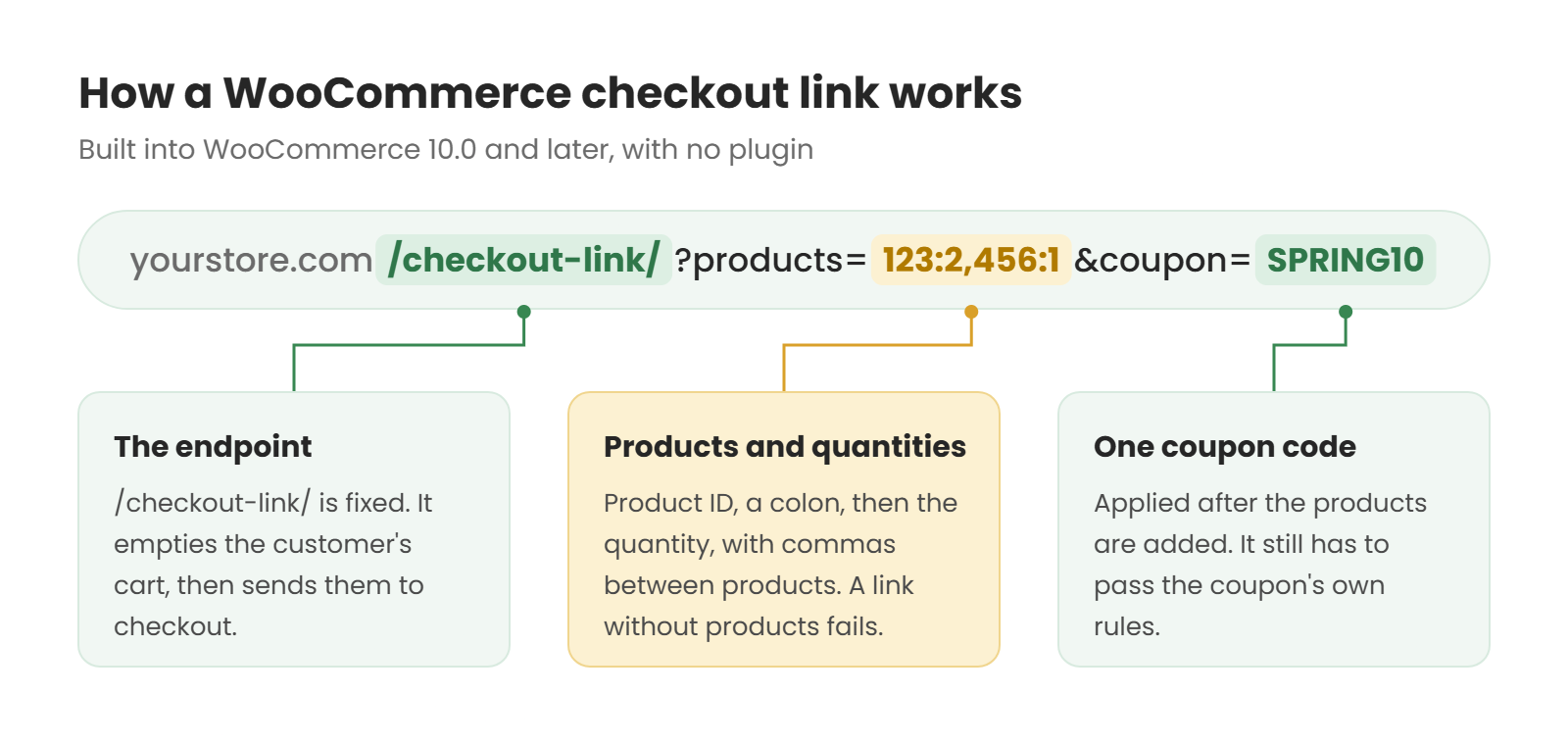
This adds two of product 123 and one of product 456, applies SPRING10, and takes the customer straight to the checkout page. You can find a product’s ID by hovering over its name in Products. For a variable product, use the variation’s ID instead. Recent versions also accept SKUs in place of IDs, and WooCommerce’s developer docs cover the full format.
There are three things to know before you use it in a campaign:
- The products part is required. A link with only
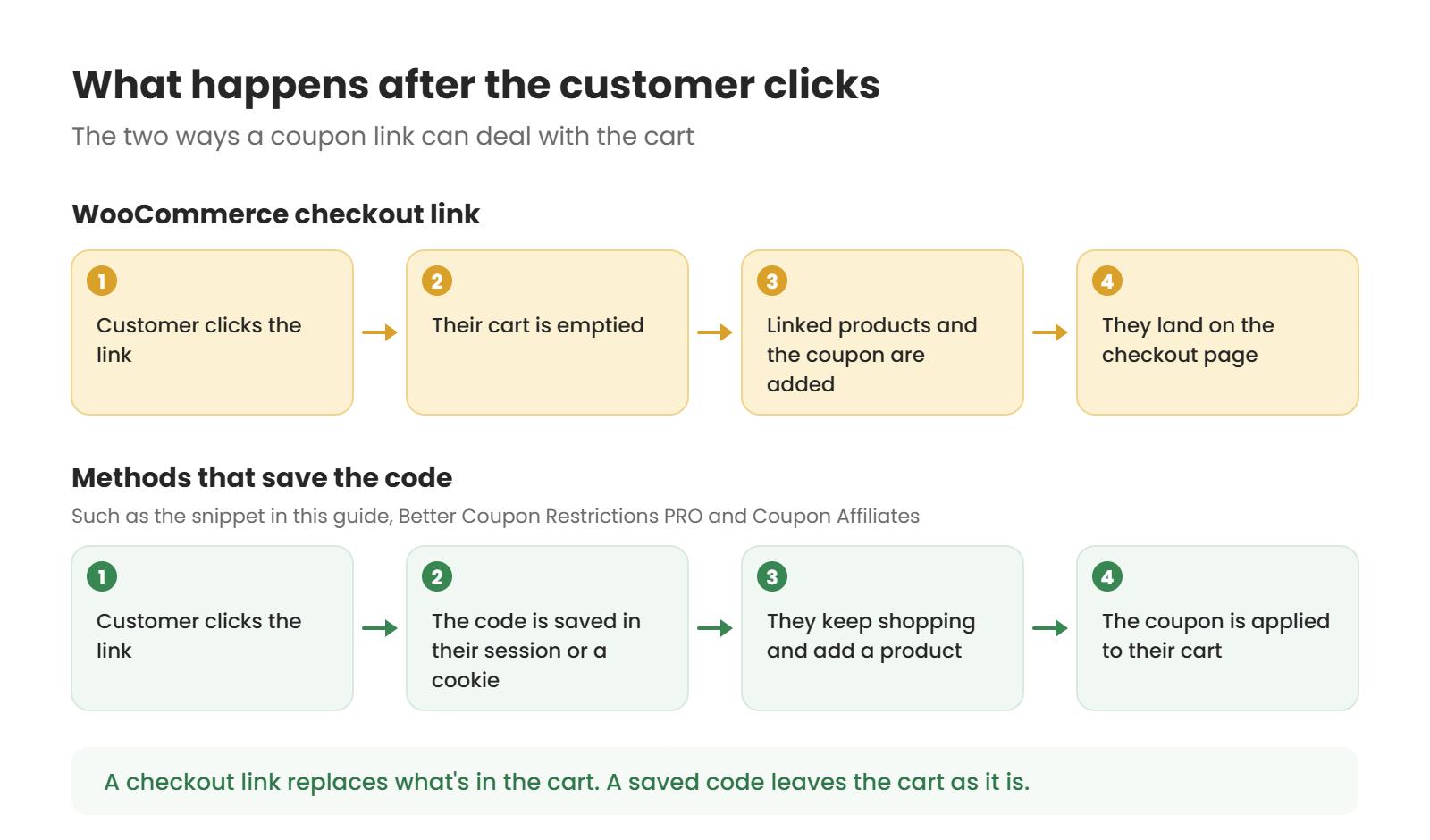
?coupon=SPRING10doesn’t work. WooCommerce sends the customer to the cart page with “The provided checkout link was out of date or invalid. No products were added to the cart.” - It empties the customer’s cart first. Anything they had added before clicking is removed and replaced with the products in the link.
- The coupon still has to pass its rules. If it fails, the products are still added without the discount, and WooCommerce tries to show its usual coupon message at checkout.
Best for: “buy now” links for one product or a fixed bundle, in an email or an ad.
Pros: free and built into WooCommerce itself, with no plugin or code to add.
Cons: it can’t send people to a category or your homepage with the discount waiting, and it removes anything a customer had already added to their cart.
Pricing: included with WooCommerce 10.0 and later.
Option 2: A code snippet
If you’re happy adding PHP to your site, a snippet can apply a code from any page. The snippet below reads ?apply_coupon=CODE from the address, saves the code to the customer’s WooCommerce session, and applies it straight away if the cart has items. If the cart is empty, it waits and applies the code when they add their first product.
add_action( 'wp_loaded', function () {
	if ( is_admin() || empty( $_GET['apply_coupon'] ) || ! function_exists( 'WC' ) || ! WC()->session ) {
		return;
	}
	$code = wc_format_coupon_code( wp_unslash( $_GET['apply_coupon'] ) );
	if ( '' === $code ) {
		return;
	}
	if ( ! WC()->session->has_session() ) {
		WC()->session->set_customer_session_cookie( true );
	}
	WC()->session->set( 'link_coupon', $code );
	my_store_apply_link_coupon();
} );

add_action( 'woocommerce_add_to_cart', 'my_store_apply_link_coupon' );

function my_store_apply_link_coupon() {
	if ( ! WC()->session || ! WC()->cart || WC()->cart->is_empty() ) {
		return;
	}
	$code = WC()->session->get( 'link_coupon' );
	if ( ! $code || WC()->cart->has_discount( $code ) ) {
		return;
	}
	if ( WC()->cart->apply_coupon( $code ) ) {
		WC()->session->set( 'link_coupon', null );
	}
}
Add it with a snippets plugin or in a child theme’s functions.php file, and try it on a staging copy of your store first. If the coupon fails one of its rules, such as a minimum spend, the customer sees WooCommerce’s usual message and the code is tried again the next time they add a product. Business Bloomer has a similar snippet with a discussion of edge cases in the comments.
Best for: stores with a developer who’d rather not add a plugin for one feature.
Pros: free, small, and you control exactly how it behaves.
Cons: you maintain it yourself, there’s no screen for creating links, and you’ll need to stop your page cache from serving cached copies of URLs that include the parameter.
Pricing: free.
Option 3: A coupon link plugin
A plugin adds the link to the coupon screen, so anyone on your team can create and copy one without touching code. These are the options we’d consider.
Advanced Coupons (free)
Advanced Coupons is a large free coupon plugin with 20,000+ active installs and a 4.4 rating from 184 reviews on WordPress.org. Its free version includes URL coupons, and each coupon gets a URL Coupons tab where you can copy its link. Some of the company’s own blog posts say you need Premium for this, but the current WordPress.org listing includes it in the free features.
Best for: stores that also want BOGO deals, cart conditions or scheduled coupons from the same plugin.
Pros: free, widely used, and the link is generated for you when you publish the coupon.
Cons: it’s a whole coupon system to install if all you need is links, and it adds its own settings to every coupon.
Pricing: URL coupons are free. Premium adds other coupon features.
Coupons & Add to Cart by URL Links for WooCommerce (free)
This plugin by WPFactory does one thing: it lets you apply any existing coupon with a link such as ?apply_coupon=CODE, and you can change the parameter. It has 2,000+ active installs and a 5-star rating from 10 reviews. The free version can also hide the coupon field, either always or only once a coupon has come from a link, and it has options for caching plugins like WP Rocket.
Best for: a light, free plugin that only adds coupon links.
Pros: small, works for guests and logged-in customers, and can hide the coupon field so there’s no empty box prompting customers to search for a code.
Cons: redirecting to a page after the code applies, and adding products from the link, are both Pro features.
Pricing: free, with a paid Pro version sold on WPFactory’s site.
URL Coupons by SkyVerge ($49/year)
URL Coupons is sold on the WooCommerce Marketplace. Each coupon gets its own URL, which can be a new address or an existing page such as a landing page. It can add products to the cart and redirect the customer afterwards, and it’s listed as compatible with the block cart and checkout.
Best for: stores that want a supported, paid extension with custom link addresses.
Pros: custom link addresses, redirects, and you can import coupons along with their URL settings.
Cons: it has a 4.2 rating from only 11 reviews. Reviewers reported problems with caching and CDNs, links only adding a single quantity of a product, and a coupon that only applied once an item was already in the cart.
Pricing: $49 for one year.
Smart Coupons by StoreApps ($99/year)
Smart Coupons is a large coupon, gift card and store credit extension, rated 4.4 out of 5 across 235 reviews on the WooCommerce Marketplace. Its links can apply a coupon and add products to the cart. StoreApps has also released a free URL Coupons plugin on WordPress.org that handles basic links, but it was very new when we checked, with no reviews yet. Its listing says that adding products, redirects and several coupons in one link need Smart Coupons.
Best for: stores that also sell gift cards or give store credit and want it all in one extension.
Pros: links can add products as well as apply the coupon, and it covers gift cards and store credit too.
Cons: it’s the most expensive option here, and most of what you pay for has nothing to do with links.
Pricing: $99 for one year.
Better Coupon Restrictions PRO ($29/year, ours)
Better Coupon Restrictions is our plugin for adding extra rules to coupons, and its PRO version includes coupon links. Adding ?coupon=CODE to any page on your store applies that coupon, and you can put several codes in one link by separating them with commas. If the cart is empty, the code waits and applies when the customer adds their first product. If the coupon isn’t valid yet, for example because the cart is below the minimum spend, it’s tried again each time a product is added.
It also has an Only Valid Via Link setting. With it on, the code is turned down if someone types it into the coupon field without having used the link, which helps when a code ends up on a coupon site.
Best for: stores that want links and want to stop people using the code without them.
Pros: works on any page, several codes per link, the link-only option, and more than 25 other coupon rules in the same plugin.
Cons: the link doesn’t add products or redirect anywhere, and coupon links aren’t in the free version.
Pricing: PRO is $29 a year or $89 for a lifetime license for one site, with a 7-day trial. The free version on WordPress.org doesn’t include links.
Option 4: Affiliate and influencer links
If the link belongs to a person, such as an affiliate, an influencer or a podcast host, applying the discount is only half of what you need. You also want to know how many people clicked their link, which orders came from it, and how much commission you owe them. A coupon link plugin doesn’t do that part.
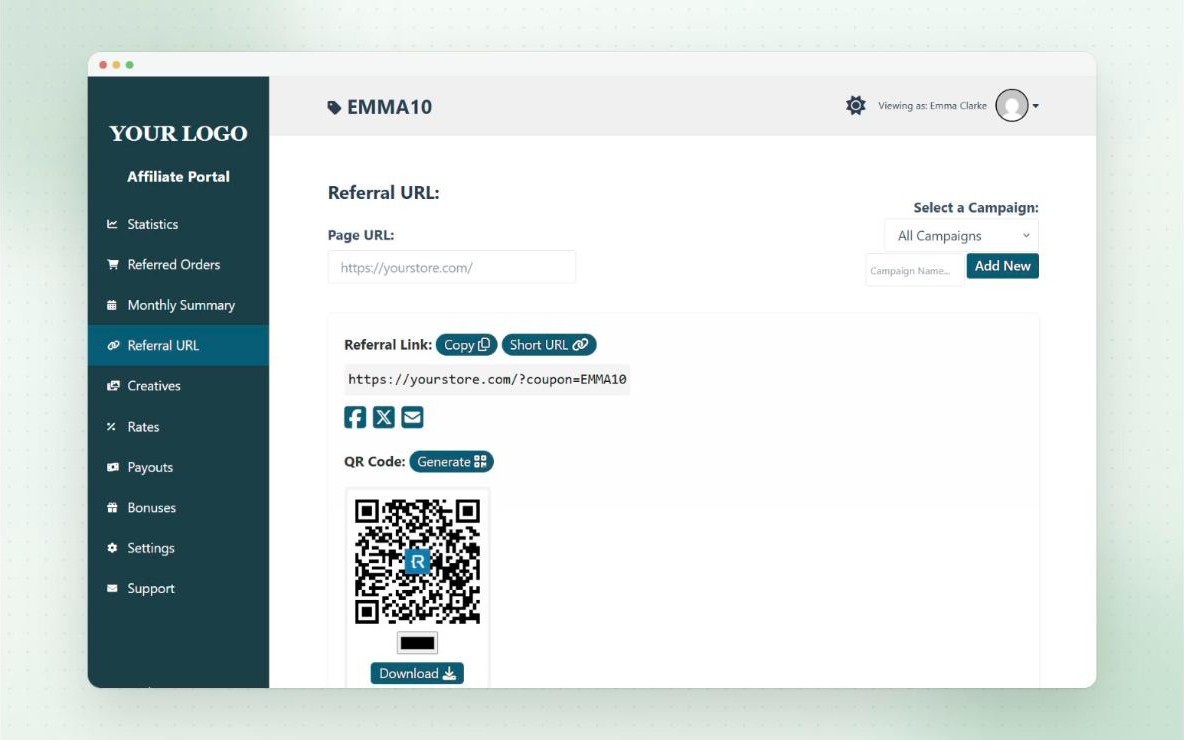
In Coupon Affiliates, each affiliate gets their own coupon and a referral link that ends in ?coupon= and their code. When someone clicks it, the plugin saves the code in a cookie and applies it once the cart has items, so it doesn’t matter which page the link points to. The click is recorded against that affiliate, and orders that use their code count towards their sales and commission. The affiliate sees all of this in their own dashboard. The referral URLs docs cover the settings, including how long the cookie lasts and how to change the coupon part of the link.
Because the code is also a normal coupon, customers who hear it on a podcast or see it in a video can type it in at checkout and the affiliate still gets the sale. Our guide to coupon affiliate marketing explains how that model works.
Best for: affiliate, influencer, ambassador and refer-a-friend programs.
Pros: referral links that apply the coupon are in the free version, along with click and conversion stats per affiliate. PRO adds short links, QR codes and campaigns.
Cons: it’s built for affiliate coupons, so it’s more than you need for a one-off email promo. Auto-apply is also a single setting for the whole store, so you can’t have some affiliates’ links apply a discount and others only track the sale.
Pricing: the core plugin is free on WordPress.org. PRO starts at $179.99 a year for one site, with 25% off the first payment at the time of writing, and there’s a 7-day free trial.
Why a coupon link doesn’t apply the code
Whichever method you use, the same few things cause most failed links:
- Page caching. If your cache serves a saved copy of the page, the code that reads the link never runs. Exclude URLs that contain your coupon parameter from the page cache, and check any rules at your host or CDN as well as your caching plugin.
- Redirects that drop the end of the URL. A redirect from an old page, or from http to https, can lose everything after the question mark. Test the exact link you’re sending, not a shortened version of it.
- The coupon fails one of its rules. An expired code or one below its minimum spend won’t apply from a link either. Type the same code into the coupon field to see the message, then use our guide to fixing a WooCommerce coupon that isn’t working.
- Cookies or sessions are blocked. Methods that wait for the cart to fill up need to store the code somewhere. A strict cookie banner setup can stop that for some visitors.
For Coupon Affiliates links, the referral links troubleshooting guide goes through each of these in more detail.
Seeing which link made the sale
WooCommerce records which coupon was used on each order, but not which link the customer clicked. If you send the same code in an email and on Instagram, you can’t tell them apart from the orders screen.
There are two simple ways round this. You can add UTM tags to each link so your analytics tool shows where the visit came from, or you can create a separate code for each channel, such as EMAIL15 and INSTA15. Separate codes are easier, because WooCommerce reports on coupons directly. Our guide to WooCommerce coupon tracking shows how to see the orders and revenue for each code, and the coupon code name generator can help if you need a batch of codes for a campaign.
Frequently Asked Questions
Can WooCommerce apply a coupon from a URL without a plugin?
Yes, from WooCommerce 10.0, but only with a checkout link that also adds products: /checkout-link/?products=ID&coupon=CODE. For a link that applies a code on any other page, you need a snippet or a plugin.
What happens if the customer’s cart is empty when they click?
WooCommerce can’t apply a coupon to an empty cart, so it depends on the method. WooCommerce’s checkout link fills the cart with the linked products itself. The snippet above, Better Coupon Restrictions and Coupon Affiliates all save the code and apply it once a product is added. With other plugins, test this before you send a campaign.
Can one link apply more than one coupon?
WooCommerce’s checkout link takes one coupon. Better Coupon Restrictions PRO accepts several codes separated by commas, and StoreApps says multiple codes per link need Smart Coupons. The coupons also have to be allowed together, so neither can be set to Individual use only.
Can I stop people typing the code without using the link?
WooCommerce has no setting for this. Better Coupon Restrictions PRO has an Only Valid Via Link option, and Coupon Affiliates has a fraud setting that requires customers to visit an affiliate’s referral link before their coupon works. Hiding the coupon field, which the WPFactory plugin can do, removes the empty box from checkout, but it doesn’t stop a code being used.
Do URL coupons work with the block checkout?
WooCommerce’s own checkout link does, and SkyVerge lists URL Coupons as compatible. Methods that apply the coupon to the cart on the server, like the snippet above, don’t depend on which checkout you use. For other plugins, check their compatibility list or test on a staging site.
Summary
If you’re linking to one product or a set bundle, WooCommerce’s checkout link is free and needs nothing else, as long as you’re happy for it to replace the customer’s cart. For promo links that work on any page, a free plugin like Advanced Coupons or WPFactory’s covers most stores, and a snippet does the same if you have a developer. Our own Better Coupon Restrictions is a good fit if you also want codes that only work through the link.
We’re biased on the last option, so weigh that as you read this. If your links belong to affiliates or influencers, Coupon Affiliates applies the coupon from each person’s link and also tracks their clicks, sales and commission. The free version includes referral links, so you can try it on your store before deciding on PRO.

Elliot Sowersby is a WordPress developer from Yorkshire, United Kingdom. He is the founder and lead developer of Coupon Affiliates and RelyWP.
Leave a Reply