
For most WooCommerce stores, affiliate commission should be a percentage of the product subtotal after the coupon discount, with shipping and tax left out. That is the amount you keep from the sale before your own costs. Paying on the full order total means paying commission on money that goes to your courier and the tax office.
Best for:
- Seeing the difference in dollars: one order worked out five ways
- Stores that give affiliates a discount code: before or after the discount
- Coupon Affiliates users: where the settings are
Disclosure: we make Coupon Affiliates (a RelyWP plugin). The settings section below uses it, and we’ve noted one drawback of changing these settings on a live program.
Jump to a section:
- The parts of a WooCommerce order
- One order, five commission amounts
- Before or after the discount
- Shipping
- Tax and VAT
- Fees
- Fixed commission amounts
- Where to set this in Coupon Affiliates
- Put it in your affiliate terms
- Frequently asked questions
The parts of a WooCommerce order
A WooCommerce order total is made of several amounts. The question is which of them count when you work out a percentage commission.
- Product subtotal: the price of the items before any coupon
- Discount: what the coupon takes off
- Shipping: what the customer pays for delivery
- Fees: extras such as gift wrapping or a payment surcharge
- Tax: sales tax or VAT
One order, five commission amounts
Take an order with $100 of products and an affiliate coupon for 20% off. Shipping is $8, and tax is 10% of the discounted products, which is $8. The customer pays $96. The affiliate’s rate is 10%.
| Commission is paid on | Amount it applies to | Commission |
|---|---|---|
| Products after discount (recommended) | $80 | $8.00 |
| Products before discount | $100 | $10.00 |
| Products after discount, plus shipping | $88 | $8.80 |
| The full order total | $96 | $9.60 |
| Products before discount, plus shipping and tax | $116 | $11.60 |
The spread between the lowest and highest result is $3.60 on one order. Across 500 referred orders like this one, paying on the full order total costs $4,800, and paying on products after the discount costs $4,000.
Before or after the discount
Pay on the price after the discount unless you have a reason not to. The customer paid $80 for the products, and $80 is the revenue the affiliate brought in.
There is one fair argument for paying before the discount. You choose the size of the coupon, not the affiliate. If you raise an affiliate’s code from 10% to 30% off for a sale, their commission per order drops through no choice of theirs. That is a reason to pay on the pre-discount price, or to raise the commission rate for the length of the sale.
If you do pay before the discount, add the discount and the commission together when you check your margin. In the example above, a 20% discount and a 10% commission on the full price come to $30 on a $100 product. Our affiliate commission calculator lets you test this with your own numbers.
Shipping
Leave shipping out. For many stores, the shipping charge goes toward what the courier bills you, so there is no profit in it to share.
The exception is a store that builds profit into shipping, or one where delivery is a large part of what the customer is buying, such as furniture. In that case including it can be reasonable. Decide once and apply it to every affiliate.
Tax and VAT
Leave tax out. Sales tax and VAT are collected for the government and are never your revenue.
Take extra care if you enter product prices with tax included, which is common in the UK and EU. Check whether your affiliate plugin works from the price with tax or without it. For Coupon Affiliates, the tax and VAT calculations guide explains the options.
Fees
WooCommerce fees can go either way. A gift wrap fee is extra revenue, so you might include it. A payment surcharge passes on a cost, so you’d leave it out. Some plugins also add discounts as negative fees. If yours does, make sure those are taken off before commission is worked out.
Fixed commission amounts
None of this affects a fixed commission. If you pay $5 per order or $2 per product, the affiliate gets that amount whatever the discount, shipping or tax. The choices above only change percentage commission.
Where to set this in Coupon Affiliates
By default, Coupon Affiliates calculates percentage commission on the order after discounts, without shipping, fees or tax. That matches the recommended setup above, so you may not need to change anything. These calculation settings are in the free version.
To change what is included, go to Coupon Affiliates › Settings › Commission and find the Calculation Settings section. Each option is a separate switch:
- Coupon discount: include the coupon discount in percentage commission. This pays on the subtotal before the affiliate’s discount is taken off.
- Shipping costs: include shipping in percentage commission and in order totals.
- Fees: include fees. This one is under Advanced Calculation Settings.
- Taxes: include taxes. This one is in the Tax Settings section, further down the same tab.
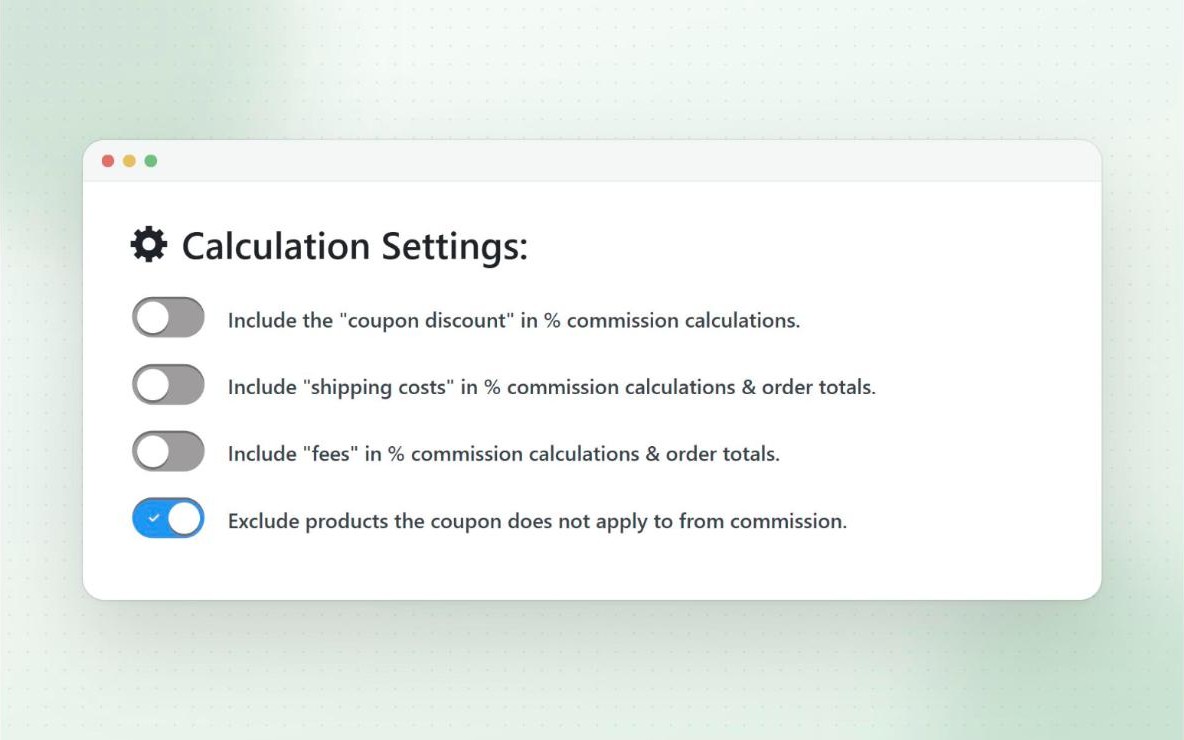
The same area has a few related options. You can exclude products the coupon doesn’t apply to, set a maximum commission per order, and choose how commission is rounded. The calculation settings doc lists each switch, and the commission settings page shows the rate options.
One drawback to know about: when you change any of these, the plugin recalculates saved statistics for every affiliate dashboard. The first page load afterwards can be slower, and affiliates may see their totals change. Pick your settings before launch if you can, and tell affiliates before you change them on a live program.
Put it in your affiliate terms
Whatever you choose, write it down. One sentence is enough, for example: “Commission is 10% of the product subtotal after discounts, excluding shipping and tax.” It prevents disputes when an affiliate compares their commission with the order total a customer shows them.
Our guide on how to create an affiliate terms and conditions page covers the other clauses to include. For returns, see affiliate commission refunds and clawbacks.
Frequently Asked Questions
Is affiliate commission calculated before or after the discount?
It depends on the plugin’s settings. The usual choice is after the discount, so the affiliate earns a share of what the customer paid for the products. Coupon Affiliates does this by default and has a setting to pay before the discount.
Should affiliates earn commission on shipping?
Usually not. Shipping charges mostly cover your delivery cost. Include shipping only if it carries profit for your store.
Should affiliates earn commission on tax or VAT?
No. Tax is collected for the government and isn’t revenue.
What if the coupon doesn’t apply to every product in the cart?
Decide whether the affiliate earns on the whole order or only on the products their code discounted. Coupon Affiliates has a setting to exclude products the coupon doesn’t apply to.
Can I change the calculation after the program has started?
You can, but existing totals may be recalculated, so affiliates could see their figures change. Give them notice and update your terms first.
Summary
Pay percentage commission on products after the discount, and leave out shipping and tax. Include shipping or fees only where they are profit for you. Write the rule into your affiliate terms so everyone works from the same number.
We make Coupon Affiliates, so weigh our view with that in mind. Its default calculation follows the setup above, and the switches to change it are in the free version. For help choosing the rate itself, see how to set affiliate commission rates in WooCommerce.

Elliot Sowersby is a WordPress developer from Yorkshire, United Kingdom. He is the founder and lead developer of Coupon Affiliates and RelyWP.
Leave a Reply