
Approving affiliates by hand takes a few minutes per application, and it stops most problems before they start. Before you click Accept, check four things:
- Where they will promote you, and whether you can see it
- Who their audience is and which countries they live in
- How they plan to send traffic, including paid ads or coupon sites
- Whether their content matches how you want your products described
This guide covers what to ask on your registration form, what to check, how to accept or decline an application in WooCommerce, and which settings to switch on before a new affiliate’s first sale. The examples use Coupon Affiliates, our WooCommerce affiliate plugin, but the checks apply to any affiliate program.
Manual approval or auto-accept?
In Coupon Affiliates, every new application waits on the Registrations page until you accept or decline it. You get an email when someone applies, so you don’t need to keep checking the page.
With PRO, you can turn on automatic acceptance. The applicant’s coupon is created straight away and they get the accepted email. You can also limit auto-accept to certain user roles or affiliate groups, so existing customers are approved at once and everyone else waits for you.
Manual approval is the safer default for most stores. Auto-accept makes sense when you already know the people applying, such as customers with an account or members of a group you created. If you auto-accept everyone, add a CAPTCHA to the registration form first, because every spam submission would otherwise become a live coupon on your store.
Ask the right questions on the form
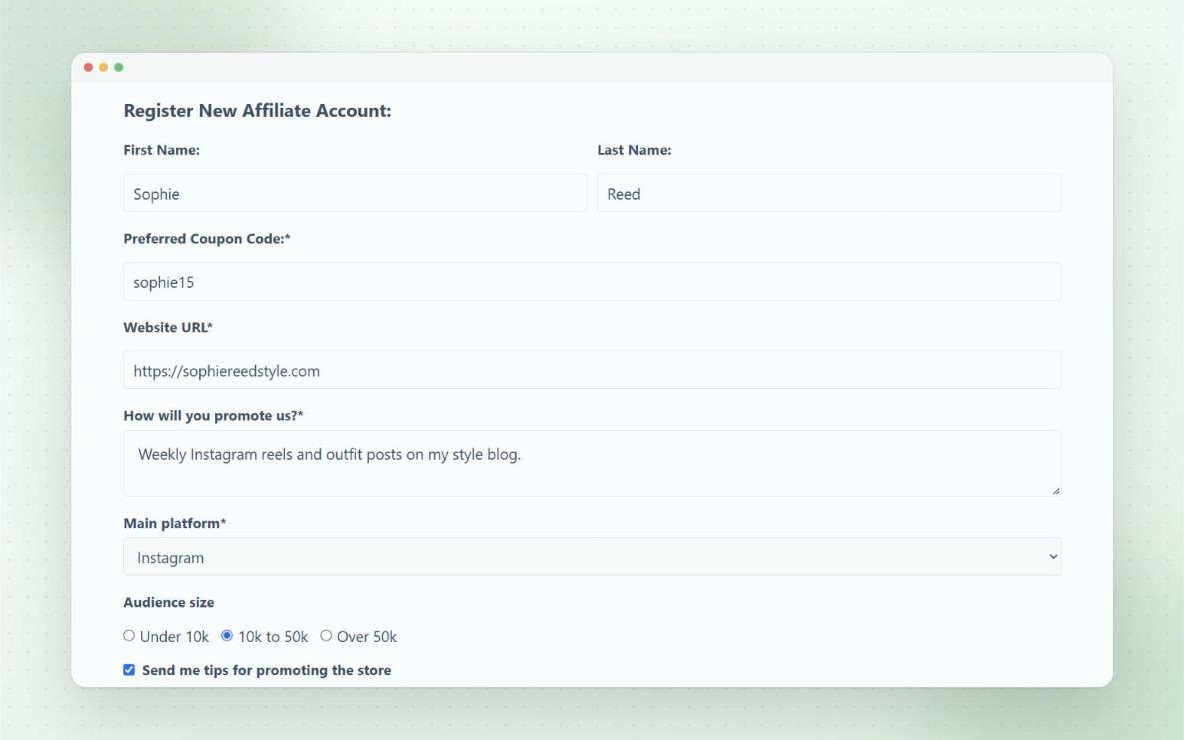
You can only check what the applicant tells you, so the registration form matters. The standard form asks for account details and the coupon code they’d like. PRO adds custom fields: text, text area, dropdown, checkbox, radio, acceptance and date fields, and each one can be required.
Questions worth adding:
- Links to the website or social accounts they’ll use to promote you
- Audience size, and the main country their audience is in
- How they plan to promote you: blog posts, videos, email, in person or paid ads
- Whether they run or post on coupon or cashback sites
- An acceptance checkbox for your affiliate terms
Once you accept someone, their answers appear on their View Affiliate page, so you can refer back to them later. Our guide to building your affiliate form and signup page has more example questions and covers the page around the form.
What to check before you approve
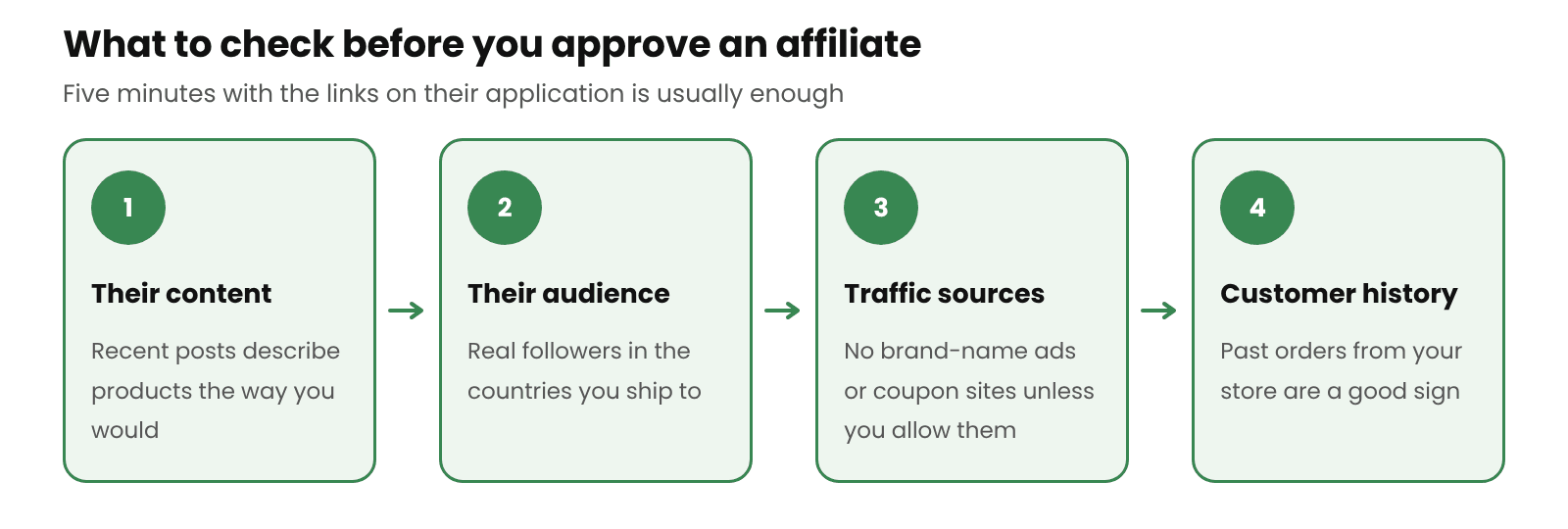
Five minutes per application is usually enough. Most of these checks only need the links the applicant gave you.
Their content
Open their three or four most recent posts or videos. Look at how they describe other products they promote. If they make claims you couldn’t back up, or their tone doesn’t suit your brand, expect them to promote you the same way.
Their audience
Check that their followers look like real people in the countries you ship to. A large account with very few comments or likes, or an audience mostly outside your delivery area, is unlikely to send many sales.
Their traffic sources
Ask how they plan to send traffic, and look out for two answers in particular. Paid search ads on your brand name compete with your own ads. Coupon and cashback sites often earn commission on shoppers who were already at your checkout. Decide your rules on both before you approve anyone, and put them in your affiliate terms.
Whether they’re already a customer
Search for the applicant’s email address in your WooCommerce orders. Existing customers know your products and can talk about them from experience. Someone with a few past orders and a small, engaged following is often a better partner than a large account that has never bought from you.
Basic warning signs
- No website or social links, or links that don’t load
- A brand-new account with no posts
- An email address that doesn’t match the name or website given
- Several applications from the same person under different details
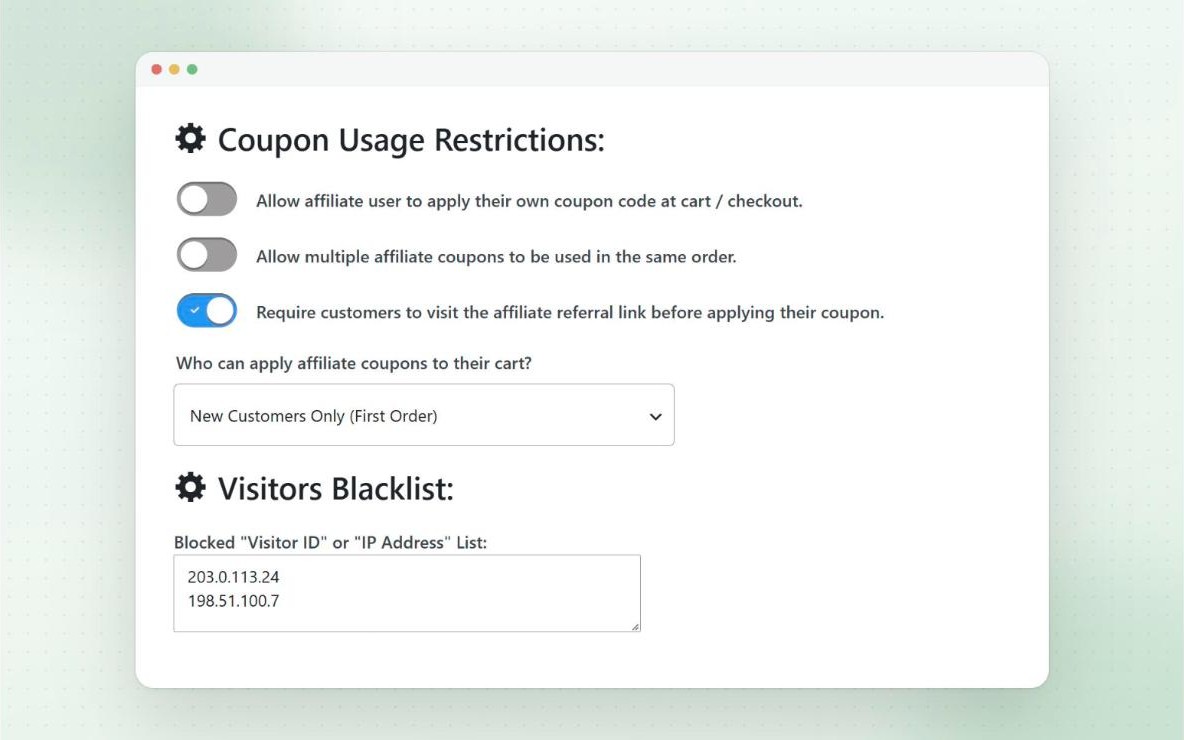
If spam applications keep coming from the same IP address, add it to the Visitors Blacklist in the Fraud Prevention settings. Blocked visitors can’t register as an affiliate or use affiliate coupons.
How to accept or decline an application
- Go to the Registrations page in the Coupon Affiliates menu.
- Open the application to see their details and answers.
- Change the coupon code if needed, for example if the one they asked for is too long or too close to another code.
- Add a custom message for the accepted or declined email if you want to.
- Click Accept or Decline.
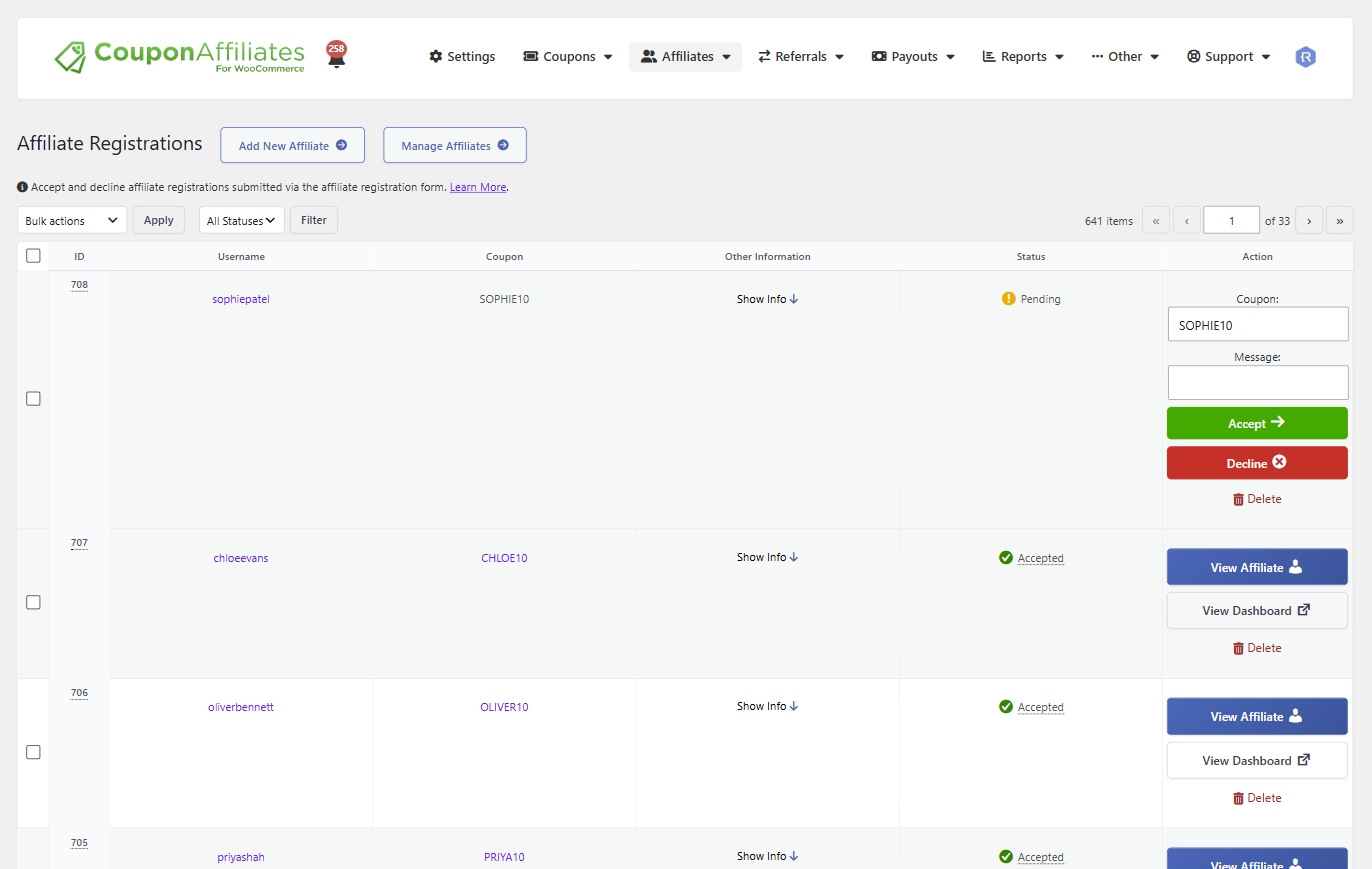
When you accept, the plugin creates their coupon from your template coupon, assigns it to them and sends a welcome email with a link to their affiliate dashboard. You need a template coupon set up for this to work.
If you decline, include a short reason in the custom message. A line such as “We only work with affiliates who promote to UK customers at the moment” is clear and polite, and saves a follow-up email asking why.
Settings to switch on before a new affiliate’s first sale
Approval controls who joins. These settings in the Fraud Prevention tab limit what can go wrong after that:
- Stop affiliates using their own coupon. Switch off “Allow affiliate user to apply their own coupon code at cart / checkout”. Or keep it on and enable “Do not give commission when they use their own code”, so they still get the discount but earn no commission on their own orders.
- New customers only. If the affiliate discount is meant to win new customers, limit affiliate coupons to first orders, for all coupons or per coupon.
- One affiliate coupon per order. Multiple affiliate coupons on the same order are blocked by default. Leave this as it is unless you have a reason to change it.
- Domains Blacklist (PRO). Stops referrals being tracked from domains you add to the list, such as coupon sites you don’t work with.
Our guide to preventing coupon abuse and fraud in WooCommerce explains each setting in more detail.
Start new affiliates in their own group
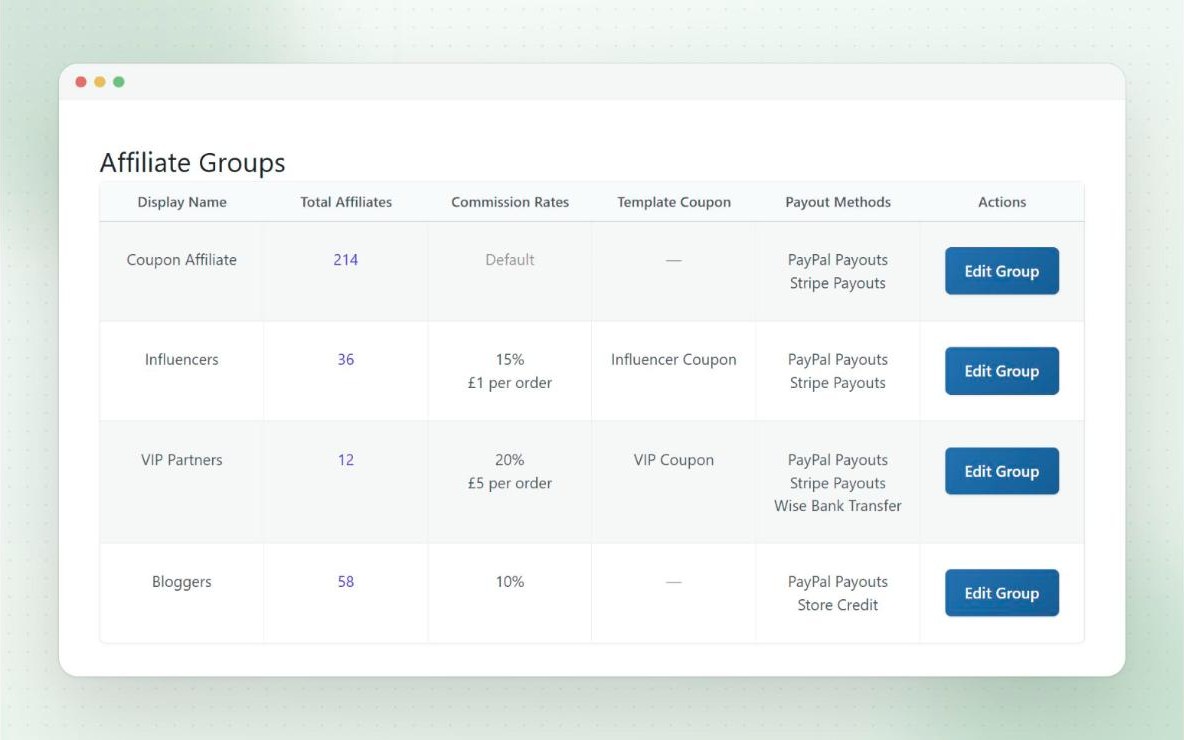
A new affiliate doesn’t have to start on the same terms as someone who has sent you sales for a year. With affiliate groups, you can set a default group for new registrations in the Registrations settings. Each group can have its own commission rate, payout methods and creatives.
A simple setup is a “New” group on a slightly lower rate, and a main group for affiliates who have sent you a few sales. With PRO performance bonuses, one of the rewards can move an affiliate into a different group automatically when they reach a milestone, so you don’t have to move people by hand. Our affiliate groups guide walks through the setup.
If you get a lot of applications
- Add a CAPTCHA to the registration form to cut spam. See how to prevent spam submissions.
- Auto-accept only the user roles or groups you already trust (PRO), and review everyone else by hand.
- Use an AI app to review applications against rules you set. Our guide to using AI to review affiliate applications explains how.
- If you’d rather invite affiliates than take open applications, use Add New Affiliate on the Registrations page to create their accounts yourself.
Frequently asked questions
Should I approve every affiliate application?
No. Approving everyone saves time at the start, but it lets in people who promote you in ways you wouldn’t choose, or who only want a discount code for their own orders. Review applications by hand until you know what a good applicant looks like for your store.
How long should it take to review an application?
For most applications, five minutes is enough to check their links, audience and promotion plans. Try to reply within a few days so good applicants aren’t left waiting.
Can I approve an affiliate on a trial basis?
The simplest way is with groups. Put new affiliates in a group with a lower rate, then move them to your main group once they’ve sent a few sales, either by hand or with a performance bonus reward.
What should I do if an approved affiliate breaks the rules?
Follow your terms. A removal clause lets you end the partnership and withhold unpaid commission when an affiliate breaks your rules. Our guide to creating affiliate terms and conditions covers what to include.
Final thoughts
A few minutes on each application saves much more time later. Ask for links on the form, check recent content and traffic plans, switch on the fraud settings, and start new affiliates on terms you can change. If you’re setting up a program on WooCommerce, the free version of Coupon Affiliates includes the registration form and manual approval, and PRO adds custom registration fields, auto-accept and performance bonuses.

Elliot Sowersby is a WordPress developer from Yorkshire, United Kingdom. He is the founder and lead developer of Coupon Affiliates and RelyWP.

Leave a Reply