
To set up an online course affiliate program on WordPress, first make sure every course sale goes through a checkout your affiliate plugin can track. With most WooCommerce affiliate plugins, that means selling the course as a WooCommerce product through your LMS’s WooCommerce integration. Then set a commission rate that suits a product with almost no delivery cost, hold commission until your money-back guarantee has passed, decide how payment plans and memberships pay out, and recruit people your future students already listen to.
Courses suit affiliate marketing well. Plenty of people won’t buy one without a recommendation from someone they trust, and since you aren’t shipping anything, you can afford to pay affiliates a bigger share than a physical store could. The parts that trip course sellers up are mostly specific to courses: LMS plugins that use their own checkout, refunds after a student has watched half the lessons, and payment plans that stop halfway.
Quick disclosure: we make Coupon Affiliates, a WooCommerce affiliate plugin, so the setup examples use it. Most of the advice applies whichever plugin you choose, and we cover when ours isn’t the right fit.
Jump to a section:
- Step one: get course sales into a trackable checkout
- Setting commission for a course
- Refund guarantees and when to pay affiliates
- Payment plans, memberships and renewals
- Who to recruit as course affiliates
- Working with affiliates during a launch
- Setting up your online course affiliate program
- When this setup isn’t the right fit
- Frequently asked questions
Step One: Get Course Sales Into a Trackable Checkout
This is the decision everything else depends on. An affiliate plugin can only pay commission on orders it can see. Most WordPress LMS plugins can either take payments themselves or hand checkout to WooCommerce, and a WooCommerce affiliate plugin only sees the second kind.
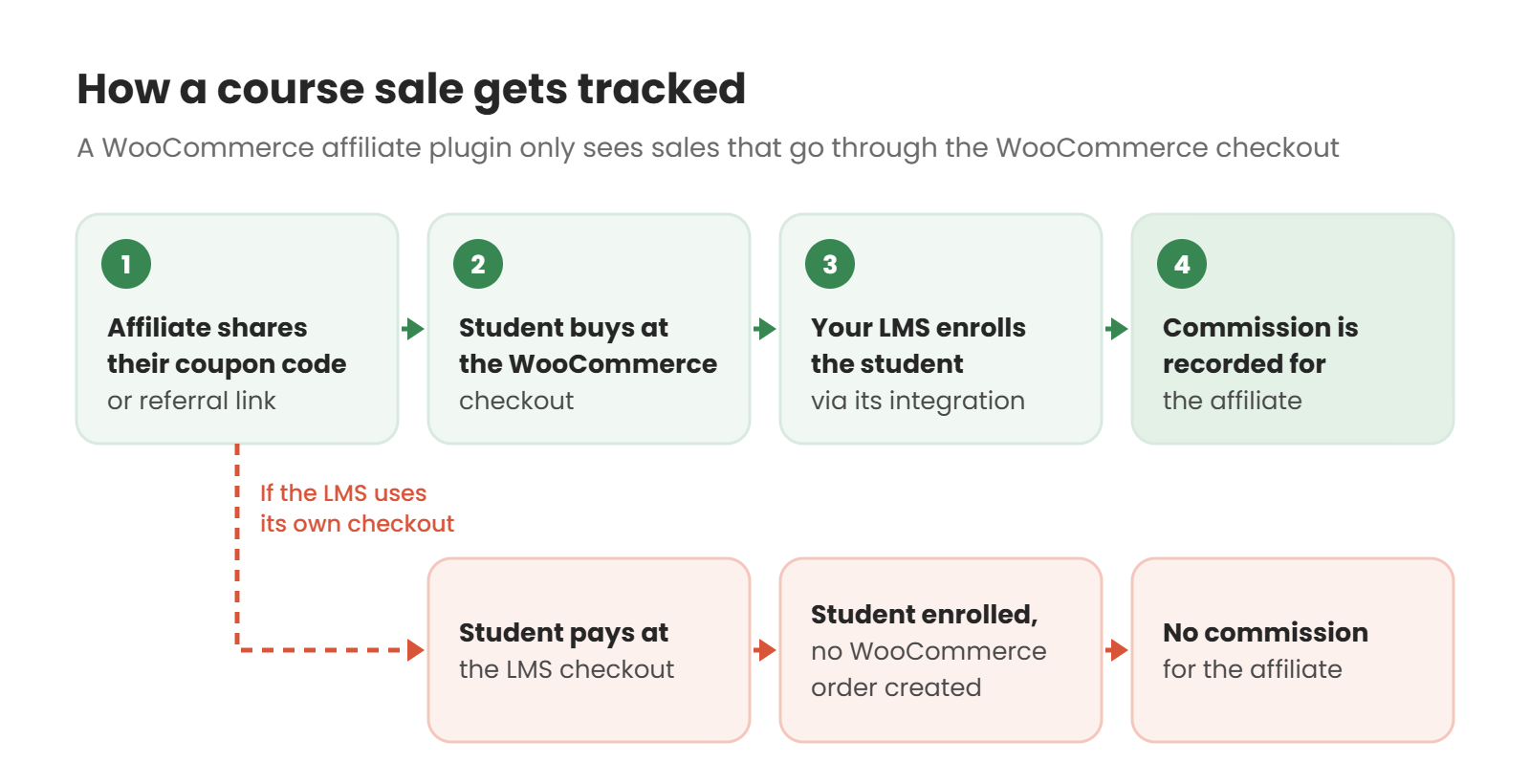
So if your LMS currently uses its own checkout, you have two choices. Switch course sales to WooCommerce, or use an affiliate plugin that integrates with your LMS directly. Here’s how the common options connect to WooCommerce:
| LMS or membership plugin | How sales go through WooCommerce | Check before you launch |
|---|---|---|
| LearnDash | LearnDash’s WooCommerce integration add-on, installed from the LearnDash Add-ons menu with an active license. You link courses or groups to a product in the product’s settings. | Under LearnDash LMS > WooCommerce, set which order statuses grant or deny enrollment, so a refunded order also removes access. |
| LifterLMS | The LifterLMS WooCommerce extension, a paid add-on that’s also part of their bundles. | It grants access at checkout and removes students if a payment is canceled. Place a test refund to see what happens to access on your setup. |
| Tutor LMS | Set WooCommerce as the monetization option instead of Tutor’s own native eCommerce, then connect each course to a WooCommerce product. | If the site was set up with native eCommerce, existing course sales aren’t WooCommerce orders and won’t be tracked. |
| Paid Memberships Pro | Their free official WooCommerce add-on, so membership levels can be bought at the WooCommerce checkout. | Make sure members buy through WooCommerce and not through PMPro’s own checkout page. |
| MemberPress | MemberPress’s own WooCommerce add-on runs through Zapier. It needs their Scale license and the paid WooCommerce Zapier extension. Third-party bridge plugins also exist. | This takes the most setup of the five. If you’re still choosing a platform, one that sells through WooCommerce directly is simpler. |
We have short setup notes for LearnDash, LifterLMS, Tutor LMS, Paid Memberships Pro and MemberPress. Whichever you use, buy your own course once with a test coupon before inviting anyone. You want to see the order, the enrollment and the affiliate’s commission all show up.
Setting Commission for a Course
Courses usually pay affiliates more than physical products do. Our guide to commission rates puts digital products and online courses at 20% to 50% per sale, compared with 5% to 15% for physical goods. Those are starting points, and the right number depends on your own costs.
A course costs very little to deliver, but it isn’t free. Before picking a rate, add up what each sale really costs you:
- Payment processing fees
- LMS, hosting and video hosting costs spread across your sales
- The discount on the affiliate’s coupon, if their code gives the student money off
- Support time, if students email you with questions
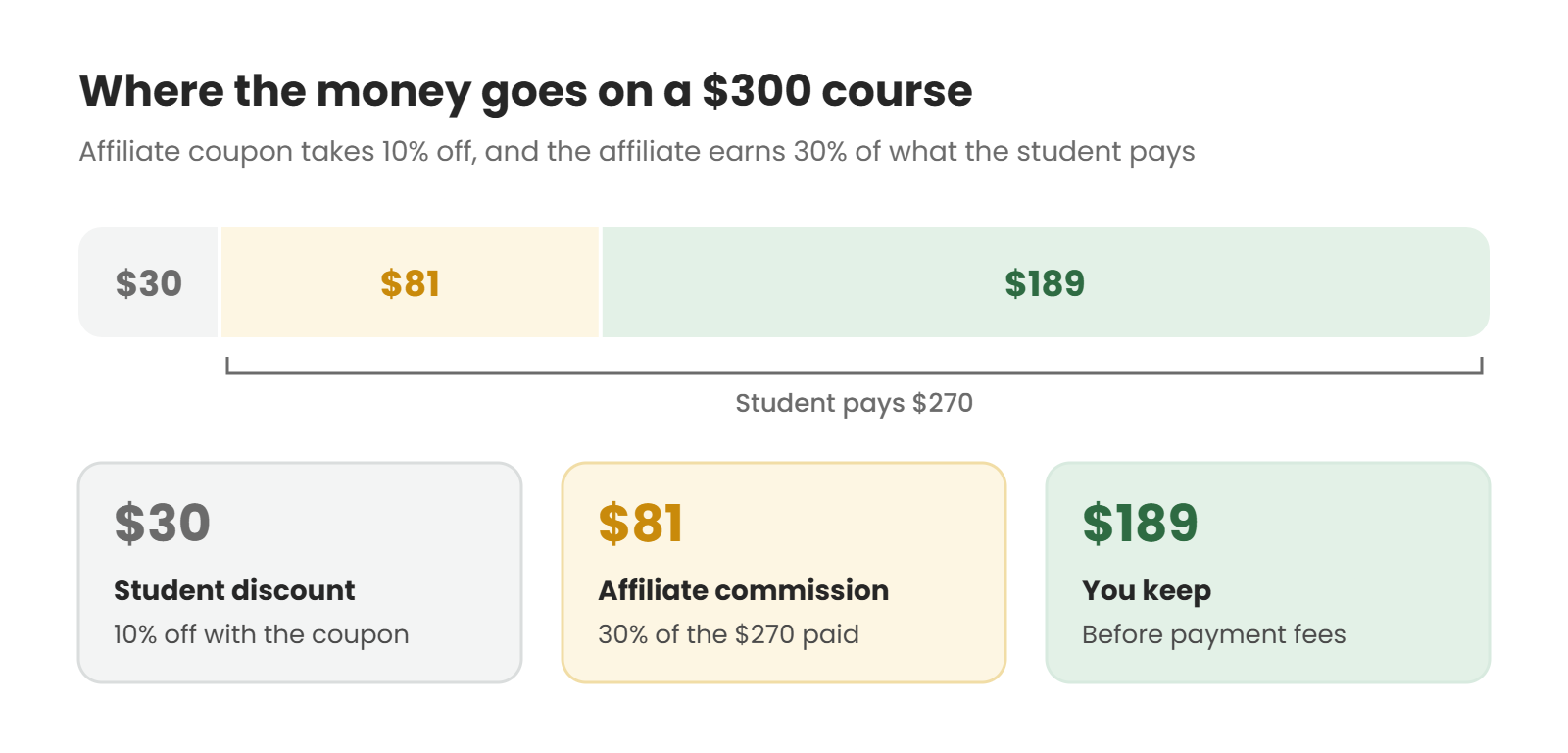
Here’s a quick example. A $300 course, an affiliate coupon that takes 10% off, and 30% commission calculated on what the student paid. The student pays $270, the affiliate earns $81, and you keep $189 before fees. If that leaves enough margin, the rate works. If not, lower the commission or the discount rather than both.
Percentage or fixed amount?
A fixed amount (say $75 per enrollment) is easy for affiliates to understand and easy to put in a pitch. A percentage scales across courses at different prices without you setting each one. Coupon Affiliates handles both in the free version, and you can combine them.
Different rates for different courses
If you sell a flagship course alongside cheaper mini courses, one rate rarely fits all of them. A 40% commission on a $29 mini course hardly matters to an affiliate, while 40% on a $1,000 program might be more than you want to give away. Coupon Affiliates PRO lets you set rates per product. You can also restrict which courses the affiliate’s coupon discounts using the normal WooCommerce coupon settings, which is handy for keeping bundles that are already discounted out of the deal.
What about a student’s second course?
Students who finish one course often buy the next. Decide whether the affiliate who sent them earns on that too. With lifetime commission (a PRO feature), the student is linked to their referring affiliate and later orders earn commission as well, with an optional expiry. That’s a good offer for affiliates who send you serious students, and it costs nothing if the student never buys again.
Refund Guarantees and When to Pay Affiliates
Most course sellers offer some kind of money-back guarantee, such as 14 or 30 days. Courses have a refund problem physical stores don’t: a student can go through a large part of the material and still ask for their money back. Whatever your guarantee, affiliate commission on a refunded sale should be canceled too.
The simplest fix is to hold commission for a little longer than your guarantee. If you offer 30 days, a hold of around 35 days means nearly every refund happens before the commission becomes payable. In Coupon Affiliates, refunds automatically adjust commission in the free version, and the commission delay setting that holds commission for a set number of days is part of PRO.
Two things to check on the course side. First, make sure a refunded order removes course access (see the table above). Second, put your refund rule in your affiliate terms before anyone joins. Our guide to affiliate commission refunds and clawbacks covers partial refunds, chargebacks and what to do when a refund arrives after you’ve already paid.
Payment Plans, Memberships and Renewals
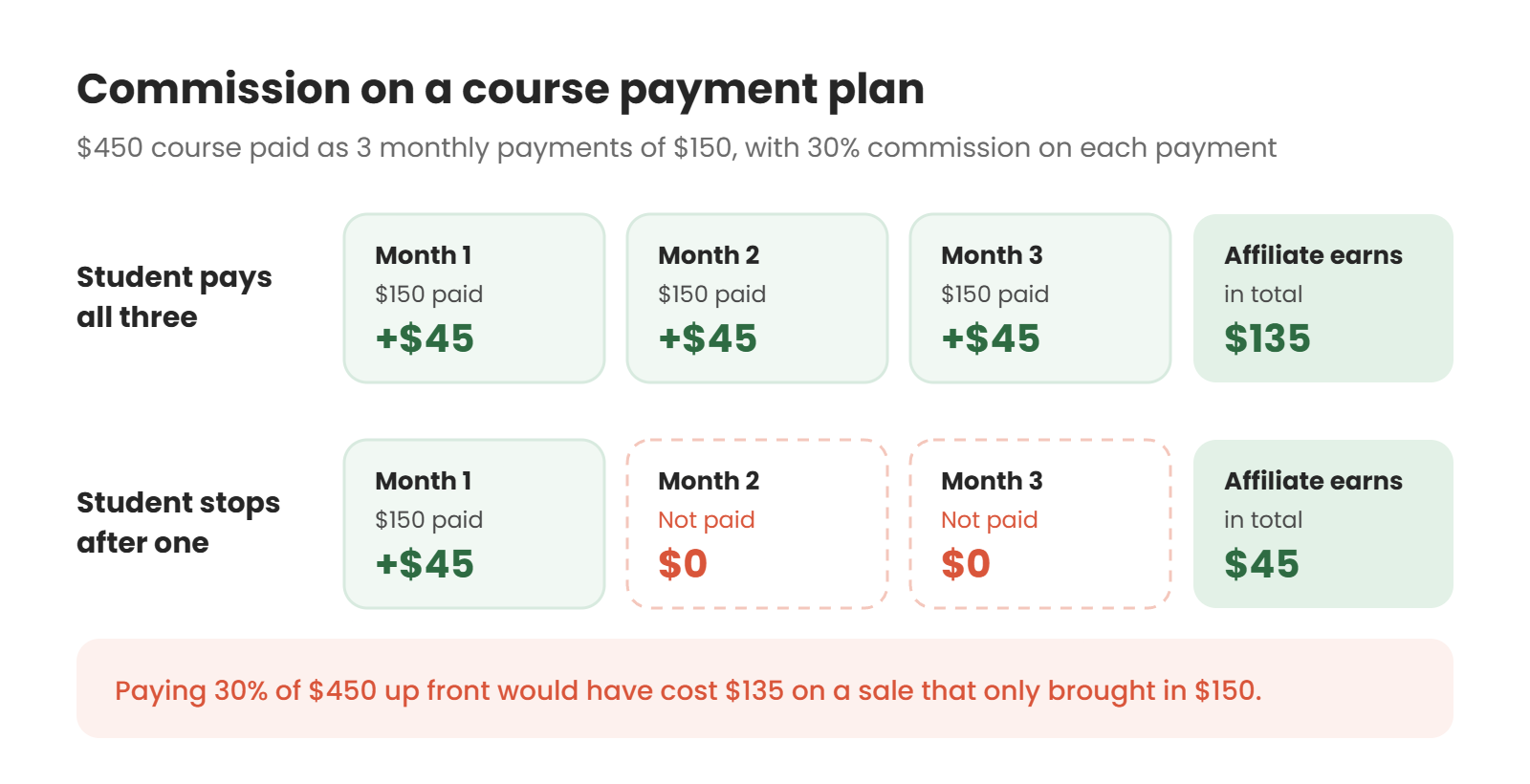
Payment plans are common for higher-priced courses, and they change how commission should work. If a student pays $450 as three monthly payments of $150 and stops after the first, you don’t want to have paid commission on the full $450.
A tidy way to handle this is to sell the payment plan as a subscription with a fixed number of payments, using WooCommerce Subscriptions. In Coupon Affiliates, renewal payments earn commission by default, so the affiliate earns on each installment as it’s actually paid. If a student stops paying, the commission stops with them.
If you use LearnDash, check one setting. By default, LearnDash removes course access when a subscription expires, and a payment plan set up as a fixed-length subscription expires once its last billing period ends. If students should keep access after paying in full, change the access removal on expiration setting in the LearnDash section of WooCommerce > Settings > Subscriptions.
Memberships and ongoing course libraries are a different case: the subscription keeps renewing, so you need to decide how long the affiliate keeps earning. Paying on every renewal for as long as the member stays makes for an attractive offer. Capping it (for example, the first 12 payments) keeps your long-term costs predictable. Coupon Affiliates PRO lets you cap renewals with a recurring referral limit. Our guide to recurring affiliate commissions goes through the options in more detail.
Who to Recruit as Course Affiliates
Your best affiliates are people your future students already trust. For most courses, they fall into a few groups. Our list of types of affiliates goes into more of them.
- Past students. They’ve taken the course and can talk about what changed for them, which is more convincing than anything you can write. Coupon Affiliates lets customers tick a box at checkout to join your affiliate program, so students can sign up as they buy. You can also invite students once they’ve finished.
- Creators of related courses. Someone who teaches photography and someone who teaches photo editing share an audience without competing. Each can promote the other’s course to their students.
- YouTubers, podcasters and newsletter writers in your niche. A lot of course sales start with someone recommending it out loud. A short coupon code is easier to say on a podcast or video than a link is. See our guides to working with YouTubers and influencer affiliate programs.
- Coaches, consultants and community owners. People who work one-to-one with your ideal student often want a course to recommend between sessions.
Give your affiliates free access to the course. It’s hard to recommend something you haven’t seen, and an affiliate who’s been through the material will write a far better review than one working from your sales page. A 100% off coupon for affiliates’ own use is the easiest way to do this.
If you want to reward students for something other than sales, Coupon Affiliates PRO’s performance bonuses include a hook developers can fire from their own code, for example when a student completes a course. That one needs a bit of custom code.
Working With Affiliates During a Launch
Plenty of course creators sell in launches, opening enrollment for a week or two and then closing it. Affiliates can make a big difference to a launch, but only if they have time to plan their own content around it.
- Tell affiliates the open and close dates several weeks ahead, so they can schedule emails, videos and posts.
- Give them ready-made material: draft emails, social posts, images and the main points of the sales page.
- Share early numbers during the launch. Seeing sales come in can encourage affiliates to promote again before the cart closes.
- Consider a bonus for the top affiliates during launch week. Coupon Affiliates PRO’s performance bonuses can track goals over a week or month and award the bonus automatically.
- Decide what happens to the affiliate’s coupon when enrollment closes, and tell them, so nobody keeps promoting a course they can’t buy.
Setting Up Your Online Course Affiliate Program
Our step-by-step guide to creating a WooCommerce affiliate program covers the full setup. In Coupon Affiliates, the steps that matter most for a course are:
- Get courses selling through WooCommerce with your LMS’s integration, and confirm a test order enrolls the student.
- Install Coupon Affiliates from WordPress.org (the free version covers the basics).
- Create a template coupon with the student discount you want to offer, restricted to your course products if needed. New affiliates get their own code based on it.
- Set your commission rate, and per-course rates if you need them (PRO).
- Set a commission delay that covers your money-back guarantee (PRO).
- If you sell payment plans or memberships, decide whether renewals earn commission and whether to cap them.
- Publish an affiliate registration page and your affiliate terms. Our guide to building an affiliate signup page has examples.
- Place a test order with an affiliate coupon, then refund it, and check both the enrollment and the affiliate’s balance.
For paying affiliates, PRO adds PayPal, Stripe, Wise and store credit payouts. Store credit is an interesting option for course sellers, because affiliates who are also students can spend their commission on your next course. There’s more on that in our guide to paying affiliates in store credit.
When This Setup Isn’t the Right Fit
Coupon Affiliates only tracks WooCommerce orders. If your LMS takes payments through its own checkout and you don’t want to move course sales to WooCommerce, a WooCommerce affiliate plugin is the wrong tool. In that case, an affiliate plugin that connects to your LMS directly makes more sense. For example, AffiliateWP lists integrations with LearnDash, LifterLMS, Tutor LMS, MemberPress and Paid Memberships Pro.
And if your course is on a hosted platform rather than your own WordPress site, start with the affiliate tools your platform includes or supports. Everything in the commission, refund and recruiting sections above still applies.
Frequently Asked Questions
How do I create an affiliate program for my online course?
Sell the course through a checkout your affiliate plugin can track. For a WooCommerce affiliate plugin, that means using your LMS’s WooCommerce integration. Then set a commission rate, hold commission until your refund guarantee ends, decide how payment plans pay out, publish a signup page and affiliate terms, and invite past students and creators in your niche.
What commission should I offer on an online course?
A common range is 20% to 50% of the sale, because a course costs very little to deliver. Work out your real costs per sale first, including the discount on the affiliate’s coupon, then pick a rate that leaves you enough margin. Higher-priced programs can often pay a lower percentage and still offer affiliates more money per sale.
Should affiliates earn commission on payment plans?
Yes, but on each payment as it comes in, not on the full price up front. Selling the plan as a subscription with a fixed number of payments makes this happen automatically, and if a student stops paying, the affiliate stops earning too.
Can my students be affiliates?
Yes, and they often make the best ones, because they can talk about the results they got. You can invite them once they’ve finished the course or let them join at checkout.
Do I need WooCommerce to run a course affiliate program?
Not in general, but you do for Coupon Affiliates and other WooCommerce affiliate plugins. If your LMS uses its own checkout, either switch course sales to WooCommerce or use an affiliate plugin that integrates with your LMS directly.
Does Coupon Affiliates work with LearnDash, LifterLMS, Tutor LMS or MemberPress?
Yes, as long as the courses or memberships are sold through WooCommerce using that plugin’s WooCommerce integration. Coupon Affiliates then tracks those orders like any other WooCommerce sale. Paid Memberships Pro works the same way through its free add-on. MemberPress takes the most setup, because its WooCommerce add-on runs through Zapier.
How long should I hold commission on course sales?
A little longer than your money-back guarantee. If you offer 30 days, hold commission for around 35 so refunds are taken off before anything is paid out.
Getting Your First Course Affiliates
Get the checkout right first, because an online course affiliate program can’t pay anyone if course sales aren’t being tracked. After that, the choices that matter most for courses are how long you hold commission and how payment plans pay out. Your own past students are usually the easiest place to find your first affiliates.
We make Coupon Affiliates, so take our setup advice with that in mind. If your courses already sell through WooCommerce, the free version is on WordPress.org and PRO has a 7-day free trial. Run a test enrollment with an affiliate coupon and see how it fits your course.

Elliot Sowersby is a WordPress developer from Yorkshire, United Kingdom. He is the founder and lead developer of Coupon Affiliates and RelyWP.
Leave a Reply