
WooCommerce already counts how many times each coupon has been used and how much it has given away in discounts. What it doesn’t show in one place is the revenue each code brought in or who used it, and it has no idea which person or campaign a code belongs to. The built-in Orders report can answer the revenue and customer questions once you add a coupon filter. Linking codes to their owners takes a plugin.
The short version:
- To see usage and discount totals, use the built-in Coupons report.
- For revenue and a customer list for one code, filter the Orders report by coupon code (steps below).
- If each code belongs to a person, like an influencer, affiliate or podcast host, use Coupon Affiliates.
- To report on a group of codes as one campaign, use WooCommerce Coupon Campaigns.
- For a coupon dashboard on top of extra coupon features, look at Advanced Coupons or Smart Coupons.
Disclosure: we make Coupon Affiliates, one of the tools covered below. We’ve included its downsides along with everyone else’s, and every price was checked on the live pricing pages in October 2026.
Jump to a section:
- What WooCommerce tracks on its own
- How to see revenue and customers for one coupon
- Where the built-in reports stop
- What to track for each code
- Setting up codes so they’re easy to track
- Coupon tracking tools for WooCommerce
- Frequently asked questions
What WooCommerce Tracks on Its Own
There are three places in a standard WooCommerce store where coupon data shows up, and each one answers a slightly different question.
The coupons list
Under Marketing > Coupons, the list of coupons has a Usage / Limit column. It shows how many times each code has been used against its usage limit, for example “14 / 100”, or “14 / ∞” if there’s no limit. That’s the fastest way to check whether a code is being used at all, but it covers all time and has no dates, revenue or customers.
Analytics > Coupons
The Coupons report under Analytics > Coupons adds dates. It charts discounted orders and the amount discounted for the period you pick, and its table lists each coupon code with its number of orders, amount discounted, created and expiry dates, and coupon type. You can view a single coupon or compare several side by side.
What it doesn’t show is sales. The report tells you what each code cost you in discounts, not what it earned you. To see that, you need the Orders report.
Analytics > Orders
The Orders report is where the useful coupon data lives. It has an advanced filter for coupon codes, and its table includes the customer, whether they’re a new or returning customer, the products, the coupons used and the net sales for each order. The charts above the table show orders, net sales and average order value for whatever you’ve filtered. In the Coupons report, clicking a code’s order count opens this report already filtered to that code.
Both Analytics reports have a Download link above the table that exports the rows as a CSV file. Larger exports are processed in the background and emailed to you. If your store had orders before Analytics was set up, import your historical data first (under Analytics > Settings), or older orders won’t appear.
How to See Revenue and Customers for One Coupon
This is the question most store owners are asking when they search for coupon tracking, and you can answer it without a plugin:
- Go to Analytics > Orders and set the date range you care about.
- Under Show, choose Advanced filters, then add a Coupon code filter and pick the code (or several codes).
- Read the totals at the top: the number of orders and the net sales are what that code brought in for the period.
- To see whether the code found new buyers, add a second filter for Customer type and set it to New. Compare that with the unfiltered number.
- Use Download to export the orders, with the customer for each one, as a CSV.
Step 4 is the one most people skip, and it tells you the most. A code that mostly goes to returning customers is often a discount on a sale you’d have made anyway. A code that brings in a high share of new customers is doing its job, even if its total revenue looks small.
Where the Built-In Reports Stop
The filtered Orders report works well for checking one or two codes now and then. It gets awkward once codes become part of how you sell:
- Comparing lots of codes is slow. The Coupons report compares codes by orders and discounts, but not by sales. To rank 30 influencer codes by revenue, you’d run the Orders report 30 times or export everything and sort it in a spreadsheet.
- WooCommerce doesn’t know who a code belongs to. It sees SARAH15 as a coupon, not as Sarah’s code. If one podcast reads out two codes, or one creator has a code per platform, adding them up is your job.
- No clicks. If a partner shares a link as well as a code, WooCommerce can’t show you how many people clicked it. WooCommerce does record where each order’s visit came from, including UTM tags, on the order screen and in the orders list, but that’s per order, not per code.
- No commission or cost per sale. If the person who owns the code earns a commission, the real cost of each sale is the discount plus the commission, and WooCommerce has no way to work that out.
For a handful of store-wide codes like a newsletter discount or a holiday sale, none of this matters much. Once codes are handed out to people, it’s worth using a tool built for that. We cover the tracking side of person-owned codes in more depth in our guide to tracking sales with coupon codes instead of cookies.
What to Track for Each Code
Usage counts are the easiest number to find and the least useful on their own. These are the numbers that tell you whether a code is worth keeping:
| Metric | What it tells you | Where to find it in WooCommerce |
|---|---|---|
| Orders | How often the code is used | Coupons list, or Analytics > Coupons |
| Amount discounted | What the code is costing you in discounts | Analytics > Coupons |
| Net sales | The revenue from orders that used the code | Analytics > Orders, filtered by coupon code |
| Share of new customers | Whether the code finds new buyers or discounts existing ones | Analytics > Orders, filtered by coupon code and customer type |
| Average order value | Whether people spend more or less with the code | Analytics > Orders, filtered by coupon code |
| Cost per sale | The discount plus any commission you pay on the order | Not available. Work it out or use an affiliate plugin |
| Usage over time | Sudden jumps that suggest a code has leaked | Analytics > Coupons, single coupon view |
If you run these numbers for a code with a commission attached, the cost of a coupon sale section of our coupon affiliate marketing guide shows how the discount and commission add up. For the wider set of numbers to watch across an affiliate program, see our guide to affiliate marketing KPIs.
Setting Up Codes So They’re Easy to Track
Most coupon tracking problems start when the codes are created, not in the reports. A few habits make the numbers much easier to read later:
- Give every channel and every person its own code. If the same SAVE10 goes in your newsletter, on a podcast and in an Instagram post, no report can tell you which one worked.
- Name codes so you can group them. A consistent pattern like a channel prefix (POD-MAYA, NEWS-SPRING) makes the codes easy to search and filter. Our list of discount code ideas and formats has more naming patterns, and the coupon code name generator can suggest some.
- Set limits and an expiry date on public codes. A usage limit per user and an end date stop an old code from turning into a permanent discount if it gets shared around.
- Pair codes with tracked links where there is something to click. For email, social posts and show notes, a link with UTM tags (or a referral link that applies the code) tells you about clicks as well as sales.
- Write down what each code is for. The coupon’s description field is a good place for it. Six months later, “SPRING22” won’t mean much to anyone.
If codes do get shared somewhere they shouldn’t, you’ll usually see it as a jump in usage. Our guide to preventing coupon abuse in WooCommerce covers what to do about it.
Coupon Tracking Tools for WooCommerce
If the built-in reports aren’t enough, these are the options worth considering. They do different jobs, so the right one depends mostly on whether your codes belong to people or to campaigns.
Last checked: October 2026. Prices are for one site, per year unless stated.
| Tool | Best for | Ties each code to a person | Free version | Paid from |
|---|---|---|---|---|
| WooCommerce Analytics | Occasional checks on a few codes | No | Built in | Free |
| Coupon Affiliates | Codes owned by influencers, affiliates, podcasts or customers | Yes | Yes | $23.99/month or $179.99/year |
| WooCommerce Coupon Campaigns | Reporting on groups of codes as one campaign | No | No | $49/year |
| Advanced Coupons | A coupon dashboard plus BOGO deals and other coupon features | No | Yes | $199/year |
| Smart Coupons | Coupon revenue in a dashboard widget, alongside gift cards and store credit | No | No | $99/year |
Coupon Affiliates
Coupon Affiliates is our plugin, so weigh this section with that in mind. It started out as a plugin called WooCommerce Coupon Usage before it grew into an affiliate plugin, and it treats every code as belonging to someone: an affiliate, an influencer, a podcast or a customer. Each code gets its own usage, sales, discounts and commission figures, and if you give the owner a referral link too, it counts clicks and conversions for that link.
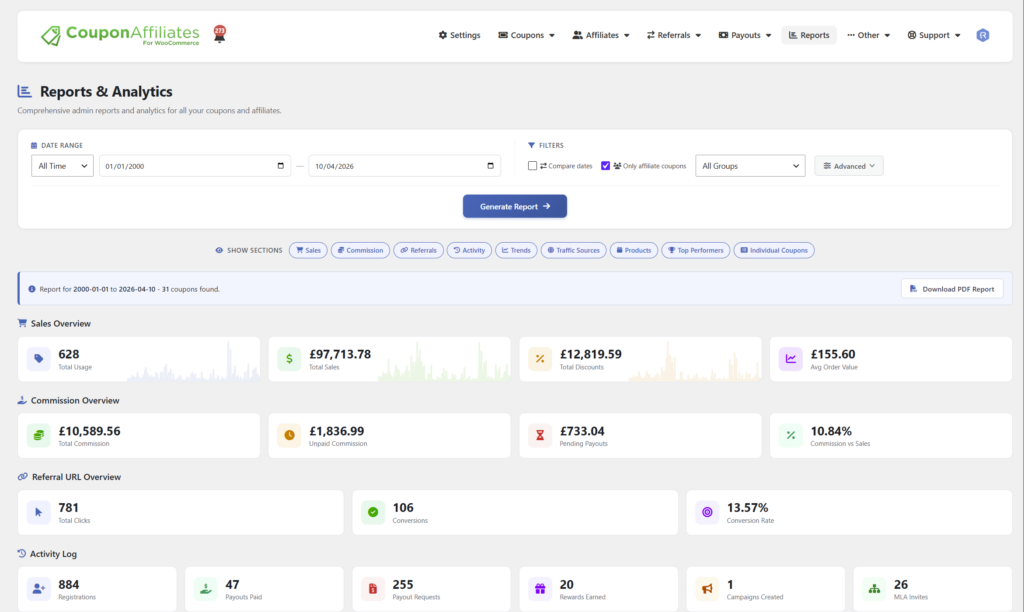
The Reports & Analytics page in the admin is where it fills the gap left by WooCommerce Analytics. You pick a date range and get totals for your codes, top performers by sales, commission and usage, and a list of every coupon with its own figures that you can sort by sales, usage, commission or discounts. By default it covers coupons assigned to someone, but untick “Only affiliate coupons” and store-wide codes like a newsletter discount are included too. Each code’s owner also gets a dashboard showing their own numbers, so you don’t have to send people their stats.
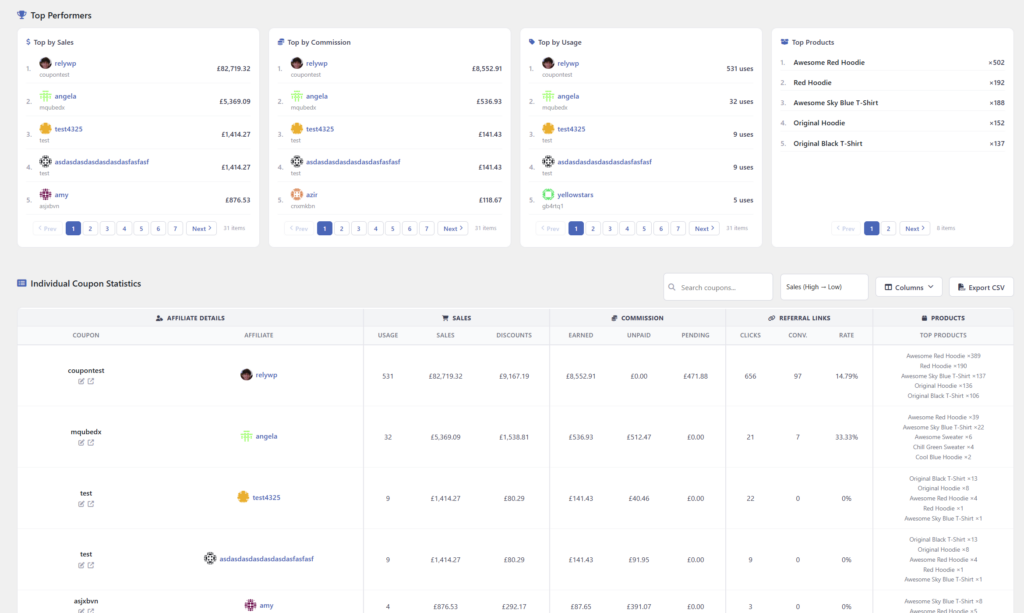
A few details matter for tracking specifically. One account can have several codes, and each one’s orders are tracked separately. If someone already has a code in use, you can assign it to them and their past orders are included. And because the code is recorded on the order, sales are tracked even when nobody clicked anything, which is how most podcast promo codes and influencer codes get used.
Best for: stores where codes belong to people, especially when those people earn a commission or reward.
Pros:
- Sales, discounts, usage and commission for every code in one report, without filtering code by code.
- Codes are grouped by owner, and each owner can see their own stats.
- Referral links alongside codes, with click and conversion tracking.
- Can report on every coupon in the store, not only ones assigned to affiliates. The free version covers the past three months.
Cons:
- Most of the plugin is about running affiliates and paying commission. If all you want is a report on a couple of store-wide codes, you’ll be ignoring most of it.
- Reports beyond the last three months, CSV export and date comparisons need PRO.
Pricing: free version on WordPress.org. PRO costs $23.99 per month or $179.99 per year for one site, with a 7-day free trial.
WooCommerce Coupon Campaigns
Coupon Campaigns is WooCommerce’s own extension for grouping coupons. You assign each coupon to a named campaign, and the extension reports on the whole group in the WooCommerce reporting dashboard. That’s useful when one promotion runs on lots of codes, like a batch of single-use codes printed on flyers or a set of codes for different email segments, and you care about the campaign total more than any one code.
Best for: reporting on a promotion that uses many codes at once.
Pros:
- Groups any number of coupons into one campaign report.
- Made by WooCommerce and sold on the official Marketplace.
Cons:
- It organizes and reports on codes but doesn’t create them, so generating a batch of codes needs another tool.
- Codes are grouped by campaign, not by person, and there’s no free version to try first.
Pricing: $49 per year, with a 30-day money-back guarantee through the WooCommerce Marketplace.
Advanced Coupons
Advanced Coupons is mainly a coupon features plugin, adding things like BOGO deals, cart conditions and URL coupons, but it also has a coupon dashboard in both the free and premium versions. The dashboard shows coupons used, amount discounted, orders discounted and the revenue from discounted orders for a date range, with tables of the most used and most recently created coupons.
Best for: stores that want more coupon types and a quick overview of coupon activity in one plugin.
Pros:
- The coupon dashboard is in the free version, which has 20,000+ active installs on WordPress.org.
- Includes revenue from discounted orders, which the built-in Coupons report leaves out.
Cons:
- The dashboard is an overview of coupon activity, not a per-person breakdown, and codes aren’t tied to an owner.
- Most of what you pay for in Premium is coupon features rather than reporting.
Pricing: free version available. Premium is $199 per year for one site (with a lower first-year price at the time we checked), with a 14-day money-back guarantee.
Smart Coupons
Smart Coupons by StoreApps has 20K+ active installs on the WooCommerce Marketplace and a 4.4 out of 5 rating from 234 reviews. It’s built for creating coupons, gift cards and store credit, and it includes a revenue insights widget that tracks coupon revenue, store credit usage and order performance. For tracking where coupon sales come from, its documentation suggests pairing coupon links with UTM tags and reading the results in Google Analytics.
Best for: stores already using it for gift cards, store credit or auto-applied coupon links.
Pros:
- Coupon revenue appears in a dashboard widget, with no separate reporting tool to set up.
- Coupon links that apply the code automatically work well with UTM tags.
Cons:
- The reporting is a single widget. For detailed tracking, you’re relying on WooCommerce Analytics or Google Analytics.
- No free version, and codes aren’t tied to a person.
Pricing: $99 per year, with a 30-day money-back guarantee through the WooCommerce Marketplace.
Other affiliate plugins can also tie codes to people. If that’s the job you need done, our comparison of the best WooCommerce affiliate plugins covers how each one handles coupon tracking alongside everything else.
Frequently Asked Questions
How do I see who used a coupon in WooCommerce?
Go to Analytics > Orders, choose Advanced filters, and add a Coupon code filter for the code. The table lists every order that used it, with the customer’s name, and you can download the list as a CSV. The coupons list under Marketing > Coupons only shows how many times a code was used, not by whom.
Can WooCommerce show the revenue from each coupon?
Not in the Coupons report, which shows orders and the amount discounted. Click a code’s order count in that report, or filter the Orders report by that code, and the net sales total at the top is the revenue from orders that used it. Doing that for many codes at once is where a plugin saves time.
How do I track influencer or podcast promo codes?
Give each influencer or show its own code, and don’t reuse it anywhere else. With only a few partners, the filtered Orders report is enough. Once there are more, or they earn a commission, a plugin like Coupon Affiliates keeps each person’s sales, clicks and earnings together. Our guide to influencer affiliate marketing covers the rest of the setup.
Does coupon tracking need cookies?
No. The code is saved on the order when the customer applies it, so the sale can be matched to the code whatever browser or device they used, and whether or not they clicked a link first. Cookies only matter for link tracking.
Do I need a plugin to track coupon codes?
For a few store-wide codes, no. WooCommerce Analytics will tell you usage, discounts and, with a filter, revenue. A plugin starts to pay for itself when you have many codes to compare, codes that belong to different people, or commissions to work out.
Which Approach Should You Use?
Start with what WooCommerce already gives you. The Orders report with a coupon filter answers most questions about a single code, and the Customer type filter tells you whether a discount is bringing in new buyers.
Add a tool when the reports start to need a spreadsheet. If your codes are tied to campaigns, Coupon Campaigns or a coupon plugin’s dashboard will cover it. If they’re tied to people, that’s the problem we built Coupon Affiliates to solve, and you can try the free version to see whether its reports fit how you work. We’re obviously not a neutral judge of that, which is why the built-in option comes first in this guide.

Elliot Sowersby is a WordPress developer from Yorkshire, United Kingdom. He is the founder and lead developer of Coupon Affiliates and RelyWP.

Leave a Reply