
Coupon Affiliates already records which affiliate referred each WooCommerce order, which is how it knows who to pay. What it doesn’t do on its own is pass that information to Google Analytics or your ad accounts, so GA4 can show you a sale but not which affiliate sent it.
The Conversion Bridge plugin now has a Coupon Affiliates integration that fills in that missing step. It adds the referring affiliate to every purchase event and can count each new affiliate signup as a conversion, with no Google Tag Manager setup or custom code.
The short version:
- To see affiliate revenue in Google Analytics, turn on the Coupon Affiliates and WooCommerce integrations in Conversion Bridge, then register the affiliate field as a custom dimension in GA4.
- To measure affiliate recruitment, tick Track registrations and mark the signup event as a key event in GA4 or import it into Google Ads.
- Keep paying commission from your Coupon Affiliates reports. GA4 will almost always show fewer affiliate orders than your store does, for reasons covered below.
Disclosure: we make Coupon Affiliates. Conversion Bridge is a separate plugin made by WP Sunshine, and they built this integration. Prices and features below were checked on both plugins’ websites in November 2026, and the screenshots come from our own test store.
Jump to a section:
- How the two plugins work together
- What you need before you start
- How to set up affiliate conversion tracking
- Seeing affiliate sales in Google Analytics
- Tracking affiliate signups as a conversion
- Why GA4 won’t match your affiliate reports
- Other ways to do it
- Frequently asked questions
How the Two Plugins Work Together
Each plugin handles a different part of the tracking.
Coupon Affiliates decides who gets credit. When a customer uses an affiliate’s coupon code, or arrives through their referral link, the plugin saves that affiliate against the order and works out their commission. A coupon code is stored on the order itself, so those sales are credited without any cookie. Referral link visits use a first-party cookie that lasts for the number of days you set. All of this happens inside WooCommerce, and none of it needs Google Analytics.
Conversion Bridge reports it elsewhere. It’s a WordPress plugin that sends conversion events from other plugins to analytics and ad platforms, including Google Analytics 4, Google Ads and Meta. Its WooCommerce integration already sends a purchase event for each order. The Coupon Affiliates integration reads the affiliate that Coupon Affiliates saved and adds it to that event, and it also sends an event when someone joins your program.
Here’s what gets sent, based on Conversion Bridge’s documentation and our own testing:
| Event | When it fires | What it includes |
|---|---|---|
| Purchase | On the order confirmation page, once per order | The usual WooCommerce order data (total, products, coupons) plus an affiliate field holding the referring affiliate’s coupon code |
| Affiliate registration | On the new affiliate’s next page load after they submit your registration form | A conversion label (“Affiliate Registration” by default), plus the person’s email and name for platforms that use enhanced conversions |
A few details matter here. In our test order, the GA4 purchase event arrived with affiliate set to the affiliate’s coupon code alongside the normal coupon field. Conversion Bridge’s documentation says the field is also added when the customer came in through a referral link and didn’t use the code, as long as Coupon Affiliates credited the order (more on that in step 4). Store coupons that aren’t assigned to an affiliate are ignored, so your newsletter code won’t show up as an affiliate sale. And only people who sign up through the form count as registrations. Affiliates you add yourself in the WordPress admin don’t fire the event.
What You Need Before You Start
- Coupon Affiliates. The free version includes coupon tracking, referral links and the registration form. PRO costs $23.99 per month, $179.99 per year or $599.99 once for one site, with a 7-day free trial.
- Conversion Bridge. Its pricing page lists three yearly plans: Solo at $79 for one site, Studio at $179 for 10 sites and Max at $499 for 50 sites. Every plan includes all integrations, and there’s a 14-day refund policy.
- Somewhere to send the data. This guide uses Google Analytics 4. Conversion Bridge also connects to ad platforms such as Google Ads and Meta, and to privacy-focused analytics tools like Fathom and Plausible.
- A cookie banner, if you need one. If your store asks visitors for consent, pick your banner plugin under Options > Cookie Consent in Conversion Bridge so tracking waits for the visitor’s choice.
How to Set Up Affiliate Conversion Tracking
With both plugins installed and active, the setup takes about five minutes. Everything on the Conversion Bridge side lives under Settings > Conversion Bridge in your WordPress admin.
Step 1: Connect Google Analytics
On the Analytics tab, switch on Google Analytics. You can sign in with your Google account, which is the option Conversion Bridge recommends, or choose Enter Measurement ID manually and paste the ID (it starts with G-) from your GA4 data stream.
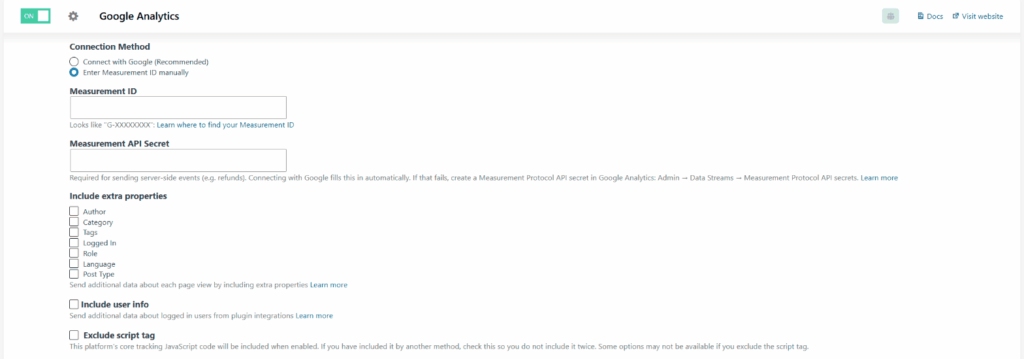
The Measurement API Secret field is used for events sent from your server rather than the visitor’s browser, such as refunds. Signing in with Google fills it in for you. If you enter your Measurement ID by hand, create a secret in GA4 under Admin > Data Streams, open your stream, and go to Measurement Protocol API secrets.
If GA4 is already installed on your site by another plugin or your theme, tick Exclude script tag so the tracking code isn’t loaded twice.
Step 2: Turn on WooCommerce purchase tracking
Open the Integrations tab. Only plugins that are active on your site appear at the top, so you should see both WooCommerce and Coupon Affiliates there. Switch WooCommerce on, click the cog next to it, tick Track purchases and save.
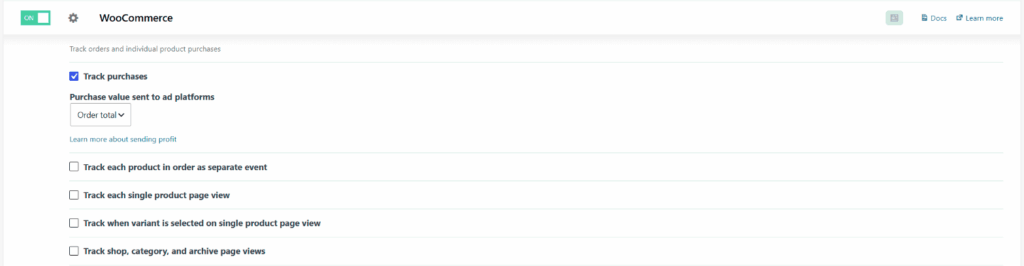
This step is required. The affiliate is added to the WooCommerce purchase event, so if purchase tracking is off there’s nothing to attach it to. The other WooCommerce events (product views, add to cart and so on) are optional and don’t affect affiliate tracking.
Step 3: Turn on the Coupon Affiliates integration
On the same tab, switch on Coupon Affiliates and click its cog. There’s one setting:
- Track registrations sends an event each time someone signs up as an affiliate. Under Advanced settings you can change its label from the default “Affiliate Registration”.
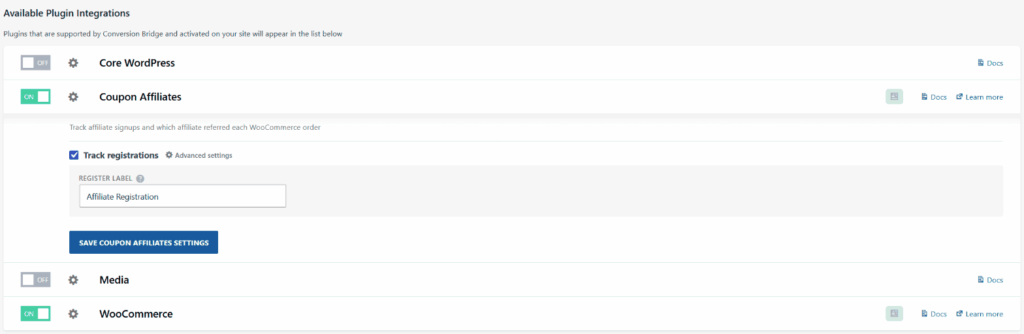
There’s no separate setting for purchases. As soon as this integration and WooCommerce purchase tracking are both on, the affiliate is added to every order an affiliate referred. Click Save Coupon Affiliates Settings.
Step 4: Check how Coupon Affiliates credits referral link orders
Conversion Bridge can only report the affiliates that Coupon Affiliates has credited. Orders where the affiliate’s coupon was used are always credited. Orders from referral link visits where the coupon ended up off the order (the customer removed it, or used a different code for a bigger discount) are only credited if URL Conversion Tracking is on.
In Coupon Affiliates, go to Settings > Referral Links and check the Track conversions via referral URL even if coupon was not used option. The cookie length setting just below it controls how many days a referral link visit counts for.
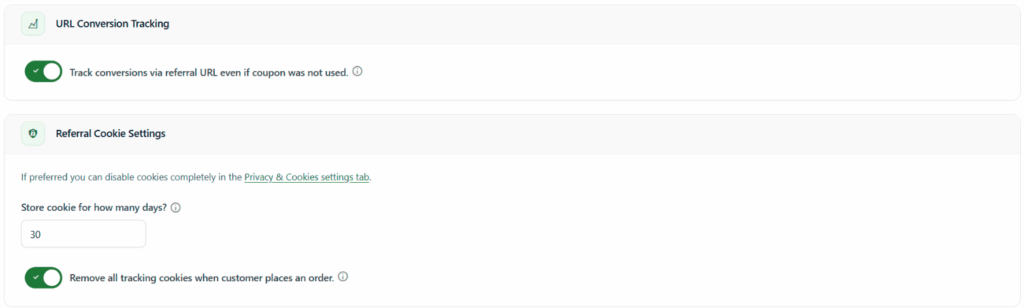
This option relies on the referral cookie, so Store cookies for referral links also needs to stay on under Privacy & Cookies. Our guide to tracking URL conversions without a coupon explains how commission is worked out for these orders.
Step 5: Test it
Before you rely on the numbers, check that the events are arriving:
- In Conversion Bridge, go to Options > Tracking Controls. By default it can skip tracking for logged-in admins and for local or staging sites, so test on your live store in a private browser window, logged out.
- Optionally, turn on Console logging under Options > Advanced. Conversion Bridge then prints each event it sends to the browser console, which is handy for spotting the affiliate field before GA4 shows anything.
- Open one of your affiliates’ referral links and place a test order.
- In GA4, open Reports > Realtime and look for the purchase event. Click it to see its parameters and check that
affiliateholds the affiliate’s coupon code. - To test registrations, sign up through your affiliate registration form with a test email address, then load any other page. The registration event fires on that next page load.
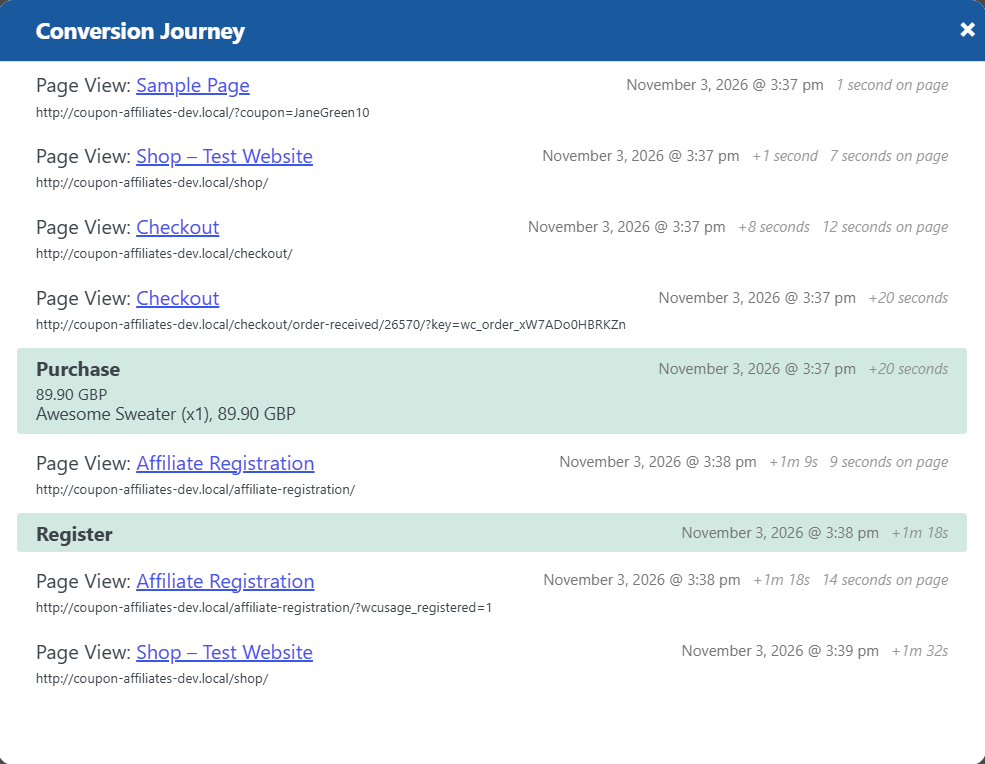
Conversion Bridge also records each visitor’s path on its Journeys tab. In our test, one journey showed the visit from the affiliate’s referral link, the purchase, and then the same visitor signing up as an affiliate:
Remember to cancel or delete the test order afterwards so it doesn’t count as a real sale or earn the affiliate commission.
Seeing Affiliate Sales in Google Analytics
GA4 receives the affiliate field straight away, but it won’t show it in reports until you register it as a custom dimension. This is a one-time step:
- In GA4, go to Admin > Data display > Custom definitions.
- On the Custom dimensions tab, click Create custom dimension.
- Enter a name such as “Affiliate”, set the scope to Event, and type
affiliateas the event parameter. - Click Save.
You need Editor access or above on the GA4 property to do this. According to Google’s help page on event-scoped custom dimensions, it takes roughly 24 to 48 hours before the new dimension can be used in reports. Set it up before you need the numbers, because orders from before you created it won’t have an affiliate in GA4.
Once data is coming in, the quickest way to see revenue by affiliate is an Exploration:
- Go to Explore and start a Free form exploration.
- Import your “Affiliate” dimension, plus any others you want to compare against, such as Session source / medium or Landing page.
- Import metrics such as Purchase revenue and Transactions.
- Drag “Affiliate” into Rows and the metrics into Values.
Rows with no affiliate are orders that weren’t referred, which gives you a quick comparison between affiliate sales and the rest of the store. Adding a second dimension shows things Coupon Affiliates can’t tell you on its own, like which landing pages a creator’s audience visits before they buy, or whether an affiliate’s customers first found you through Google.
GA4 can already show the coupon code on a purchase without this integration. The affiliate field is more useful for this because it includes referral link orders where no coupon was used, and it leaves out store-wide codes that don’t belong to an affiliate.
Tracking Affiliate Signups as a Conversion
Plenty of stores track what affiliates sell but have no data on how affiliates find the program, even though recruiting them takes a lot of time and sometimes ad money. The registration event lets you treat a new affiliate the same way you’d treat a newsletter signup or a lead.
In GA4, mark it as a key event so it appears in your conversion reports. Go to Admin > Data display > Events, find the registration event, and click the star beside it. Google’s instructions say you can do this as soon as the event has been received, and standard reports can take up to 24 hours to show it.
From there, a few things become possible:
- See which pages recruit affiliates. Compare signups by landing page or traffic source to find out whether your “Become an affiliate” link in the footer, a blog post or a social profile brings in the most applicants. Conversion Bridge also links each signup to the visitor’s page-by-page journey in WordPress.
- Run ads for affiliate recruitment. If you send the event to Google Ads or Meta, those platforms can optimize campaigns for signups rather than clicks. With enhanced conversions turned on, Conversion Bridge sends the new affiliate’s email and name in hashed form so the platform can match the signup to someone who saw the ad.
- Test your signup page. When you change the registration form or the page around it, the signup count tells you whether the change helped. Our guide to building an affiliate signup page has ideas to test.
Keep in mind that a signup isn’t an approved affiliate. If you review applications by hand, some of the people counted here will be declined.
Why GA4 Won’t Match Your Affiliate Reports
Expect GA4 to show fewer affiliate orders and less affiliate revenue than the Coupon Affiliates reports for the same dates. That’s normal, and it comes from how each one collects data:
- Consent. If a visitor declines analytics cookies on your banner, GA4 doesn’t record their purchase. Coupon Affiliates still credits the order, because the coupon is saved on the order in WooCommerce.
- Blocked scripts. Ad blockers and some browser privacy settings stop the GA4 script from loading. The order still goes through, so the affiliate still gets credited.
- The confirmation page. The purchase event is sent from the order confirmation page. If a customer closes the tab during an off-site payment and never comes back to it, the order exists in WooCommerce but GA4 may not hear about it.
- Refunds and order status. Coupon Affiliates adjusts commission when an order is refunded and only counts the order statuses you choose. In GA4, the original purchase stays in your reports, and Conversion Bridge sends refunds as a separate server-side event.
Third-party cookies aren’t the cause here. Google confirmed in April 2025 that Chrome would keep third-party cookies and wouldn’t add a new prompt for them, and it went on to retire most of its Privacy Sandbox technologies in October 2025. GA4 and Coupon Affiliates both use first-party cookies set on your own domain, so neither was affected by that plan in the first place. Coupon codes don’t rely on cookies at all, which is one reason coupon-based affiliate tracking holds up well when browsers block tracking.
GA4 is good for comparing affiliates with your other channels and seeing how affiliate customers behave on your site. When it comes to paying commission, go by the Coupon Affiliates figures.
Other Ways to Do It
Conversion Bridge isn’t the only option. Depending on your setup, one of these might suit you better:
- Google Tag Manager. If you already use GTM, you can push the affiliate into the data layer on the order confirmation page, add it to your GA4 purchase tag, and register the same custom dimension. Analytify’s GTM guide walks through this approach. It costs nothing, but you’ll need a developer or some comfort with GTM, and a small code snippet to read the affiliate from the order.
- UTM tags on referral links. Adding UTM parameters to the links you give affiliates shows their traffic as a separate source in GA4. It’s free and quick, but it only covers link clicks. Orders from people who typed a coupon code they heard on a podcast or saw in a video won’t be tagged.
- Coupon Affiliates reports on their own. If you mainly want sales, clicks and conversions per affiliate, the plugin’s admin reports already show that without any analytics setup. Our guide to affiliate marketing KPIs covers which of those numbers to watch. You’d add GA4 when you want affiliate data next to your other marketing channels.
Frequently Asked Questions
Do I need Conversion Bridge to track affiliate sales?
No. Coupon Affiliates tracks affiliate sales and commission on its own. Conversion Bridge is only needed if you also want that information in Google Analytics or an ad platform.
Will GA4 show affiliate sales from before I set this up?
No. The affiliate is added to purchase events from the moment the integration is turned on, and GA4 custom dimensions don’t fill in past data. Your earlier affiliate sales are still in your Coupon Affiliates reports.
Does it work for coupon-only affiliates, like podcast hosts?
Yes. When a customer types an affiliate’s code at checkout, Coupon Affiliates credits the order and the code is included in the purchase event, even though no referral link was clicked.
Can I send affiliate signups to Google Ads or Meta?
Yes. Connect the ad platform on Conversion Bridge’s Ads tab and the registration event is sent there too. With enhanced conversions on, the new affiliate’s email and name are hashed before they’re sent.
Is Conversion Bridge free?
Its pricing page doesn’t list a free version. Plans start at $79 per year for one site, and all plans include the same integrations.
Is It Worth Setting Up?
If you only look at your affiliate program in the Coupon Affiliates dashboard, you probably don’t need this. The plugin already tells you what each affiliate sold and what you owe them.
It’s more useful once you’re making decisions across channels. Seeing affiliate revenue next to your ads and email in GA4, or optimizing an ad campaign for new affiliate signups, used to mean a custom GTM setup. With Conversion Bridge it’s a couple of checkboxes. We make Coupon Affiliates, so we’re not neutral, but we’d still say to start with the free version and its built-in reports, and add Conversion Bridge when you want the same data in your analytics.

Elliot Sowersby is a WordPress developer from Yorkshire, United Kingdom. He is the founder and lead developer of Coupon Affiliates and RelyWP.

Leave a Reply