
How do I manually connect an affiliate to an existing customer as a lifetime affiliate?
Updated September 30, 2026
You can assign an existing customer as a lifetime referrer for an affiliate (PRO, with lifetime commission enabled). While the link is active, all of that customer’s orders are attributed to the affiliate, even if they do not re-use the coupon code. Editing or removing a link only affects future orders — commission already granted on past orders is not changed.
No coupon discount is applied to those later orders unless the customer actually uses the coupon.
This is the method to use for customers who ordered before lifetime commission was enabled, for guest customers who have since created an account, and for customer assignments you are bringing over from another affiliate plugin. None of those are linked automatically. See (PRO) Lifetime Commission.
From the View Affiliate page (recommended)
This is the quickest way, from View and Manage Affiliate Users:
- Go to Coupon Affiliates → Affiliate Users and open the affiliate.
- Open the Lifetime tab (Lifetime Customers).
- Click Link a Customer.
- Search for the customer by name, username or email.
- Choose which of the affiliate’s coupons to link.
- Optionally set an expiry date. Leave blank for no expiry.
- Click Link Customer.
The Lifetime tab is available from version 8.2.0, and only appears when the PRO licence is active on the site and “Enable lifetime commission features” is switched on under Settings → Commission. If you cannot see the tab, use the user profile method below.
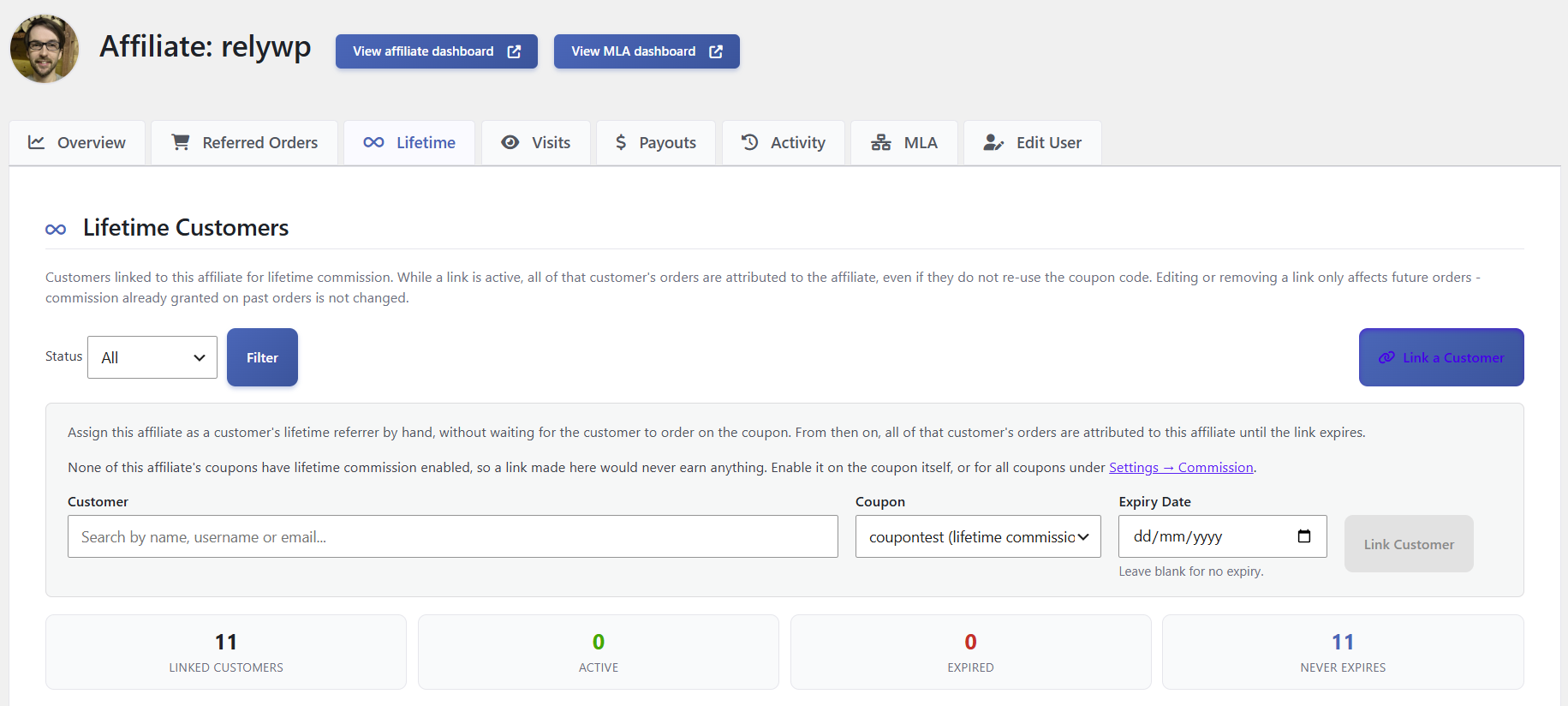
You can filter the list by status. The tab also shows how many customers are linked, active, expired, or never expire. You can edit the linked coupon and expiry date on an existing row.
From version 8.6.0, an expiry date you set by hand here (or on the user profile) is kept when the customer uses the coupon again, rather than being replaced by a new date from the expiry period. See (PRO) Lifetime Commission for how expiry dates work.
If none of the affiliate’s coupons have lifetime commission enabled, you will see a notice that a link made here would never earn anything. Enable it on the coupon itself, or for all coupons under Settings → Commission.
From the customer’s WordPress user profile
Alternatively, go to the Users list in the admin area, edit the user profile for the customer, and open the Coupon Affiliates – Lifetime Affiliate Settings section. Enter the coupon code for the affiliate.
