
How to migrate from other affiliate plugins (Migration Tool)
Updated October 23, 2026
The Migration Tool (Beta) moves your affiliate program over to Coupon Affiliates from another affiliate plugin. It brings across your affiliates, their coupons and their referral history, and it keeps the referral links your affiliates have already shared working. It is included in the free version, and PRO adds balances, payouts and more.
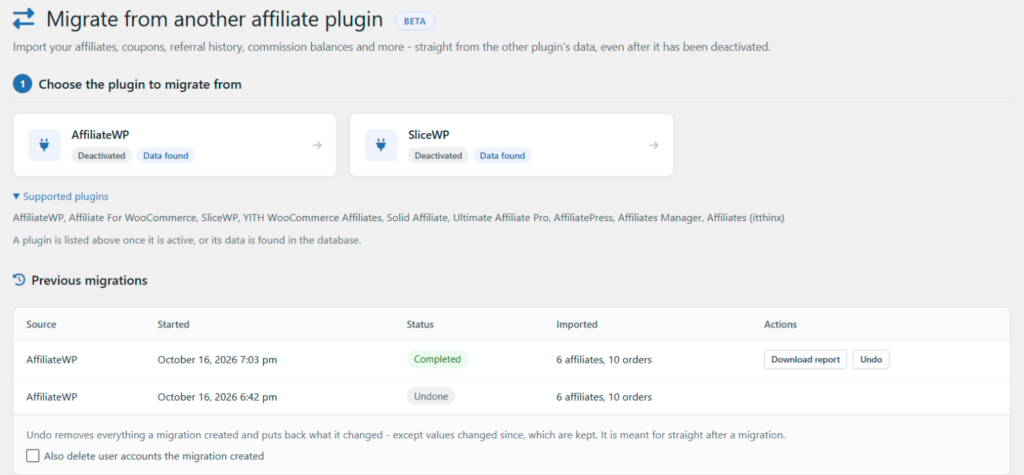
Supported plugins
- AffiliateWP
- Affiliate For WooCommerce
- SliceWP
- YITH WooCommerce Affiliates
- Solid Affiliate
- Ultimate Affiliate Pro
- Affiliates (itthinx)
- AffiliatePress
- Affiliates Manager
The tool reads the other plugin’s data straight from the database, so it still works after you have deactivated that plugin. A plugin is shown as a card at the top of the Migration page once it is active, or once its data is found in the database.
Where to find it
Go to Coupon Affiliates > Admin Tools and click Migrate from Another Plugin. While another affiliate plugin (or its data) is found on your site, a Migration item is also shown in the Coupon Affiliates admin menu, just above “Admin Tools”.
Only administrators can use the Migration page, since it changes affiliates, balances and settings.
What is migrated
In the free version:
- Affiliates, and their WordPress user accounts.
- Their coupons. Coupon Affiliates tracks each affiliate through a coupon, so the coupons they already have are assigned to them, and a new one is created for anyone without one.
- Pending and rejected affiliate applications, added to the Registrations screen.
- Referral history: each past referred order is linked to the affiliate, with the commission the old plugin recorded, so it shows in their statistics.
- Referral visits (clicks).
- Your main program settings: the default commission rate, the referral cookie length, and first- or last-click attribution.
With PRO, it also migrates:
- Unpaid and pending commission balances.
- Payout history, and each affiliate’s payout details (their PayPal or payment email, plus their payout method and bank details where the old plugin keeps them).
- Custom commission rates per affiliate, copied onto each of their coupons.
- Affiliate groups, with their commission rates.
- Creatives (banners). Text-only creatives are skipped.
- Products with commission switched off.
- Store credit balances.
- Campaigns, created from the campaign names on visits.
Not every plugin stores all of these, so the options you see depend on the plugin you are migrating from. Anything the tool can’t bring across is listed under “Not migrated from…” on the review step, so you know what to set up again yourself.
Running a migration
1. Choose the plugin to migrate from
Click the card for the plugin you are moving from.
2. Review what will be migrated
The tool counts what it found: affiliates, linked coupons, referrals, payouts, visits, creatives and groups. Below that, it lists what will not be migrated from that plugin. Nothing has been changed at this point.
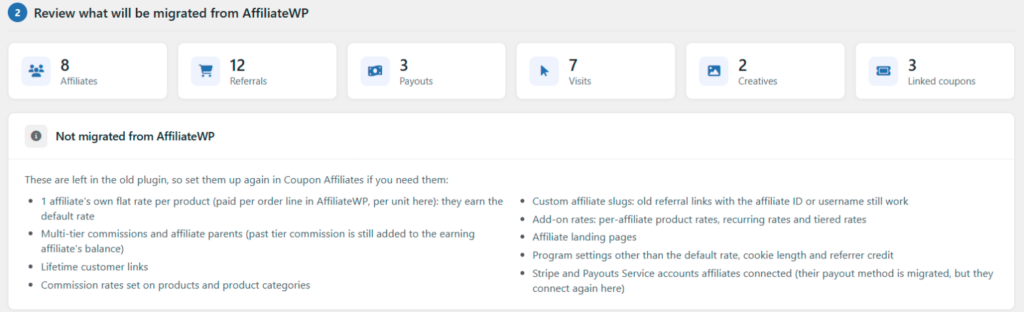
Some of the supported plugins are premium plugins whose code is not public. For these, the review step tells you the importer was built from that plugin’s documentation, so check the results carefully afterwards.
3. Choose how to migrate
Under What to migrate, tick the kinds of data to bring across. “Affiliates and their coupons” is always included, since every other kind of data belongs to an affiliate.
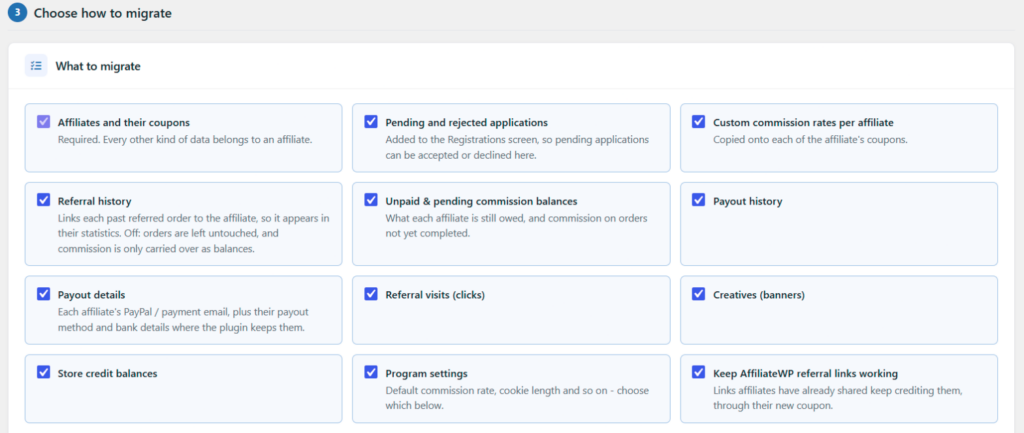
The other sections let you choose how each part is handled:
- Affiliates: what to do with inactive, blocked or banned affiliates (import them suspended, which is the default, import them as active, or skip them), and with affiliates who have no WordPress user account (create one for them, with no email sent, or skip them). An existing user with the same email address is always used first. You can also give imported affiliates your affiliate user role, and add an accepted registration for each one, which keeps their original sign-up date, website and application answers.
- Coupons: whether to assign the coupons affiliates already have and create one for anyone without, create a new coupon for every affiliate, or only assign existing coupons (affiliates with none are skipped). New coupon codes use the “Code for new coupons” format,
{username}by default, with tags such as{first_name}and{random}. New coupons can copy their settings from a template coupon, or use a discount type and amount you enter (0 means the coupon only tracks the referral). If a code is already taken, the tool can use that coupon if nobody owns it yet, or add a number to the code. - Referral history & commission: only import referrals from a certain date, and choose what to do with commission the old plugin was still holding for approval on orders that have since completed (treat it as owed, or don’t import it).
- Balances & payouts (PRO): record paid commission that has no payout record as a historical payout, so each affiliate’s paid total matches the old plugin.
- Referral visits: only import visits from a certain date, or only visits that led to an order. Visit tables can be very large.
- Program settings: choose which of the commission rate, cookie length and attribution settings to copy.
- Old referral links: see below.
- Advanced: “Records per batch” (100 by default). Lower it if the migration times out on your server.
Some plugins also have a few options of their own, under “Source-specific options”.
4. Start the migration
Before you can start, tick the two confirmations: that you have a recent backup of your database, and that you have tested the migration on a staging site first (or are happy to continue without testing it). Then click Start migrating from….
Keep the page open while it runs. If it is closed, open the Migration page again to carry on from where it stopped. You can also click Stop: whatever has been imported so far stays, and can be undone.
After migrating: check the results
When the migration finishes, a “Now check the results” list shows what to look at. Every store is different, so check these yourself before relying on the migrated data:
- Open a few affiliates and compare them with the old plugin: their coupon, user role and payout details, and that their affiliate dashboard shows what you expect.
- Compare their unpaid and pending commission, and a few of their referred orders.
- Check the payout history, and accept or decline any pending applications. If payouts or registrations are turned off in the settings, turn them on to see what was imported.
- Review the commission rate, cookie length and click attribution settings.
- Visit one of your affiliates’ old referral links, and place a test order with an affiliate’s coupon (or through their referral link), to check the commission is recorded for them.
- Download the report under “Previous migrations” to review every affiliate that was imported.
Once you are happy, deactivate the old plugin so new sales are not tracked in both plugins. Keep it installed until you have checked everything, as some plugins delete their data when they are deleted.
Old referral links keep working
With Keep [plugin] referral links working ticked, links your affiliates have already shared from the old plugin (such as ?ref=123 or /ref/jane/) keep crediting the right affiliate, through their new coupon. Your affiliates don’t need to replace every link they have posted.
Keep crediting visitors with a [plugin] referral cookie for (days) controls how long a visitor who arrived with the old plugin’s referral cookie is still credited to that affiliate, so people referred shortly before the switch still earn the affiliate their commission. The default is 60 days, and 0 turns it off.
Undoing a migration
The old plugin’s data is never changed. Every migration is listed under Previous migrations, with what it imported, a Download report link and an Undo button.
Undo removes everything the migration created, and puts back what it changed. A value that has been changed since the migration is kept, so Undo works best straight after migrating, before new orders come in. When you undo, you can also choose to delete the user accounts the migration created. If you have run more than one migration, undo the later one first.
Before you start
- Back up your database. Every migration can be undone, but a backup is the safest way back.
- Test on a staging site first (a copy of your site), and check the results there before migrating your live site. We recommend this especially while the tool is in beta.
- Leave the old plugin installed until you have checked the results.
Running a migration with WP-CLI
On large sites, you can run the migration from the command line, so you don’t need to keep a browser tab open:
wp wcusage-migrate list
wp wcusage-migrate preview <source>
wp wcusage-migrate run <source> [--<option>=<value>...] [--yes]
wp wcusage-migrate resume
wp wcusage-migrate undo <run-id> [--delete-users] [--yes]
list shows the plugins you can migrate from and your past runs. preview shows what would be migrated from a plugin, and the options available for run.
Already using WooCommerce coupons?
Coupon Affiliates looks back at the full order history for each coupon, including orders placed before you installed it. So if your old plugin already tracked affiliates through WooCommerce coupons and you don’t need the rest of its data, you can also assign your affiliate users to their coupons yourself, and their past stats will show on their dashboard.
Still deciding whether to switch? See Coupon Affiliates vs AffiliateWP for the main differences. If you run into a problem with a migration, please contact us.